16
Playing a CD (continued)
To Do this
Stop play Press p.
Pause Press ·∏ (or CD P on the
remote). Press again to resume
play.
Select a track Turn SELECTOR clockwise (to
go forward) or counter-
clockwise (to go back) and
release it when you locate the
desired track (or press CD +
or = on the remote).
While “ALL DISCS” is selected,
turn and hold SELECTOR to
locate other discs and select
tracks.
Find a point in Press 0 or ) during play
a track and release it at the desired
point.
“—OVER—” appears at the end
of the CD.
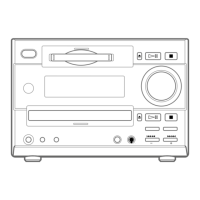
Select a CD • Press CD 1 – 3. Play starts
when the button is pressed.
• Press DISC SKIP (or
CD D.SKIP on the remote)
repeatedly so that the
CD1–3 button is lit green.
Press ·∏ (or CD · on the
remote) to play the selected
CD.
If you press DISC SKIP (or CD
D.SKIP on the remote) during
play, the selected CD changes
and the new CD is played.
Remove a CD Press § of the desired CD1–3.
Adjust the Turn VOLUME (or press VOL
volume
or on the remote).
Tips
• You can switch from another source to the CD
player and start playing a CD just by pressing
·∏ (or CD · on the remote) or the CD1–3
buttons if a CD is loaded on the tray (Automatic
Source Selection).
• You can also select and start playing a track in
step 4.
1Press DISC SKIP (or CD D.SKIP on the remote)
and select the desired CD.
2Turn SELECTOR (or press CD = or + on
the remote) until the desired track number
appears.
3Press ·∏ (or CD · on the remote).
• The CD 1 – 3 button indicators have the following
meanings when lit:
Green: The disc tray is selected or the CD loaded
on the tray is playing.
Orange: A CD is loaded on the tray.
• When a CD is loaded on the tray, the CD 1 – 3
indicator for the tray is lit orange.
• If a CD is not loaded to any of CD 1 – 3, “NO
DISC” appears.
Note
Do not forcibly press the disc tray closed with your
finger, as this may cause CD player trouble. Always
close the tray by pressing the § button for the tray.



 To Next Page