3-13 (E)
HDC-P1
A
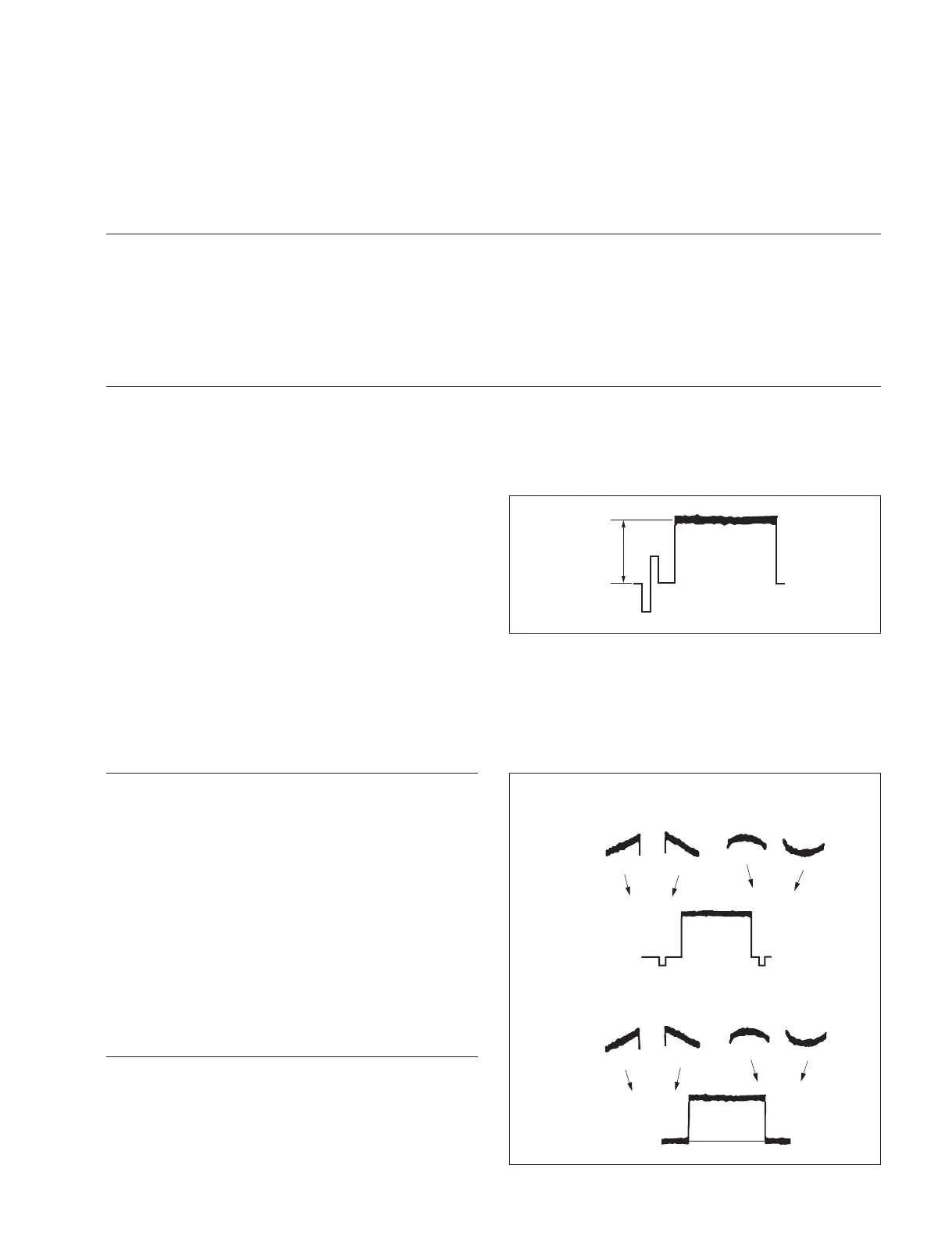
(H SAW) (H PARA)
(V SAW) (V PARA)
H: LINE
V: FIELD
3-3-5. White Shading Adjustment
Equipment: Waveform monitor (R, G, B)
Test Point: SDI 1 and SDI 2 connectors
Object: Full-white pattern
Note
When performing the white shading adjustment, make sure that the following conditions are proper. If not, proper adjust-
ment cannot be obtained.
. White pattern is not uneven.
. Luminance is correctly adjusted.
. Iris and zoom control of the lens are correctly adjusted.
Preparations
. Setting for MSU-900
KNEE OFF button→ OFF (lit)
. Shoot the full-white pattern so that it is aligned with the
underscanned monitor frame.
. Iris of the lens: A = 600 ?20 mV (F4 to F5.6)
(If the lens aperture is greater than F5.6,
adjust the light amount with the shutter.)
. Lens focus: %
. Lens extender: x 2 → OFF
. Lens shrinker: x 0.8 → OFF
. Selection of lens fi le
(1) Open the following menu.
MENU: OPERATION
PAGE: LENS FILE
ITEM: FILE
(2) Select the fi le in accordance with the lens attached. If
there is no appropriate fi le, select NO OFFSET, then
change the name of lens with MSU-900.
Adjustment Procedure
1. Perform the automatic white balance adjustment.
WHITE button/MSU-900 → ON (lit)
2. If the shading is monitored, adjust it as follows.
MSU menu operation:
. MAINTENANCE button→ ON (lit)
. Touch panel operation
[Adjusting|1/2] → [White|Shading] → [R]
Adjustment items: H Saw, H Para, V Saw, V Para
3. Adjust for G-ch in the same manner.
4. Adjust for B-ch in the same manner.
5. Perform the automatic white balance adjustment.
WHITE button/MSU-900 → ON (lit)
OHB File Store
MSU menu operation:
. FILE button → ON (lit)
. Touch panel operation
[OHB|File] → [OHB|Store] → [Store]


 To Next Page