1-10
42
To search for a scene using the time
code (TIME SEARCH) (DVD only)
1 In Step 2, select (TIME/
TEXT).
“T
**
:
**
:
**
” (playing time of the current
title) is selected.
2 Press ENTER.
“T
**
:
**
:
**
” changes to “T --:--:--.”
3 Input the time code using the number
buttons, then press ENTER.
For example, to find the scene at 2 hours,
10 minutes, and 20 seconds after the
beginning, just enter “2:10:20.”
z
Yo u can display the first scene of titles, chapters or
tracks recorded on the disc on a screen divided into 9
scenes. You can start playback directly by selecting
one of the scenes. For details, see page 42.
Note
The title, chapter or track number displayed is the
same number recorded on the disc.
Searching by Using the
Scenes
(VIEWER)
You can divide the screen into 9 sub-screens
and find the desired scene quickly.
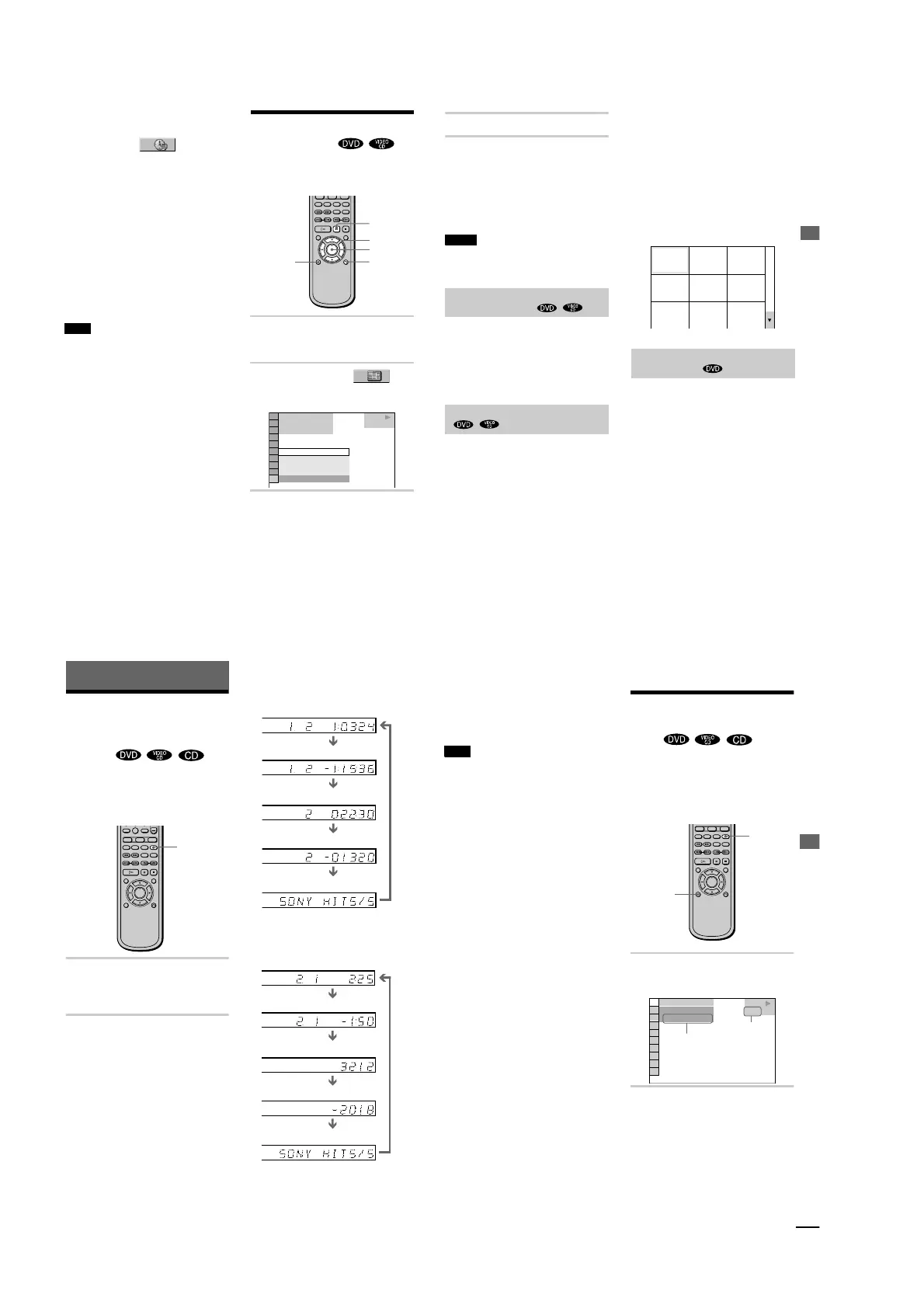
1
Press DISPLAY twice during
playback.
The Control Menu appears.
2
Press X/x to select
(VIEWER), then press ENTER.
The options for VIEWER appear.
3
Press X/x to select the item.
Refer to the explanations given for each
items in the following sections.
• STROBE PLAYBACK
• TITLE VIEWER (for DVD only)
• CHAPTER VIEWER (for DVD only)
• TRACK VIEWER (for VIDEO CD
only)
• ANGLE VIEWER (for DVD only)
ENTER
C/X/x/c
O RETURN
DISPLAY
X
1 8
(
3 4
)
1 2
( 2 7 )
T
1 : 3 2 : 5 5
DVD
STROBE PLAYBACK
ANGLE VIEWER
CHAPTER VIEWER
TITLE VIEWER
STROBE PLAYBACK
PLAY
Searching for a Scene
43
4
Press ENTER.
To return to the normal play
Press O RETURN.
To turn off the Control Menu
Press DISPLAY repeatedly until the Control
Menu is turned off.
Notes
• Depending on the disc, you may not be able to select
all functions.
• The sound is muted when using this function.
You can display 9 consecutive moving
pictures on the screen. When you press X,
the moving pictures pause.
Select “STROBE PLAYBACK” in Step 3,
then press ENTER in Step 4.
You can divide the screen into 9 subscreens
and display the first scene of titles, chapters
or tracks. You can also play back from the
selected title, chapter or track.
Select the item you want in Step 3, then press
ENTER in Step 4.
xWhen playing a DVD
Select “
TITLE VIEWER” or
“
CHAPTER
VIEWER”.
xWhen playing a VIDEO CD
Select “
TRACK VIEWER”.
The initial scenes of titles, chapters or tracks
appear.
To start playback from the selected
scene
Select the scene using C/X/x/c and press
ENTER. The playback starts from the
selected scene.
z
If there are more than 9 titles, chapters or tracks, V
is displayed at the right bottom.
To display the additional titles, chapters or tracks,
select the right bottom scene (the position 9) and press
x
. To return to the previous scene, select the left top
scene (the position 1) and press
X
.
If various angles (multi-angles) for a scene
are recorded on the DVD, you can display all
of the angles recorded on the disc on the same
screen, and start playback in continuous
mode at the chosen angle. The angles are
displayed on a screen divided in 9 sections.
Select “ANGLE VIEWER” in Step 3, then
press ENTER in Step 4.
To return to the normal play
Press O RETURN.
Dividing a track into 9 sections
(STROBE PLAYBACK)
Scanning the title, chapter or track
Displaying different angl
es
simultaneously
1
4
7
2
5
8
3
6
9
44
Viewing Information About the Disc
Viewing the Playing Time
and Remaining Time on
the Front Panel
Display
You can check information about the disc,
such as the remaining time, total number of
titles of a DVD, or tracks of a CD or VIDEO
CD, using the front panel display (page 9).
Press TIME/TEXT.
Each time you press TIME/TEXT while
playing the disc, the display changes as
shown in the following chart.
When playing a DVD
When playing a VIDEO CD (without
PBC functions) or CD
z
When playing VIDEO CDs with PBC functions,
the scene number and the playing time are displayed.
0
TIME/TEXT
CHAP HOUR MIN
SEC
TITLE CHAP HOUR MIN
SEC
TITLE CHAP HOUR MIN
SEC
CHAP HOUR MIN
SEC
Playing time and number of the current title
Remaining time of the current title
Playing time and number of
the current
chapter
Remaining time of the current chapter
Te x t
TRACK INDEX MIN
SEC
MIN
SEC
MIN
SEC
TRACK INDEX MIN
SEC
Playing time and cu
rrent track number
Remaining time of the current track
Remaining time of the disc
ext
Playing time of the
disc
Viewing Information About the Disc
45
z
The playing time and remaining time of the current
chapter, title, track, scene, or disc will also appear on
your TV screen. See the following section “Checking
the Playing Time and Remaining Time” for
instructions on how to read this information.
Note
Depending on the type of disc being played and the
playing mode, the above mentioned disc information
may not be displayed.
Checking the Playing
Time and Remaining
Time
You can check the playing time and
remaining time of the current title, chapter, or
track, and the total playing time or remaining
time of the disc. Also, you can check the
DVD/CD text recorded on the disc.
1 Press DISPLAY during playback.
The Control Menu appears.
2 Press TIME/TEXT repeatedly to
change the time information.
The display and the kinds of time that
you can change depend on the disc you
are playing.
0
TIME/TEXT
DISPLAY
1 8
(
3 4
)
1 2
(
2 7
)
T
1 : 3 2 : 5 5
DVD
PLAY
Disc Type
Time information
continued



 To Next Page