1-11
46
xWhen playing a DVD
• T
**
:
**
:
**
Playing time of the current title
• T–
**
:
**
:
**
Remaining time of the current title
• C
**
:
**
:
**
Playing time of the current chapter
• C–
**
:
**
:
**
Remaining time of the current chapter
xWhen playing a VIDEO CD (with
PBC functions)
•
**
:
**
Playing time of the current scene
xWhen playing a VIDEO CD
(without PBC functions) or CD
• T
**
:
**
Playing time of the current track
• T–
**
:
**
Remaining time of the current track
• D
**
:
**
Playing time of the current disc
• D–
**
:
*
Remaining time of the current disc
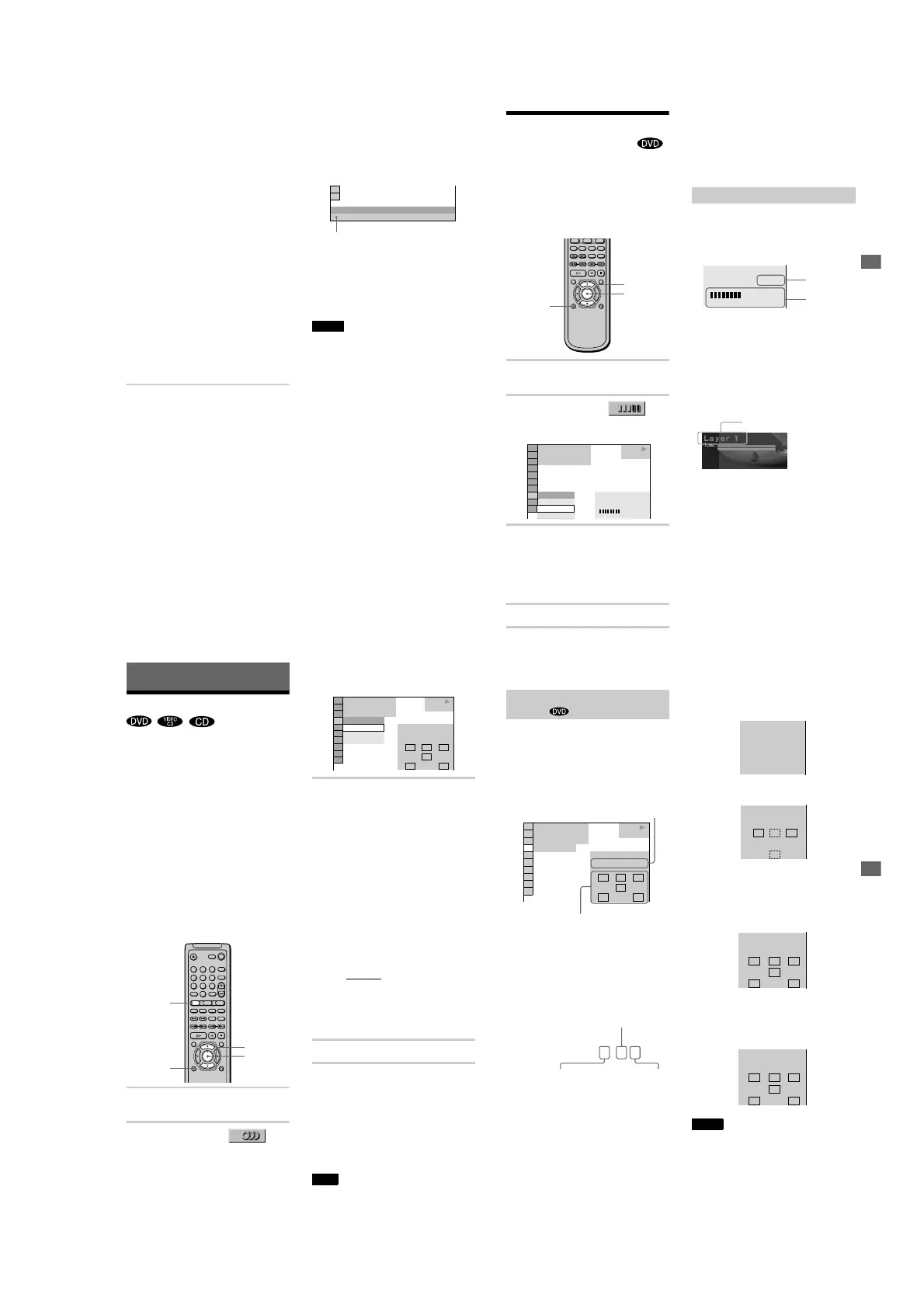
To turn off the Control Menu
Press DISPLAY repeatedly until the Control
Menu is turned off.
Checking the DVD/CD text
Press TIME/TEXT repeatedly in Step 3 to
display the text recorded on the DVD/CD.
The DVD/CD text appears only when the text
is recorded in the disc. You can not change
the text.
z
If the DVD/CD text does not fit on a single line,
you can see the entire text by watching it scroll across
the front display.
z You can select the time and text by pressing
TIME/TEXT.
Notes
• Only letters of the alphabet can be displayed.
• This player can only display the first level of DVD/
CD text, such as the disc name or title.
TIME/TEXT
BRAHMS SYMPHONY NO – 4
DVD/CD te
xt
Viewing Information About the Disc
47
Checking the Play
Information
(ADVANCED)
You can check information such as the bit
rate or the disc layer that is being played.
While playing a disc, an approximate bit rate
of the playback picture is always displayed as
Mbps (Mega bit per second) and the audio as
kbps (kilo bit per second).
1
Press DISPLAY during playback.
The Control Menu is displayed.
2
Press X/x to select
(ADVANCED), then press ENTER.
The options for ADVANCED appear.
3
Press X/x to select items.
For each item, please refer to “Displays
of each item.”
• BIT RATE: displays the bit rate.
• LAYER: displays the layer and the
pick-up point.
4
Press ENTER.
To close the ADVANCED window
Select “OFF” in Step 3.
To turn off the Control Menu
Press DISPLAY repeatedly until the Control
Menu is turned off.
By pressing DISPLAY repeatedly, you can
display either “BIT RATE” or “LAYER,”
whichever was selected in “ADVANCED. ”
BIT RATE
Bit rate refers to the amount of video/audio
data per second in a disc. The higher the bit
rate, the larger the amount of data. When the
bit rate level is high, there is a large amount
of data. However, this does not always mean
that you can get higher quality pictures or
sounds.
LAYER
Indicates the approximate point where the
disc is playing.
If it is a dual-layer DVD, the player indicates
which layer is being read (“Layer 0” or
“Layer 1”).
For details on the layers, see page 79 (DVD).
ENTER
X/x
DISPLAY
1 8
(
3 4
)
1 2
(
2 7
)
T
1 : 3 2 : 5 5
BIT RATE
DVD
BIT RATE
05
10
kbps
Mbps
384
PLAY
OFF
LAYER
BIT RATE
Displays of each item
BIT RATE
05
10
kbps
Mbps
384
Audio
Video
A
ppears when the DVD
ha
s dual layer
s
48
Sound Adjustments
Changing the Sound
If the DVD is recorded with multilingual
tracks, you can select the language you want
while playing the DVD.
If the DVD is recorded in multiple audio
formats (PCM, Dolby Digital, or DTS), you
can select the audio format you want while
playing the DVD.
With stereo CDs or VIDEO CDs, you can
select the sound from the right or left channel
and listen to the sound of the selected channel
through both the right and left speakers. (In this
case, the sound loses its stereo effect.) For
example, when playing a disc containing a song
with the vocals on the right channel and the
instruments on the left channel, you can select
the left channel and hear the instruments from
both speakers.
1
Press DISPLAY during playback.
The Control Menu is displayed.
2
Press X/x to select
(AUDIO), then ENTER.
The options for AUDIO appear.
3
Press X/x to select the desired
audio signal.
xWhen playing a DVD
Depending on the DVD, the choice of
language varies.
When 4 digits are displayed, they
represent the language code. Refer to
the language code list on page 82 to see
which language the code represents.
When the same language is displayed
two or more times, the DVD is recorded
in multiple audio formats.
xWhen playing a VIDEO CD or
CD
The default setting is underlined.
• STEREO
: The standard stereo
sound
• 1/L: The sound of the left channel
(monaural)
• 2/R: The sound of the right channel
(monaural)
4
Press ENTER.
To turn off the Control Menu
Press DISPLAY repeatedly until the Control
Menu is turned off.
z
You can select AUDIO directly by pressing
AUDIO. Each time you press the button, the item
changes. During playing back a DVD, the sound may
change automatically.
Note
For discs not in multiple audio format, you cannot
change the sound.
123
456
78
0
9
ENTER
X/x
AUDIO
DISPLAY
DVD
2: ENGLISH
3: FRENCH
1: ENGLISH
1 8
(
3 4
)
1 2
(
2 7
)
T
1 : 3 2 : 5 5
LRC
DOLBY DIGITAL 3/2.1
PROGRAM FORMAT
LFE
LS RS
1: ENGLISH
PLAY
Sound Adjustments
49
When you select “AUDIO,” the channels
being played are displayed on the screen.
For example, in Dolby Digital format,
multiple signals ranging from monaural to
5.1 channel signals can be recorded on a
DVD. Depending on the DVD, the number of
the recorded channels may differ.
*“PCM,” “DTS,” “DOLBY DIGITAL” is
displayed.
In case of “DOLBY DIGITAL,” the
channels in the playing track are displayed
by numbers as follows:
For Dolby Digital 5.1 ch:
**The letters in the program format display
mean the following sound component:
L: Front (left)
R : Front (right)
C : Center
LS : Rear (left)
RS : Rear (right)
S : Rear (monaural): The rear
component of the Dolby Surround
processed signal or the Dolby
Digital signal.
LFE :LFE (Low Frequency Effect)
The display examples are as follows:
• PCM (stereo)
• Dolby Surround
• Dolby Digital 5.1ch
When an LFE signal component is output,
“LFE” is enclosed in a solid line. When an
LFE signal component is not output, “LFE”
is enclosed in a broken line.
• DTS
“LFE” is always enclosed in a solid line
regardless of the LFE signal component
being output.
Notes
•
When the signal contains rear signal components
such as LS, RS or S, the Surround effect is enhanced
(page 50).
•
If “DTS” is set to “OFF” in “AUDIO SETUP (page
71),” the DTS track selection option will not appear
on the screen even if the disc contains DTS tracks.
Displaying the audio information of
the disc
DVD
1: ENGLISH
1 8
(
3 4
)
1 2
(
2 7
)
T
1 : 3 2 : 5 5
LRC
DOLBY DIGITAL 3/2.1
PROGRAM FORMAT
LFE
LS RS
PLAY
Current audio format*
Current playing program format**
DOLBY DIGITAL
3 / 2
.
1
LFE (Low Frequency
Effect) component 1
Rear
component 2
Front component 2 +
Center component 1
PCM 48kHz 24bit
PROGRAM FORMAT
DOLBY SURROUND
DOLBY DIGITAL 2/0
L RC
S
PROGRAM FORMAT
LRC
DOLBY DIGITAL 3/2.1
PROGRAM FORMAT
LFE
LS RS
LRC
DTS 3/2.1
PROGRAM FORMAT
LFE
LS RS



 To Next Page