1-16
66
To turn off the Setup Display
Press DISPLAY repeatedly until the Setup
Display is turned off.
z
If you select “QUICK” in Step 3, you will enter the
Quick Setup mode (page 25). Follow from Step 5 of
the Quick Setup explanation to make basic
adjustments.
z If you select “RESET” in Step 3, you can reset all
of the “SETUP” settings on page 83 to 85 (except for
PARENTAL CONTROL) to the default settings.
After you select “RESET” and press ENTER, select
“YES” to reset the settings (it takes a few seconds to
complete), or select “NO” and press ENTER to return
to the Control Menu. Do not press POWER or [/1
when resetting the player.
Setting the Display or
Sound Track Language
(LANGUAGE SETUP)
“LANGUAGE SETUP” allows you to set
various languages for the on-screen display
or sound track.
Select “LANGUAGE SETUP” in the Setup
Display. For details on using the display, see
“Using the Setup Display” (page 65).
xOSD (On-Screen Display)
Switches the display language on the screen.
Selects the language from the displayed list.
xDVD MENU (DVD only)
You can select the desired language for the
DVD menu.
xAUDIO (DVD only)
Switches the language of the sound track.
Selects the language from the displayed list.
When you select “ORIGINAL,” the language
given priority in the disc is selected.
xSUBTITLE (DVD only)
Switch the language of the subtitle.
Select the language from the displayed list.
When you select “AUDIO FOLLOW,” the
language for the subtitles changes according
to the language you selected for the sound
track.
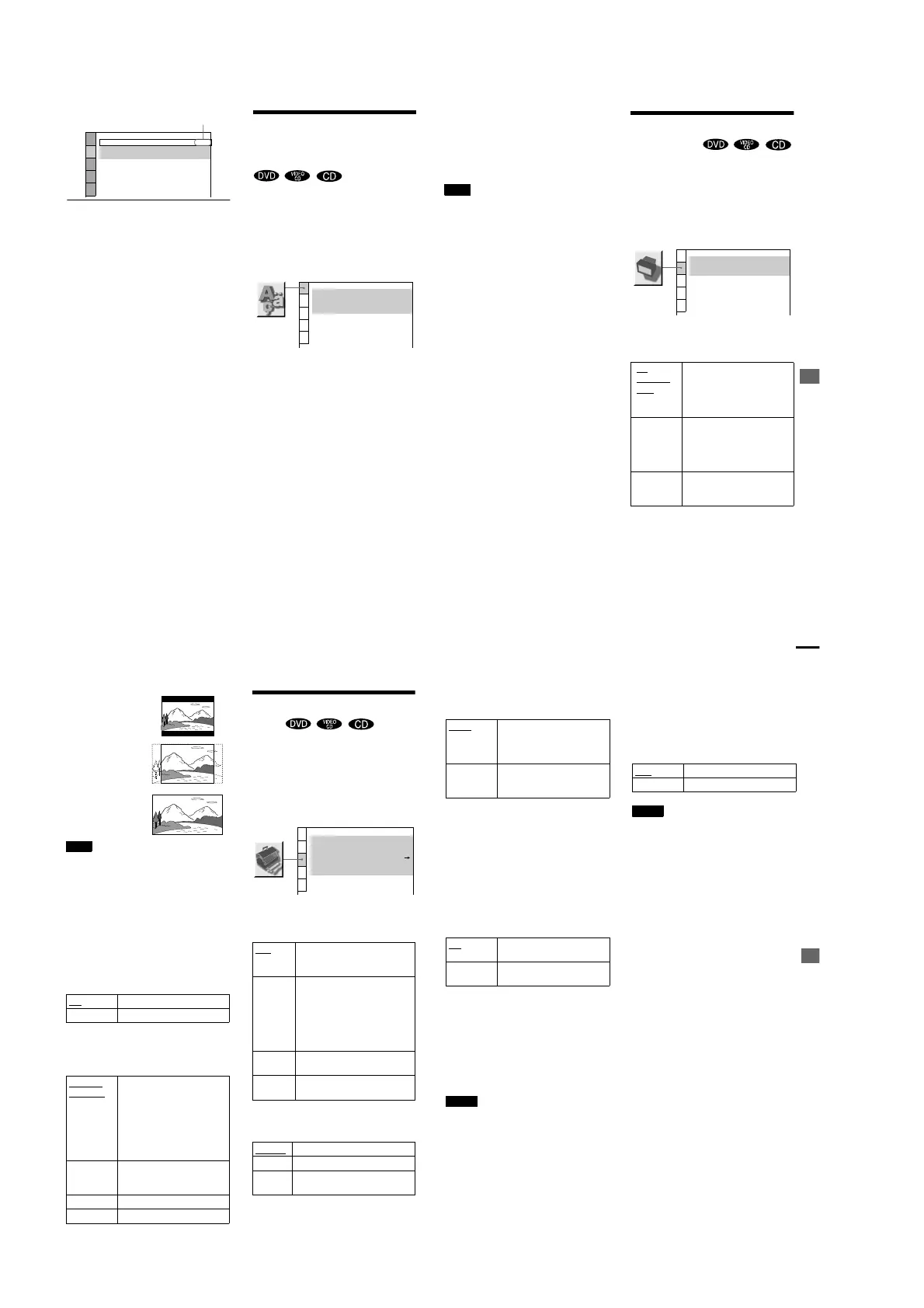
SCREEN SETUP
TV TYPE:
SCREEN SAVER
:
BACKGROUND:
16:9
ON
JACKETPICTURE
Selected se
tting
LANGUAGE SETUP
OSD:
DVD MENU:
AUDIO:
SUBTITLE:
ENGLISH
ENGLISH
ORIGINAL
ENGLISH
Settings and Adjustments
67
z
If you select “OTHERS t” in “DVD MENU,”
“SUBTITLE,” and “AUDIO,” select and enter the
language code from the list using the number buttons
(page 82).
After you have made a selection, the language code (4
digits) is displayed the next time you select “OTHERS
t.”
Note
When you select a language that is not recorded on the
DVD, one of the recorded languages will be
automatically selected (except for the “OSD”).
Settings for the Display
(SCREEN SETUP)
Choose settings according to the TV to be
connected.
Select “SCREEN SETUP” in the Setup
Display. For details on using the display, see
“Using the Setup Display” (page 65).
The default settings are underlined.
xTV TYPE (DVD only)
Selects the aspect ratio of the connected TV
(4:3 standard or wide).
4:3
LETTER
BOX
Select this when you connect a
4:3 screen TV. Displays a wide
picture with bands on the upper
and lower portions of the
screen.
4:3
PA N
SCAN
S
elect this when you connect a
4:3 screen TV. Automatically
displays the wide picture on
the entire screen and cuts off
the portions that do not fit.
16:9 Select this when you connect a
wide-screen TV or a TV with a
wide mode function.
SCREEN SETUP
TV TYPE:
SCREEN SAVER:
BACKGROUND:
4:3 LETTER BOX
ON
JACKET PICTURE
continued
68
Note
Depending on the DVD, “4:3 LETTER BOX” may be
selected automatically instead of “4:3 PAN SCAN” or
vice versa.
xSCREEN SAVER
Turns on and off the screen saver so that the
screen saver image appears when you leave
the player in pause or stop mode for 15
minutes, or when you play back a CD for
more than 15 minutes. The screen saver will
help prevent your display device from
becoming damaged (ghosting). Press H to
turn off the screen saver.
xBACKGROUND
Selects the background color or picture on the
TV screen in stop mode or while playin
g a CD.
Custom Settings
(CUSTOM
SETUP)
Allows setting up Parental Control and other
settings.
Select “CUSTOM SETUP” in the Setup
Display. For details on using the display, see
“Using the Setup Display” (page 65).
The default settings are underlined.
xAUTO PLAY
Selects the Auto Play setting when you turn
on the player.
xDIMMER
Adjusts the lighting of the front panel display.
ON Turns on the screen saver.
OFF Turns off the screen saver.
JACKET
PICTURE
The jacket picture (still picture)
appears in the background, but
only when the jacket picture is
already recorded on the disc
(CD-EXTRA etc.). If the disc
does not contain a jacket picture,
the “GRAPHICS” picture
appears.
GRAPHICS A preset picture stored in the
player appears in the
background.
BLUE The background color is blue.
BLACK The background color is black.
16:9
4:3 LETTER BOX
4:3 PAN SCAN
OFF Does not use “TIMER,”
“DEMO1,” or “DEMO2” to start
playback.
TIMER Starts playing when the player is
turned on. The player can be played
at any time when connected to a
timer (not supplied). Set the timer
when the player is in standby mode
(the power indicator lights up in
red).
DEMO1 S
tarts playing the first
demonstration automatically.
DEMO2 Starts playing the second
demonstration automatically.
BRIGHT
Makes the front panel display bright.
DARK Makes the front panel display dark.
OFF Turns off the lighting of the front
panel display.
CUSTOM SETUP
AUTO PLAY:
DIMMER:
PAUSE MODE:
OFF
BRIGHT
AUTO
TRACK SELECTION:
OFF
ON
PARENTAL CONTROL
PLAYBACK MEMORY:
Settings and Adjustments
69
xPAUSE MODE (DVD only)
Selects the picture in pause mode.
x
PARENTAL CONTROL
t
(DVD only)
Set a password and playback limitation level
for DVDs with playback limitation for
children. For details, see “Limiting playback
by children (Parental Control)” (page 59).
xPLAYBACK MEMORY
The player can store the SUBTITLE and
other settings of each disc for up to 50 discs
(Playback Memory).
Set the Playback Memory function on or off.
The following settings are stored in memory
by the Playback Memory function.
— AUDIO (page 48)*
— BNR (page 56)
— DIGITAL VIDEO ENHANCER (page 57)
— SUBTITLE (page 55)*
— SURROUND (page 50)
∗
DVD only
Notes
•
The player can store the settings of up to 50 discs.
When you store the setting of disc number 51, the
first disc setting is canceled.
•
Depending on the DVD, the information stored in
the disc takes priority over the Playback Memory
settings and the function does not work.
•
During playback, do not turn off the player by
pressing POWER on the player. Doing so may
cancel the settings. When you turn off the player,
press x first to stop playback and then press [/1 on
the remote. After t
he power indicator lights up in red
and the player enters standby mode, press POWER
on the player.
xTRACK SELECTION (DVD only)
Gives the sound track which contains the
highest number of channels priority when
you play a DVD on which multiple audio
formats (PCM, DTS, or Dolby Digital
format) are recorded.
Notes
•
When you set the item to “AUTO,” the language
may change. The “TRACK SELECTION” setting
has higher priority than the “AUDIO” settings in
“LANGUAGE SETUP” (page 66).
•
If you set “DTS” to “OFF” (page 71), the DTS sound
track is not played even if you set “TRACK
SELECTION” to “AUTO”.
•
If PCM, DTS and Dolby Digital sound tracks have
the same number of channels, the player selects
PCM, DTS and Dolby Digital sound tracks in this
order.
•
Depending on the DVD, the audio channel with
priority may be predetermined. In this case, you
cannot give priority to the DTS, Dolby Digital, or
format by selecting “AUTO.”
AUTO The picture, including subjects
that move dynamically, is output
with no jitter. Normally select
this position.
FRAME The picture, including subjects
that do not move dynamically, is
output in high resolution.
ON
Stores the settings in memory
when you eject the disc.
OFF Does not store the settings in
memory.
OFF No priority given.
AUTO Priority give
n.



 To Next Page