IP Video Intercom Paging Console User Manual
33
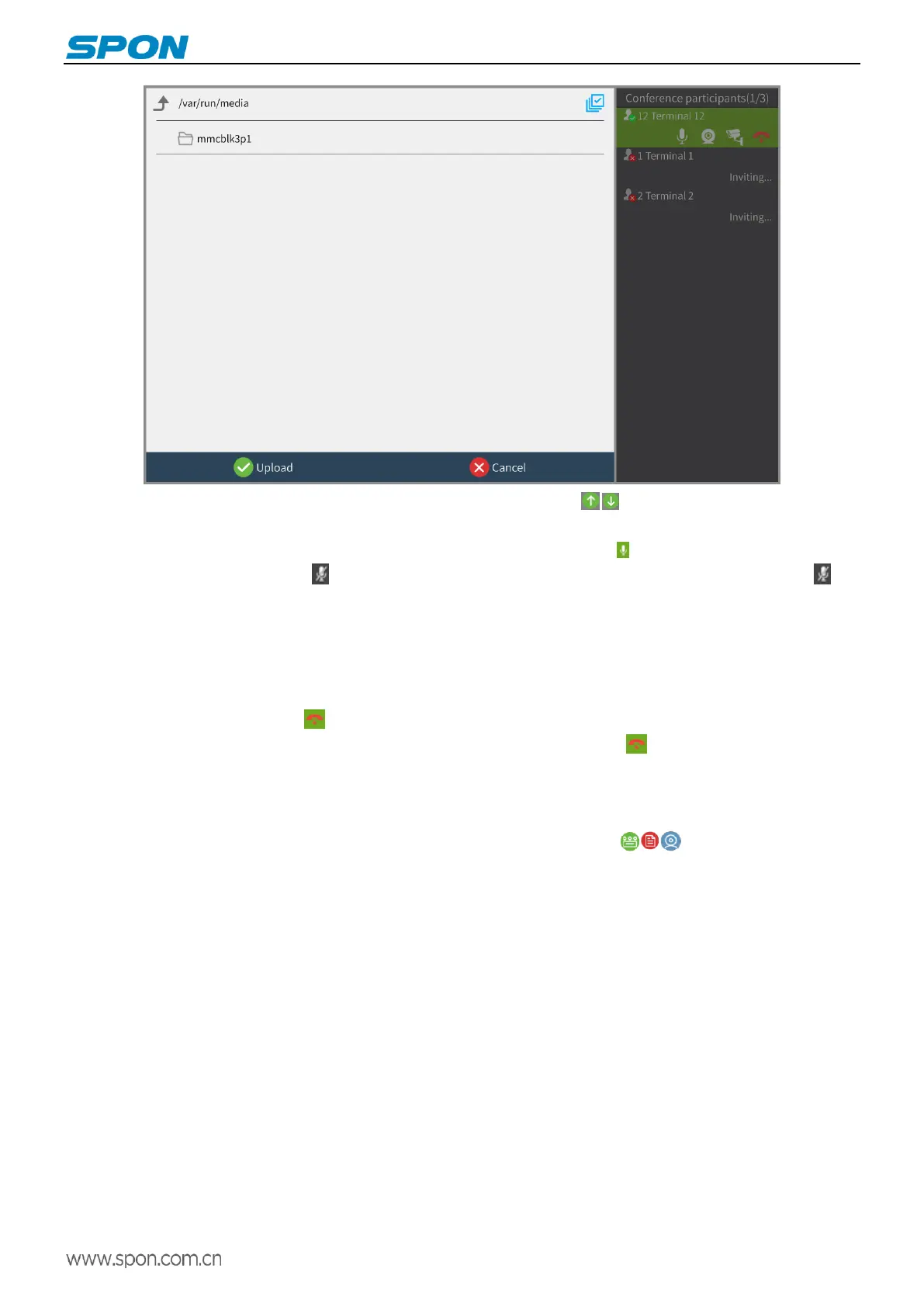
3)In the main conference interface , you can click the page up and down keys / to switch pictures
Apply for a speech
At the conference, by default the host speech is opened (The microphone icon is on ), Other participants by defaults close
the speech(The microphone icon is off ) The host can click the microphone icon to open the participant’s microphone Let
the other party speak, click again to close the speech.
Participants will apply for a speech according to the “Hands Up” button on the screen of the machine. After the application,
the mode of the host will display the prompt “Speaking Application-[**Terminal]”. After the host presses the “Agree” button, the
other party can speak.
Exit the conference
The host clicks the hang up button on the terminal list Or click the "End Command" button in the lower right corner to close
the entire conference, and all participants will leave the meeting; Click the hang up button next to the participant to end the
current conference of participants
Participants will end the conference by clicking the “Exit Command” button on the screen of the unit.
View switching
During the conference, click the three buttons in the lower right corner of the screen to switch the view to voting
view, file view and video view.
Join the conference
The audio conference supports manually inputting the conference number to join. Click the “Join Conference” button and
input 0+ conference room ID number to apply to join the conference
Note: Video Command Conference does not support manual joining, only automatically receives and joins the conference.


 To Next Page