– 27 –
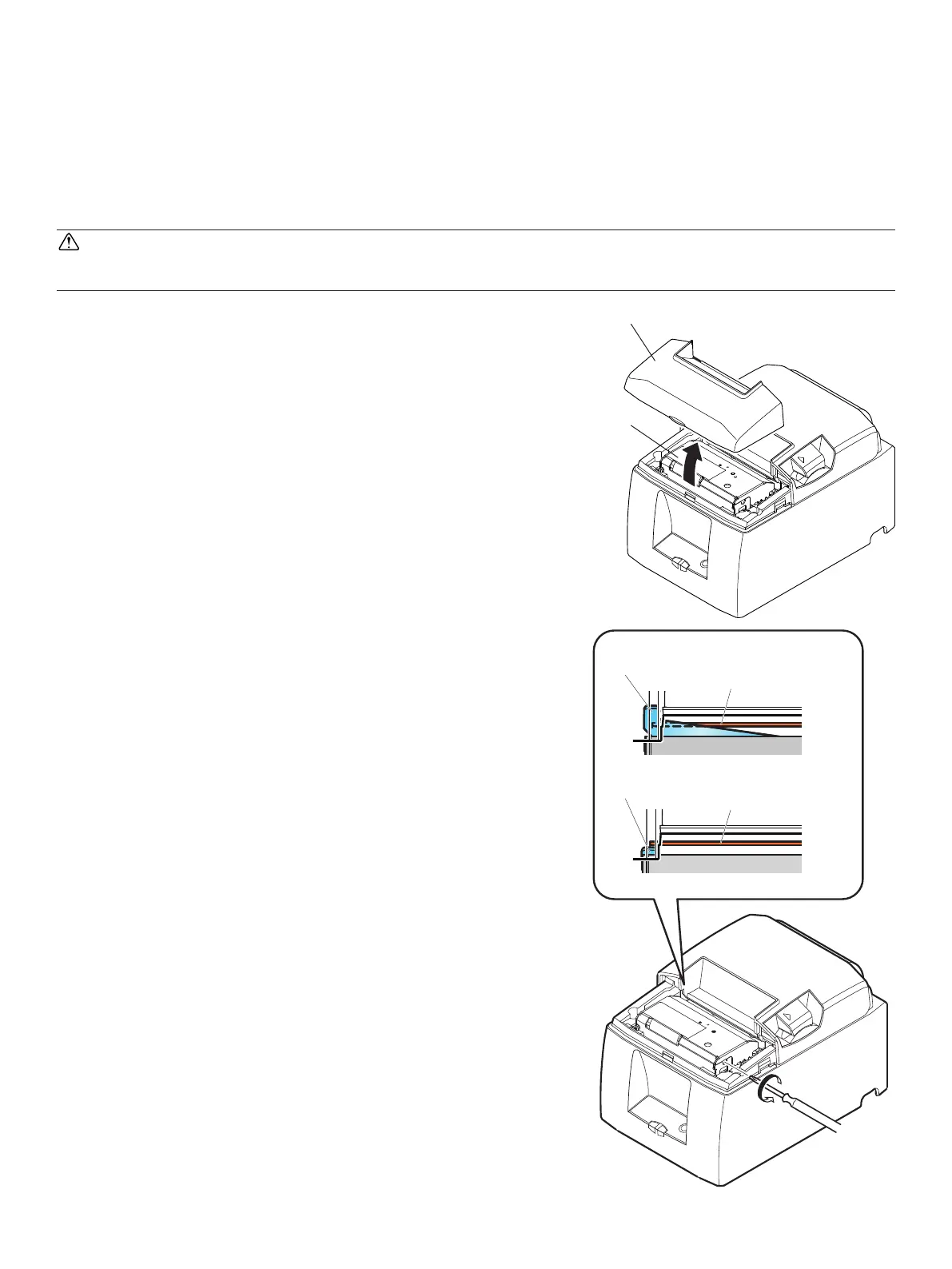
Auto cutter
Front cover
NG
OK
Thermal Head
Thermal Head
Drive Knife
Drive Knife
8-3.ReleasingaLockedCutter(AutoCutterModeonly)
If the auto cutter locks up, set the power switch to OFF to turn o the printer, and then set the
power switch to ON to turn the printer back on. A typical locked cutter will be restored when
you restart the printer.
If restarting the printer does not release the locked cutter, follow the steps below.
WARNING
Since working on the cutter may be dangerous, be sure to turn off the printer rst.
(4) Insert a Philips screwdriver into the manual op-
eration hole on the side of the cutter, and turn it
in the direction of the arrow shown on the right
until the rear cover is opened.
(5) Open the printer cover, remove any jammed paper,
and then reinstall the paper roll.
(6) Install the front cover, and then set the power
switch to ON.
(1) Set the power switch to OFF to turn o the printer.
(2) Remove the front cover to reveal the auto cutter.
(3) Remove any jammed paper.
Note: Be careful not to damage the printer while
removing any jammed paper.
Since the thermal print head is particularly
sensitive, be sure not to touch it.



 To Next Page