Modules & Options
6 - 6 PC Camera Module
6
Taking Pictures/Capturing Video
1. Run the Camera app from the Start screen by clicking on the Camera app icon
.
2. Right-click the screen and select the timer if you require a countdown before
capture.
3. Click the appropriate icon to take a picture or start video capture (if video capture
begins a timer will appear in the bottom corner of the screen).
4. To stop video capture click the main window again (or click the stop icon ).
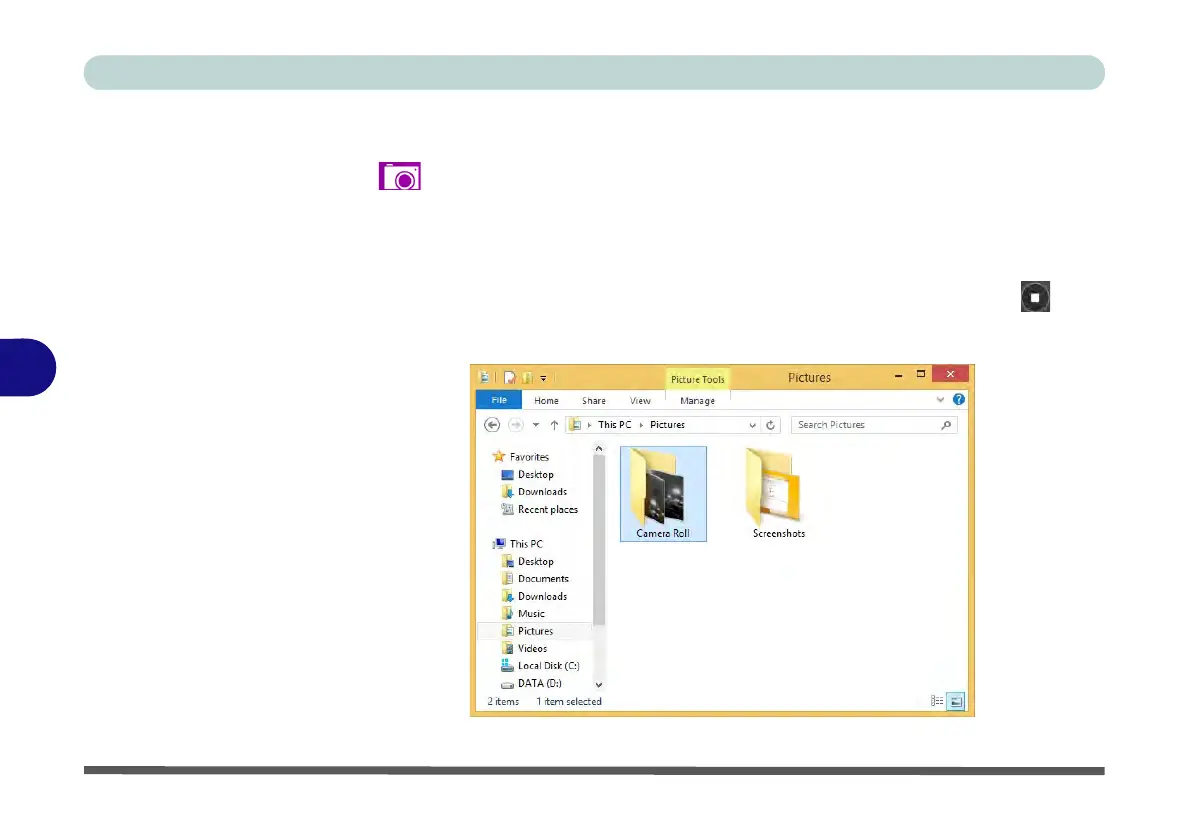
5. Captured photos and videos will be saved to a Camera Roll folder within the
Pictures folder.
Figure 6 - 5
Pictures - Camera
Roll



 To Next Page