Power Options 1 - 29
Quick Start Guide
1
Power Options
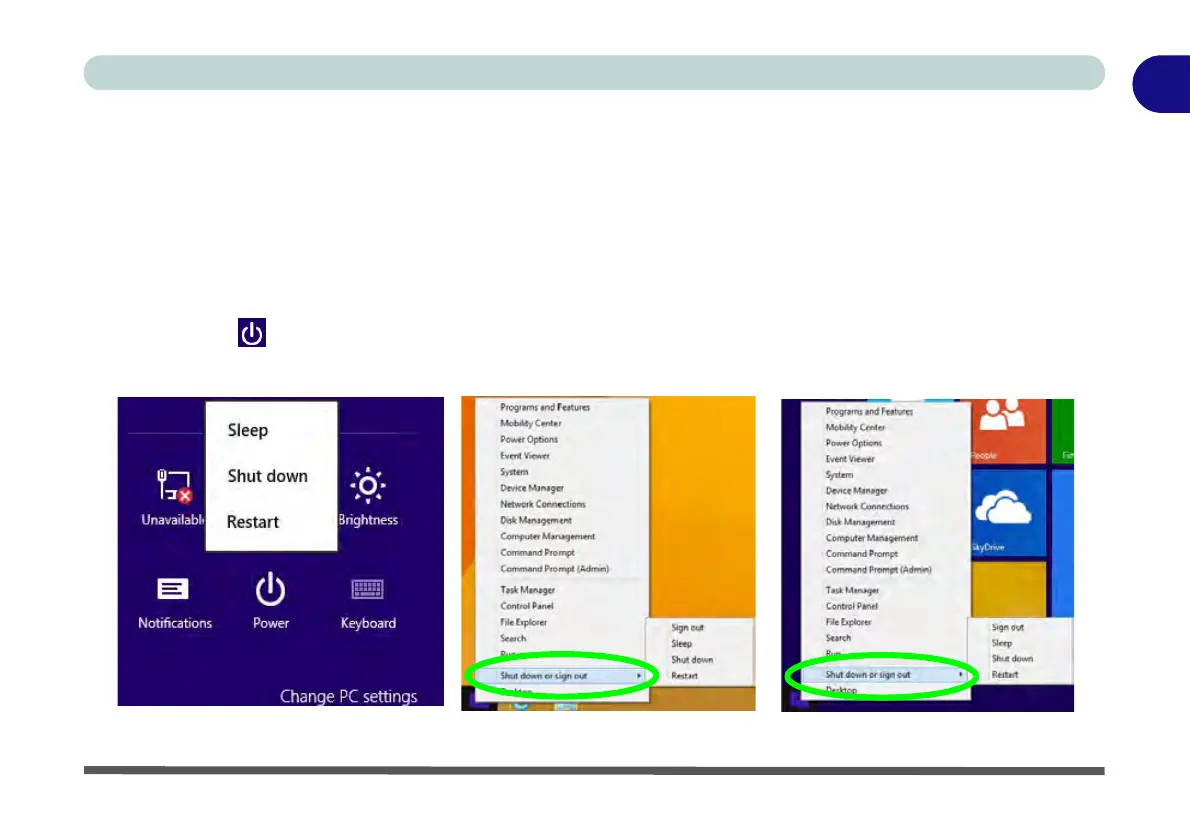
Power Options (Hardware and Sound) can be accessed from the Control Panel. The Power Menu item in Set-
tings in the Charms Bar in Windows 8.1 may be used to Shut down or Restart (you can also add Hibernate/
Sleep to the menu - see “Adding Hibernate/Sleep to the Power Menu” on page 3 - 10). You can also use the
context menu (Shut down or sign out) shut the computer down/restart etc.
Shut Down, Restart or Sleep (Charms Bar)
1. Go to the Charms Bar and click Settings.
2. Click Power .
3. Select Sleep, Shut Down or Restart.
Figure 1 - 21 - Shut Down/Restart
Charms Bar Desktop App Start Screen



 To Next Page