Power Management
3 - 4 Shutting the Computer Down
3
Shutting the Computer Down
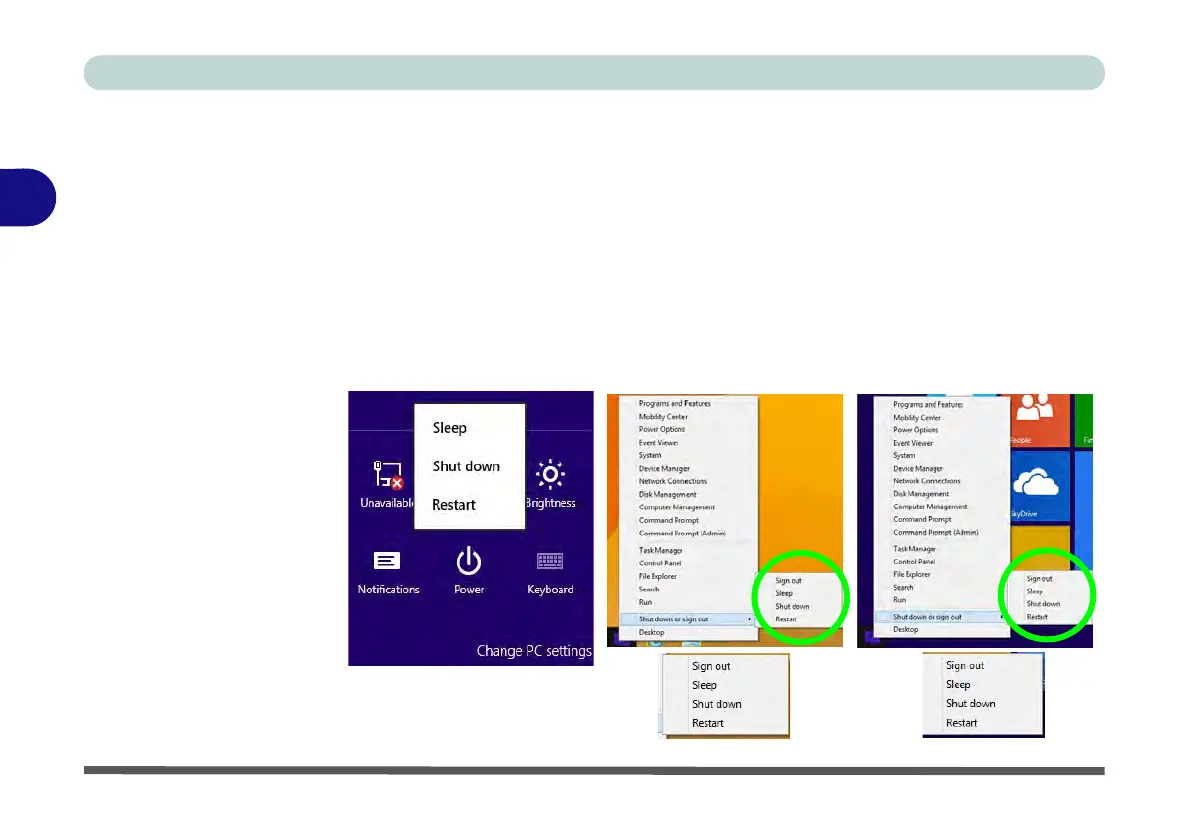
Note that you should always shut your computer down by choosing the Shut down
command as this will help prevent hard disk or system problems. Use the Shut down
or sign out item in the Context Menu (right-click the lower left corner of the screen
to bring up the menu).
You can also use the Power Menu in Settings in the Windows 8.1 Charms Bar. If
you want to add Hibernate/Sleep to the Power Menu see “Adding Hibernate/Sleep
to the Power Menu” on page 3 - 10.
Figure 3 - 1
Shut Down/Restart
Charms Bar Desktop App Start Screen



 To Next Page