Video Driver Controls
Attaching Other Displays - Devices (Charms Bar) C - 19
C
Attaching Other Displays - Devices (Charms Bar)
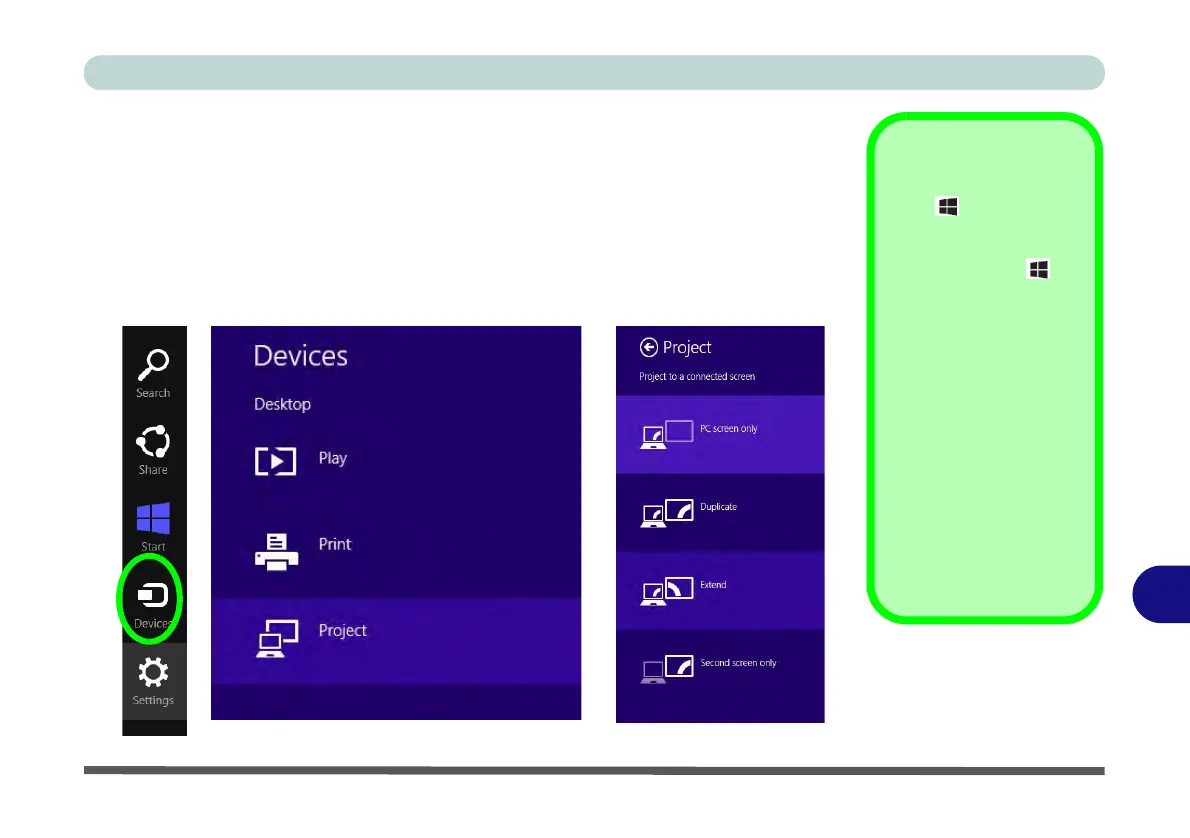
You can configure attached displays from Devices (in the Charms Bar).
1. Attach your external display to the HDMI-Out port/external monitor port, and turn it on.
2. Go the Charms Bar, select Devices.
3. Click Project (you may need to click Second Screen).
4. Click on any one of the options from the menu to select PC screen only,
Duplicate, Extend or Second screen only.
Windows Logo Key
+ P Key
Combination
You can use the + P
key combination to
quickly bring up the Sec-
ond Screen menu.
You can also use the
Display Switch button
in the Control Center to
access the menu and
select the appropriate
attached display mode.
You can also use the Fn
+F7 key combination to
quickly access the Sec-
ond Screen menu in
Windows.
Figure C - 17
Second Screen
(Devices)



 To Next Page