Features & Components
Touchpad and Buttons/Mouse 2 - 7
2
Disabling the Touchpad
If you need to disable the Touchpad for any reason (e.g. you may find that when us-
ing the computer’s internal keyboard you accidentally trigger the Touchpad when
resting your wrists or palms on it) you can do so by using Fn + F1 key combination.
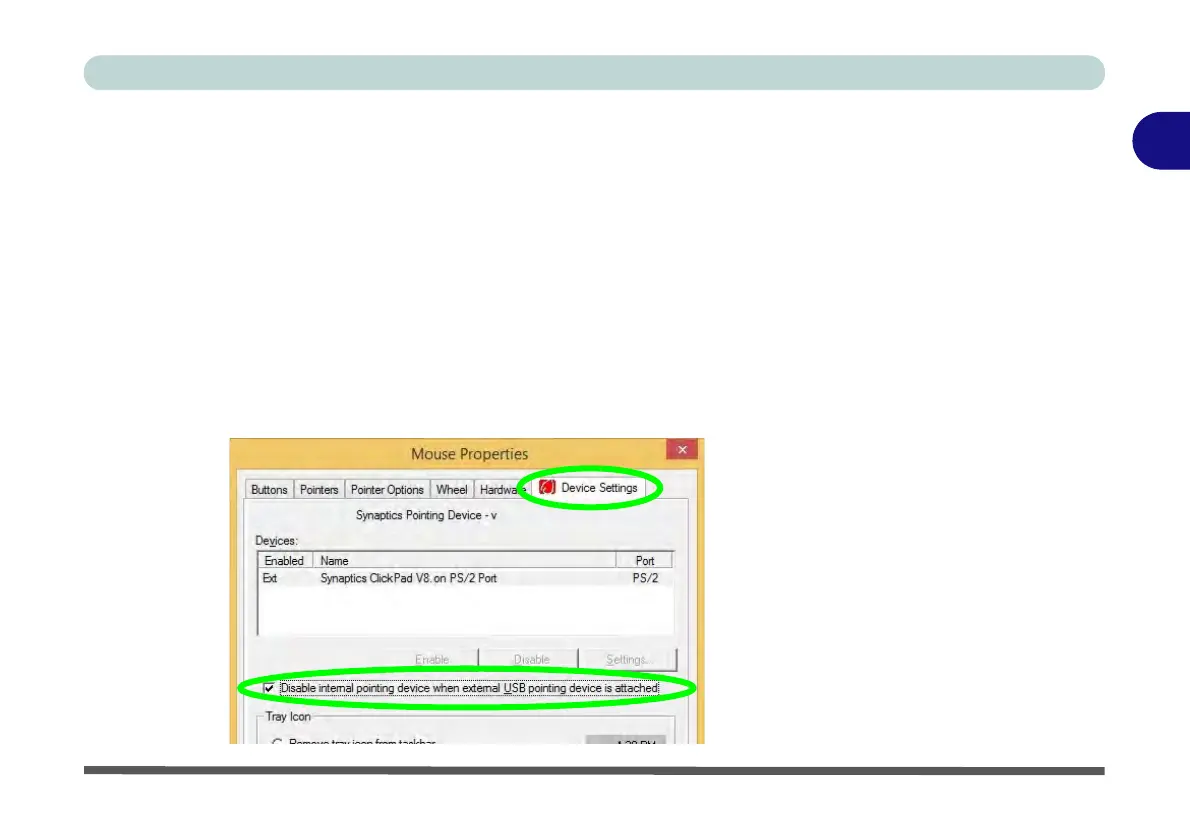
You can also set the system to automatically disable the internal Touchpad when an
external USB point device (e.g. a USB mouse) is attached.
1. Go to the Mouse Properties control panel.
2. Click to select Device Settings (tab).
3. Click to place a check in the “Disable internal pointing device when external
USB pointing device is attached” check box.
4. Click OK to save the setting.
Figure 2 - 5
Mouse Properties
(Disable Touchpad)



 To Next Page