Chapter 7 Install Windows Server 2008 47
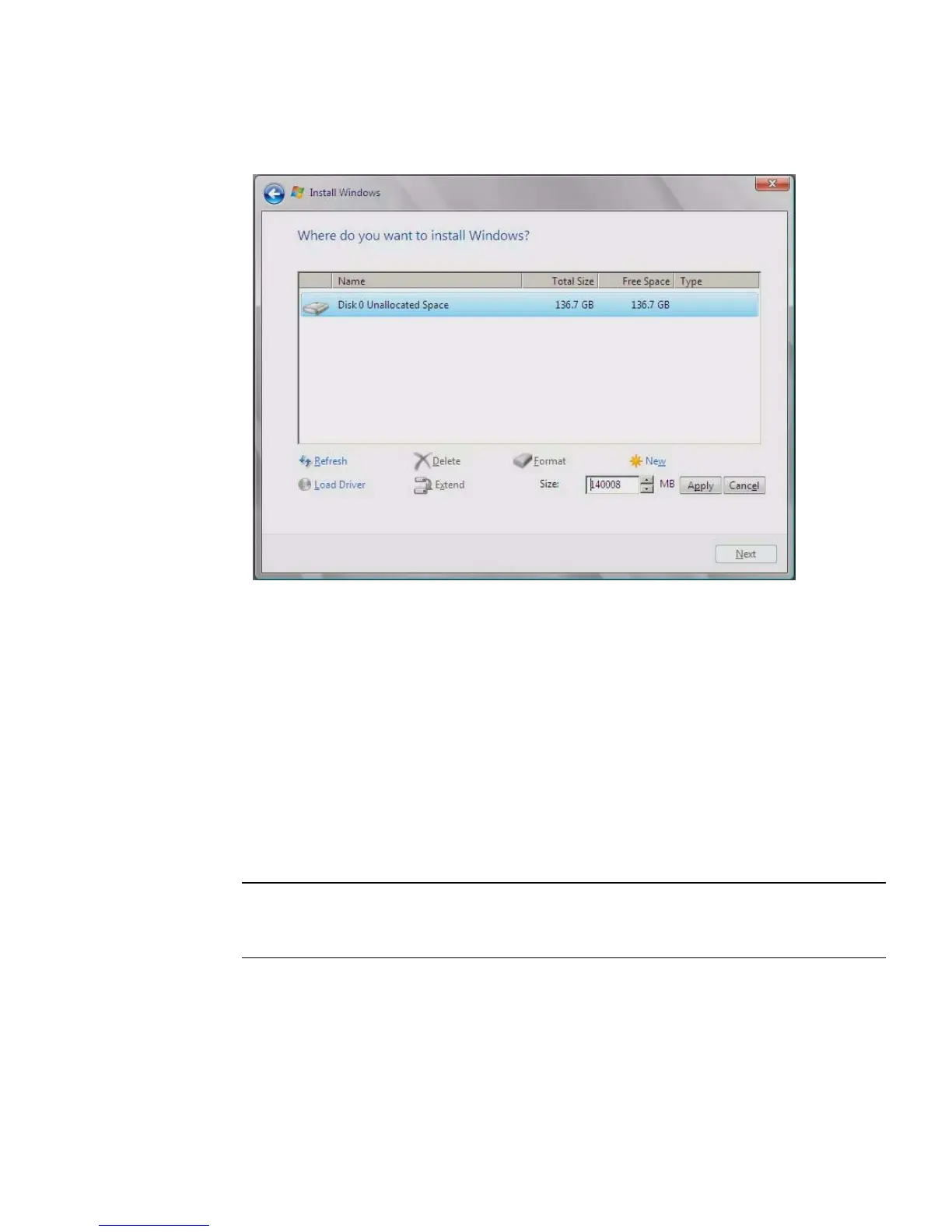
FIGURE 7-6 Windows Partition Management Page
a. Click Delete to delete the existing partition.
b. Click New to create the new partition.
c. Change size settings as needed, and then click Apply.
d. Click Next and proceed to the next step.
10. The Windows installation begins.
The server will reboot multiple times during the installation process.
11. When Windows installation is complete, Windows starts and prompts you to
change the user password. Click OK and proceed to setup the initial user login
account.
Note – Windows 2008 enforces stronger password schemes for user accounts.
Password standards include restrictions on length, complexity and history. If you
need more details, click the Accessibility link at the account creation page.
Once the initial user account is created, the Windows Server 2008 desktop is
displayed.
12. Proceed to Chapter 8 “Updating the Critical Server-Specific Drivers” to install
server-specific software and the latest Sun-supported drivers.














 To Next Page