User manual [English]
11
6.17 Teletext
In full screen mode press yellow key to enter
the teletext. Input proper teletext site by
numeric keys.
6.18 MultiPictures
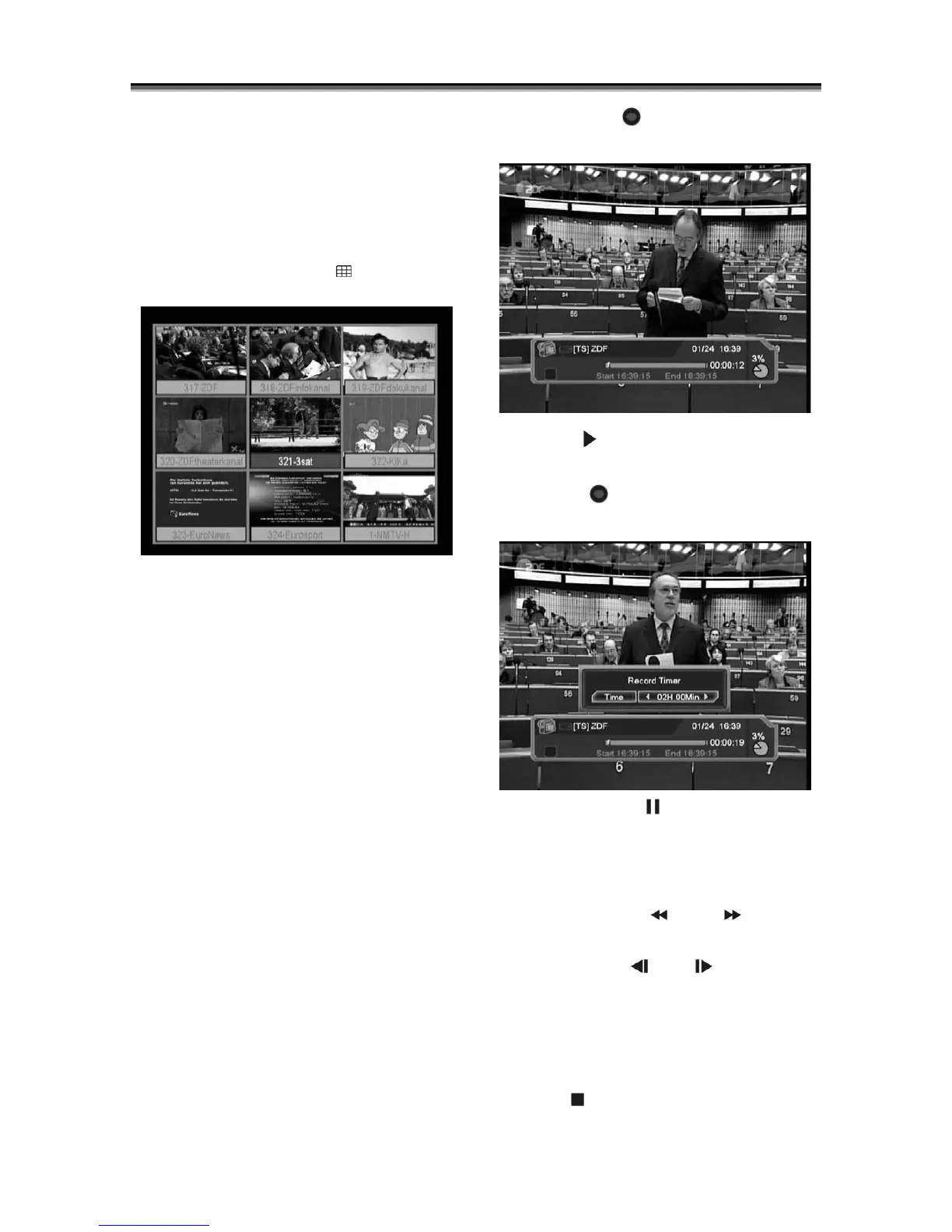
In full screen, press key [ ] to enter the
MultiPictures mode like below:
1 In MultiPictures mode, the screen will
display 9 channels’ preview window (static)
from the current channel. And only the
highlighted preview program can play normally.
2 Press ◄,► / Ch/ ▲,▼ / V
keys can move highlight among each preview
program or
press P+/P- keys to the next or previous 9
channels’ preview window, and only the
highlighted preview program can play normally.
3 When the highlight moves to the preview
program that you want to play, you can press
key OK to enter the full screen play.
6.19 Recording
This function is optional, available only in receivers PVR
Ready.
Connect USB device first. Make sure you
connected USB cable to USB.
After connecting USB device correctly and
recognizing it by receiver you will see on the
screen for a moment message: “USB Mount
Success”.
You can press "
" button to start record
function, as following picture:
Press "
" button to display the record
info bar when you recording.
Press "
" button again to setting the
record time.
You can press " " button to pause the
video, and can save the picture to flash by
press " P+ " button when the video is
paused.
You can press " " or " " button to
Fast Backward or Fast Forward.
You can press " " or " " button to Slow
Backward or Slow Forward.
Press “left" or "right" button to jump to
different position, then press "OK" button to
confirm.
Press " " button to stop the recording.



 To Next Page