User manual [English]
26
1
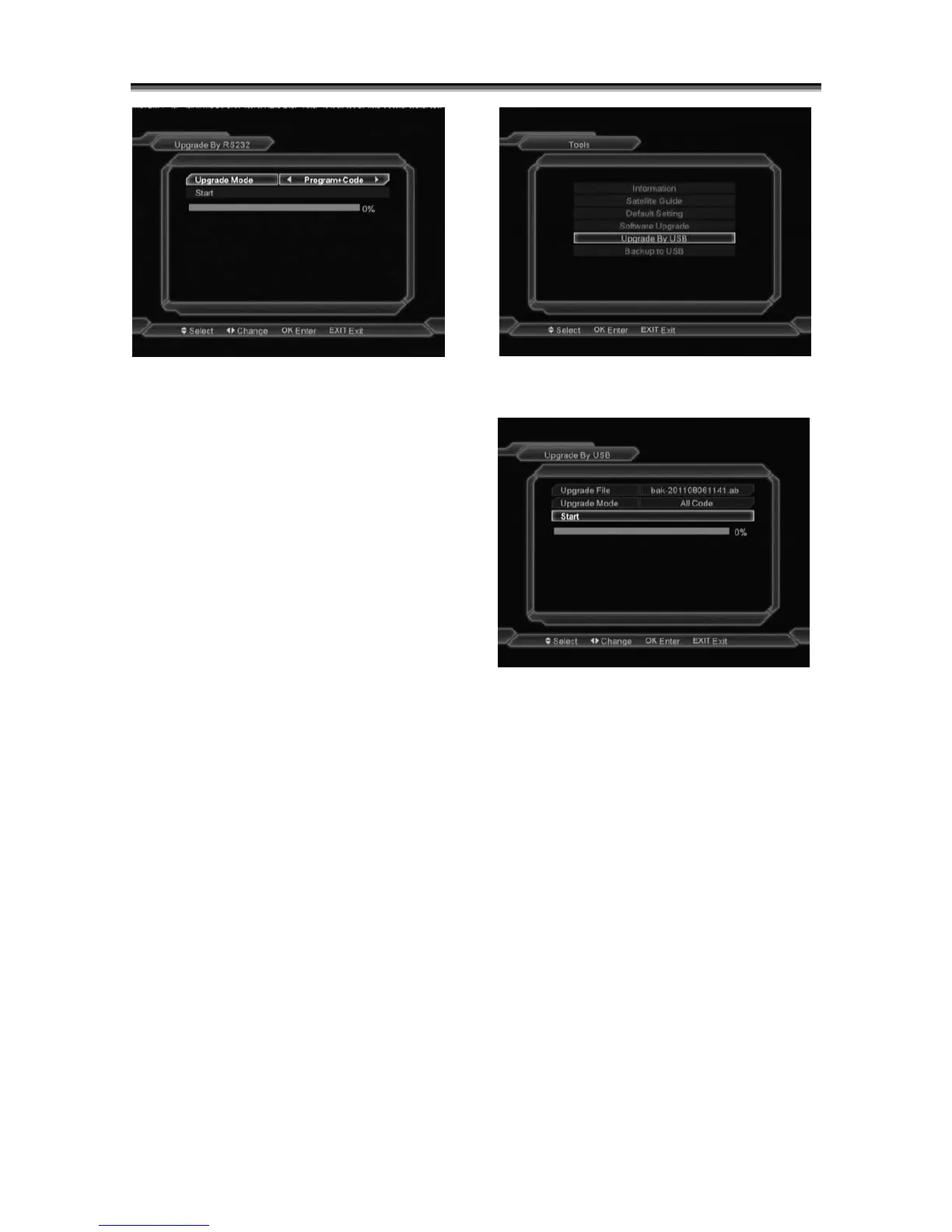
We offer the functions for user to connecting
receiver (Master) to the other receiver
(Slave) via serial interface.
2 Connect master receiver to slave receiver
via serial interface. Enter “Software
Upgrade” menu in master receiver and
press[Volume Up/Volume Down]keys to
switch upgrade mode.
Upgrade modes include: program + code
/ code / Program List / user back / video
back / radio back / default DB and Default
DB+User DB
3 Turn on slave receiver and it needn’t operate
any setting.
4 Moving highlight to “Start” on master receiver
and press[OK]key to start upgrade.
5 Press [Menu]key to save the parameters and
draw back.
10.5 Upgrade by USB
Note:
USB functions is available only after inserting
USB device, otherwise this menu is
deactivated.
In this menu you can upgrade the software from
USB conveniently, press ' OK ' button to enter.
NOTE:
You must put the upgrade files directly on the
USB partition of the USB storage, without any
directory.
In this menu you can select the Upgrade Mode
among All Code, Main Code, User logo, Menu
logo,Radio logo,Default DB,User DB and
Allcode +bootloader, and you can select the
appropriate upgrade file on "Upgrade File" item.
After you select the "Upgrade Mode" and
"Upgrade File", press ' OK ' button on "Start"
item, the receiver can upgrade automatically.
10.6 Backup to USB
In this menu you can make a backup copy of your
software and data.



 To Next Page