User manual [English]
14
7.1.3 Edit
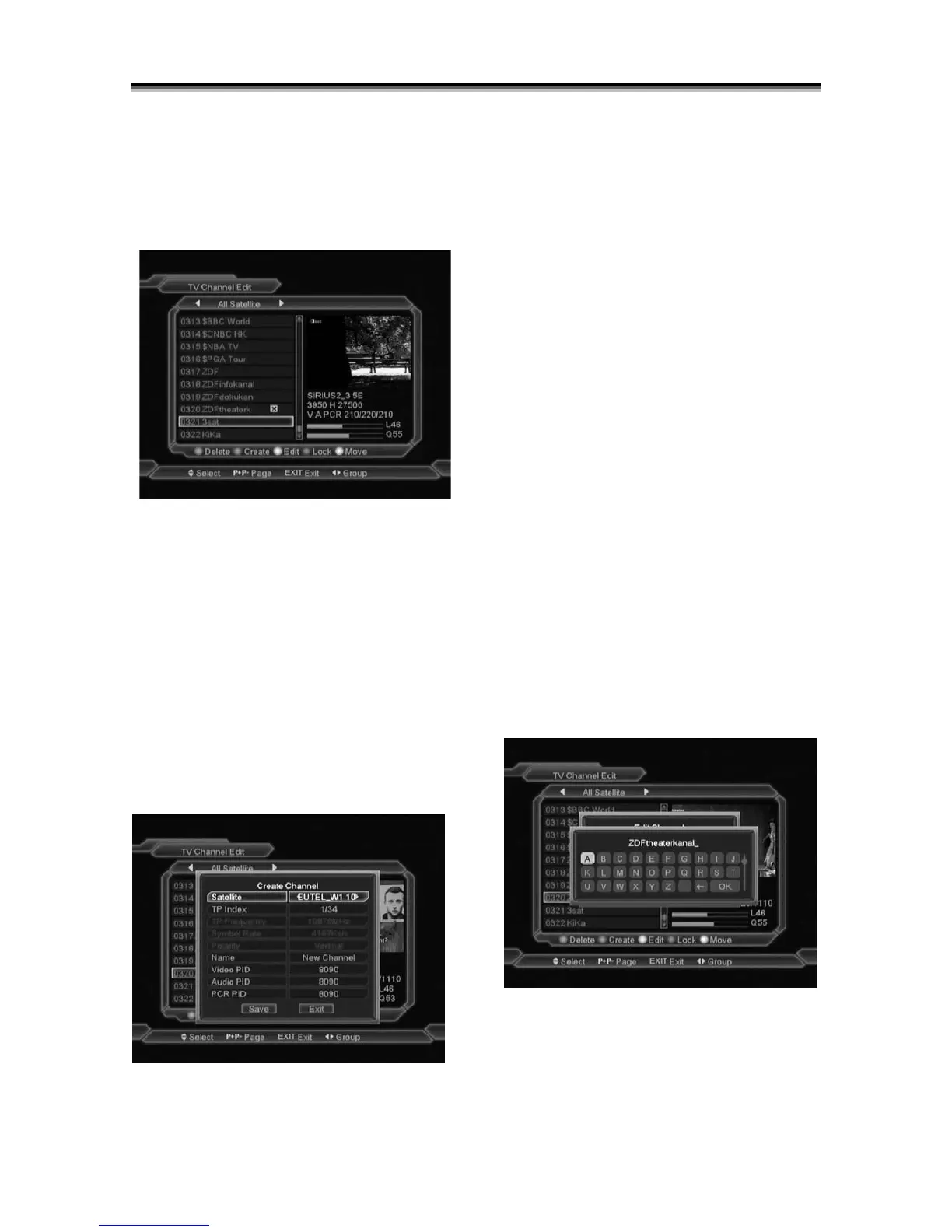
Press [Yellow] key, it will show input password
dialog. If the password is correct, it will open the
window like below. The default password is
“0000”.
7.1.3.1 Delete
1 In this menu, press [Red] key can make a
delete mark in the right side of the highlighted
channel.
2 Press [Red] key again can cancel the deleted
mark on the current channel.
3 When exit the menu, it will ask you whether to
save the change. Select “Yes” to save the
change.
7.1.3.2 Create
If you press[Green] key, it will display create
window like below:
1
In “Satellite” item, press[OK] key can
display satellite list and you can select a
satellite that you want to setting.
2 In “TP Index” item, you can press[Volume
Up/Volume Down]key can switch TP
number, and the next three items will show
up corresponding parameters.
3 In “Name” item, press[OK]key can display
the keypad, and you can edit new name
here for selected channel.
4 In “Video PID”, “Audio PID” and “PCR PID”
items, you can use the number key directly
to modify corresponding parameters of the
items.
5 After modification, move highlight to “Save”
item and press[OK]key, can save
parameter and exit “Edit” mode. Otherwise,
move highlight to [Exit]item and
press[OK]key can exit “Edit” mode and
won’t save any modification.
7.1.3.3 Edit
If you press[Yellow] key, it will show the window
like below:
1 On the “Name” item, press[OK]key can
display keypad to edit the name of selected
channel.



 To Next Page