User manual [English]
16
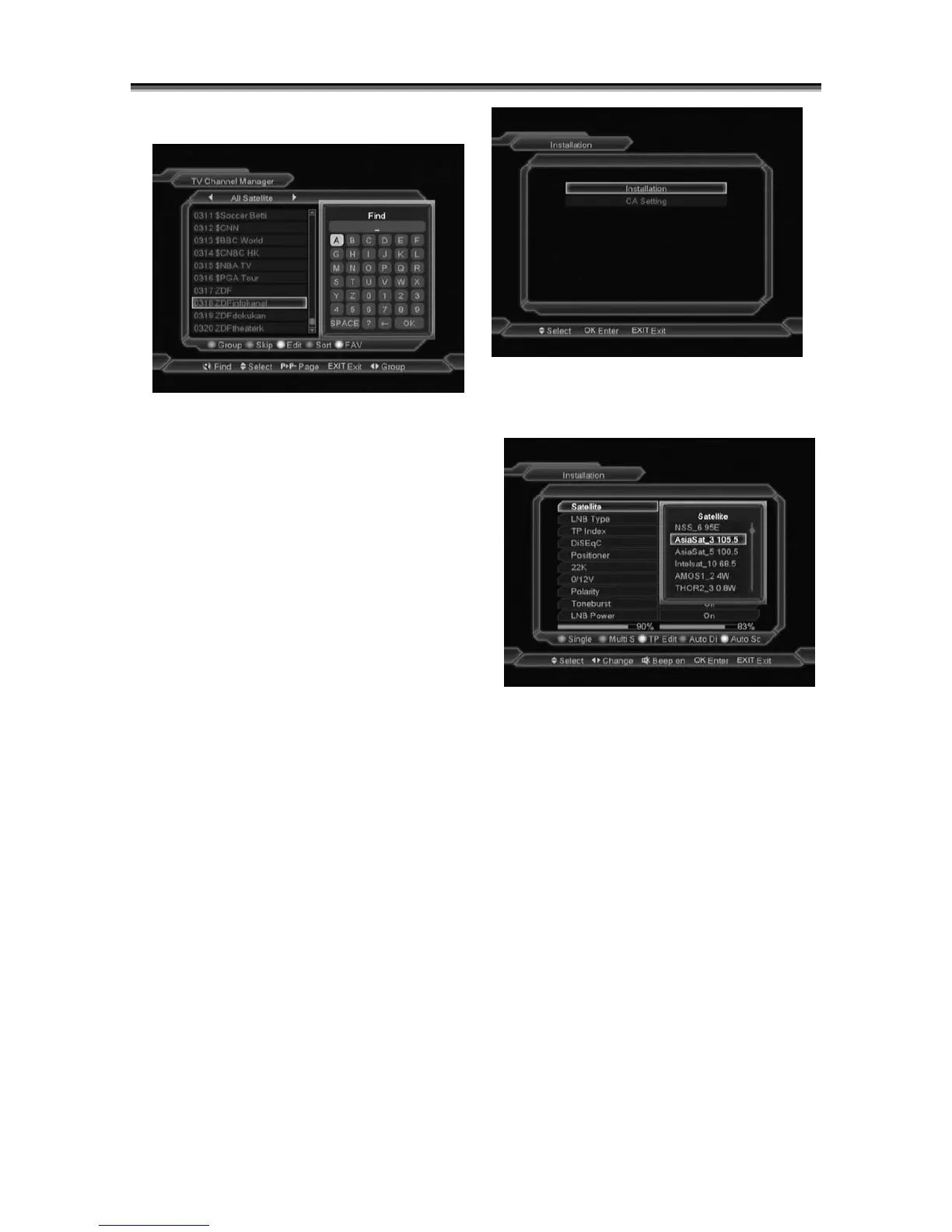
7.1.6 Find
1 Press[Find] key can open the “Find”
window like above. You can press[Channel
Up/Channel Down/Volume Up/Volume
Down]key to move highlight and
press[OK]key to input the selected symbol
or letter into the dialogue.
2 After input each character, the program list
on the left will search the channel
according your input, and list the matched
channel.
3 Press[Exit]key can close “Find” window
and you can select channel from the
channels list directly.
7.2 Radio Channel List
Basically, the operation of “Radio Channel
Manager” is same as “TV Channel Manager”,
but there is one point different: In “Radio
Channel Manager” mode, there is no video
information, so it will always display Radio’s
logo in the right side preview window.
8 Installation
8.1 Installation
When you enter to “Installation” menu, there will
display the screen like below:
8.1.1 Satellite
Satellite: Press[OK]key to enter the Satellite
list.
1 You can press color key to add/edit/delete
satellite. Press [Page] key to page up or
page down.
8.1.2 LNB type
In this item, press[Volume Up/ Volume
Down]key can switch among “Standard”,
“User” and “Universal” mode.
For Example: If you use the Dual LNB, then
you should select “User” option in “LNB Type”
and set the correct frequency in LNB Type,
then you can play the channel normally.
8.1.3 DiSEqC
DiSEqC: You can use[Volume Up/ Volume
Down]key to switch options. There are several
options for your selection:
Disable: without DiSEqC.
1/2, 2/2: two ports DiSEqC



 To Next Page