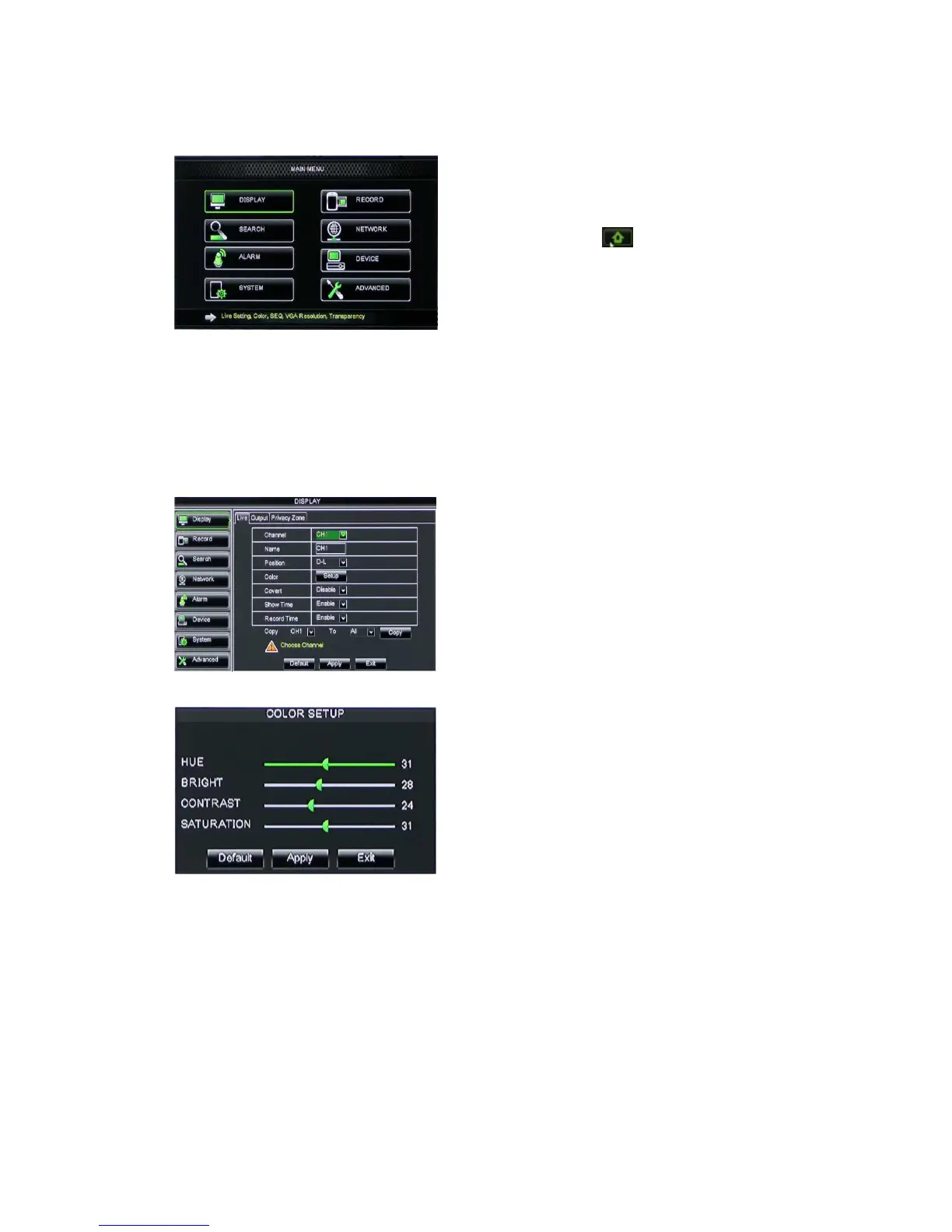
5.3 Main Menu
Picture 5-2
5.3.1 Display
5.3.1.1 Live mode
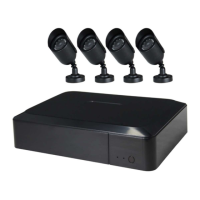
Go to <Main menuDisplayLive> option and enter into the <Display> setting interface
shown as Picture 5-3.
Picture 5-3
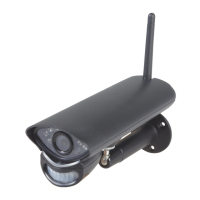
Picture 5-4
Above picture 5-4 is the Color Menu where you can adjust image brightness, saturation,
contrast and hue parameters of each channel.
Explanation:
::
:
1、The modifications will be available after clicking [APPLY] button on the bottom of
the sub-menu windows and being prompted to save and then clicking [ok] button.
2、If you want to cancel the modification, click [Exit] button to exit the menu.
3、When clicking [DEFAULT] button, all system default values will be reset to default
value.
4、System default value indicates the value pre-set at the factory.
On <Live> mode, click [Menu] button on
the front panel or Remote controller to enter into
Main menu interface shown as Picture 5-2. And
also you can click [ ] icon to enter the main
menu screen. In Main Menu mode, you can
control device management settings, such as
Display, Record, Network, Search, Device,
Channel: allow you setup the channel you
desired.
Name: allow you setup the channel name, and
system support up to eight characters or four
Chinese characters.
Position: allow you setup the display position
of each channel.
Color: Click [Setup] option to enter into the
[Color setup] interface shown as Picture 5-4.
Covert: allow you enable [Live] surveillance
screen
Show time: allow you enable system time
appear in the <Live> screen.
Record time: When set to “Enable”, you are
allowed to record system time into the record
history.
Copy: allow you copy all data of one channel to
any other one


 To Next Page