5.3.3.3 Event Search
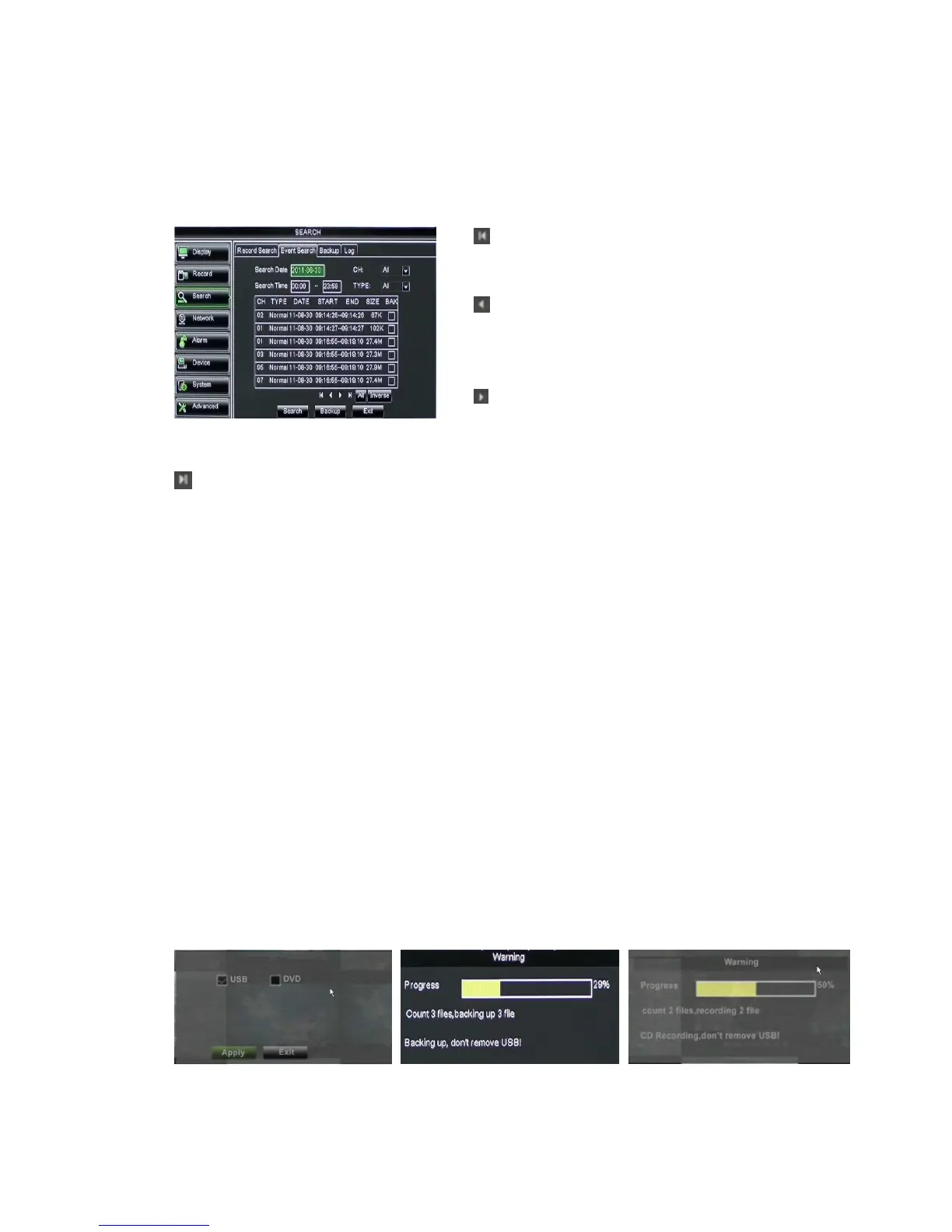
Click [Main MenuSearchEvent Search] to enter into the interface shown as Picture 5-20.
You could highlight and double-click the desired record for playback. And you also can filter
the records you want to view based on date, time, and channel and record mode search.
Picture 5-20
(Last page): go to the last page. Clicking the [last] button will make you enter into last
page quickly.
ALL (Select All): Allows you to select all the events on the current page.
Inverse (Select Invert): Allows you to select other events on the current page except
those you have currently selected.
5.3.3.4 File Backup
You can back-up the record files based on event or time.
5.3.3.4.1 back-up file based on event
In the [File List] mode, if you wish to backup records, please tick-select the BAK
check-boxes which correspond to the records and click [Backup] button to enter into the
below windows illustrated in Picture 5-21
Picture 5-21 Picture 5-22 Picture 5-23
(First Page): go to the first page on the list.
When you view other pages, clicking [First] button
brings you back to Page one.
(Previous page): go to the previous ones of
current page. Clicking [Pre] button will take you
back the previous ones of current page (except the
first page).
(Next page): go to the next ones of current
page. Clicking the [Next] button will take you to the
next ones of current page (except the last page)
In the [File List] mode, if
you wish to backup records,
please tick-select the BAK
check-boxes which correspond
to the records and click
[Backup] button to enter into the
below windows illustrated in


 To Next Page