for a recording and view it in Playback mode. This is useful for hunting a specific
recording of an incident if you know the date and time it occurred.
for the time quantum will appear in the screen.
You can use the Playback Control bar to operate the Fast Forward
(X2, X4 and X8), Slow play (1/2, 1/4 and 1/8 speed), Play, Pause/Frame, Rewind(X2,
X4 and X8). When ending playback, DVR will return back to previous menu
Picture 5-20.
Play control Bar:
the play control bar will display current playing processing shown as
20. When user click any time at the control bar and this point have not any record
file, system will auto return back to previous menu.
Picture 5-18
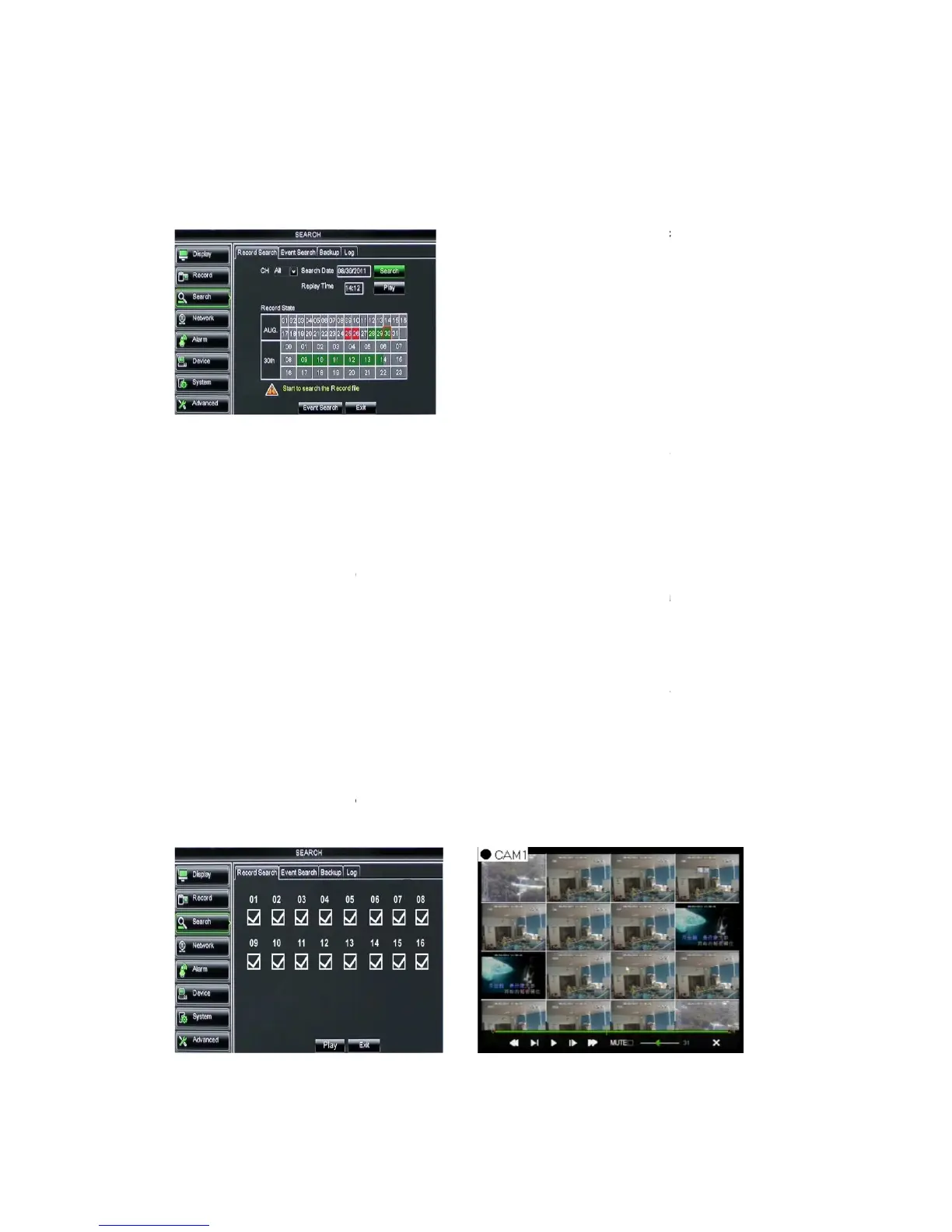
Click [Main MenuSearch
to enter into the interface shown as Picture
Record Search] to enter into the interface shown as Picture 5
, user can search for a specific date and time
for a recording and view it in Playback mode. This is useful for hunting a specific
recording of an incident if you know the date and time it occurred.
] button to enter into the [Event Search
] screen shown as Picture
for the time quantum will appear in the screen.
You can use the Playback Control bar to operate the Fast Forward
(X2, X4 and X8), Slow play (1/2, 1/4 and 1/8 speed), Play, Pause/Frame, Rewind(X2,
X4 and X8). When ending playback, DVR will return back to previous menu
the play control bar will display current playing processing shown as
20. When user click any time at the control bar and this point have not any record
file, system will auto return back to previous menu.
allows you select the channel(s)
you desire to search.
Date Search:
In the Video Search screen,
user can search for all the records in a
specific date. To execute a video search
and then click a detailed time
quantum of the specific date, system will
playback from the first reco
to enter into the interface shown as Picture
and click [Play] button to enter into the playback
mode shown as Picture 5-19
Record Search] to enter into the interface shown as Picture 5
, user can search for a specific date and time
for a recording and view it in Playback mode. This is useful for hunting a specific
] screen shown as Picture
You can use the Playback Control bar to operate the Fast Forward
(X2, X4 and X8), Slow play (1/2, 1/4 and 1/8 speed), Play, Pause/Frame, Rewind(X2,
X4 and X8). When ending playback, DVR will return back to previous menu
the play control bar will display current playing processing shown as
20. When user click any time at the control bar and this point have not any record
allows you select the channel(s)
In the Video Search screen,
user can search for all the records in a
specific date. To execute a video search
and then click a detailed time
quantum of the specific date, system will
playback from the first reco
and click [Play] button to enter into the playback


 To Next Page