Manual record: allow you manually start/stop record.
Backup: Tick-select the option, the user is allowed to backup the record of all the channels.
Live: Tick-select the option and the user is allowed to view all the live images for all the
channels.
Playback: Tick-select the option and the user is allowed to playback the record you selected.
PTZ control: Tick-select the option and the user is allowed to perform the PTZ operation for
the selected channel.
5.3.7.5 Information
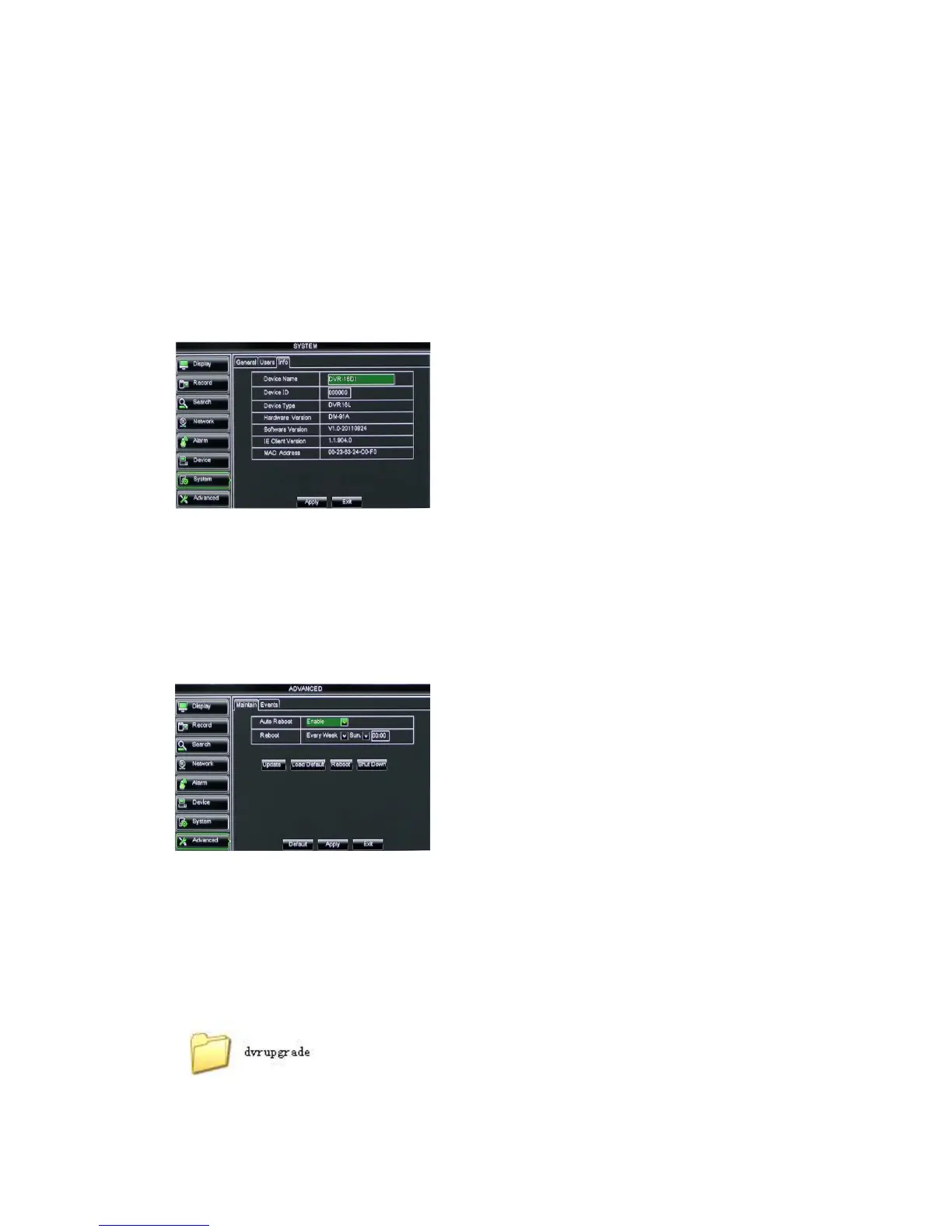
Click [Main MenuSystemInfo] and then enter into the interface shown as Picture 5-54
Picture 5-54
5.3.8 Advanced
5.3.8.1 Maintain
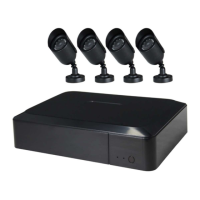
Click [Main menuAdvancedMaintain] to enter into the maintain interface shown
as Picture 5-55
Picture 5-55
Shutdown: Click the [Shutdown] button to shutdown the device.
System Upgrade:
1. You can insert a USB memory into USB port for updating;
2. Do not take out the USB memory or break the power during the update.
3. When the update is done, system will be automatically restarted.
4. Please manually recovery ex-factory default after system rebooting.
Picture 5-56
Now user can check the current Device
name, Device ID, Device type, Device S/N,
MAC address, IE version, Software version,
Panel version etc.
Auto Maintain: You can enable the auto
maintain function regularly as per user’s need.
Auto Reboot: you can also set system auto
reboot regularly (daily/weekly/monthly) as per
user’s need.
Load Default: If [Load Default] is selected, you
can initialize the system to the ex-factory default.


 To Next Page