4 How to connect
4.1 Power up
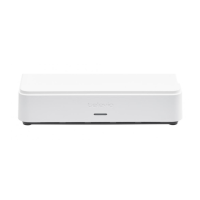
After applying the 24V adapter to the power supply socket and switching the device on, the
first LED blinks white. This means the system is booting.
Note: If the LED does not switch to green after some minutes or it turns red, please contact
your support team.
4.2 Accessing the web-browser
To access the web-browser connect the LAN connector directly to your computer or to the
LAN network which includes your computer.
The default IP address is 192.168.1.110. Please make sure that your PC has an IP address
and subnet mask that can access that IP address.
4.3 Login wizard
When you enter the web-browser for the first time you will be guided through a small wizard
for initial setup of the system.
4.4 Introduction
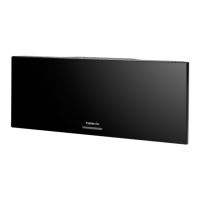
The WCAP has a built-in web server that allows you to set/monitor certain parameters
characterizing the wireless conference system.
The following is a step-by-step guide to give you a general idea of how to access your WCAP.
First time access
STEP 1 – PC IP setup
In order to access the built-in web server for the first time, the TCP IP settings from the PC
or MAC must be modified. A fixed IP address has to be set. Therefore follow the instructions
below.


 To Next Page