AS 680/682
Technical Situation Display Description, Operation and Maintenance
ADS−B
4−30 Ed. 10.07
S Panning:
It is possible to shift the view by holding the middle mouse button pressed and dragging the
mouse. It is also possible to shift the view with the cursor keys (vertical and horizontal arrows).
S Hitting the keys ’Alt r’ resets the view to the initial view.
S Hitting the keys ’Alt c’ connects or disconnects the plots of the targets’ tracks, i.e. draws a line.
S Only if a target is selected, hitting the keys ’Alt f’ activates or deactivates the ’View pursues
Target’ mode. In that case, the indicator ’follow’ is found in the status bar (refer to section 4.4.6).
If this mode is activated, the map view is shifted in the way that a selected target is positioned to
the center of the view, whenever it passes a threshold (refer to section 4.5.7.1) being defined in
the configuration file.
− If this threshold shows its smallest value 0, then the target will not leave the center of the view
and the map will move underneath the target.
− If this threshold shows its greatest value 100, the target may move up to the borders of the view
before the view will be centered to the position of the selected target.
This automatic shifting can happen, if the view is zoomed, rotated or moved by the user or, if the
selected target itself moves to this threshold.
NOTE: Selection of another view (refer to section 4.4.2.6.4 ) is prevented, if a selected target is
not found within the thresholds of that view.
S Position:
The current position of the mouse pointer is always displayed in the statusbar (see section 4.4.6)
S Distance bearing and elevation measurement:
− Between two points of the map view: Hold the ’Shift’−key and click with the left mouse button on
the first point; keep the left mouse button pressed and drag the mouse to the second point. The
current length of the displayed line is found in the statusbar (refer to 4.4.6) in unit Nautical Miles
and in meters. The current bearing and elevation angles with the first point as reference point will
also be displayed in the status bar.
− Between target and point of the map view: refer to the previous item, but choose start or end point
on a target label. The end point is the point on the map, where the mouse button is released. The
current distance bearing and elevation are permanently shown in the statusbar, also after release
of the mouse button. The measurement is stopped by a double click somewhere on the map.
− Between two targets: refer to the previous item, but choose start and end point on a target label.
The current distance bearing and elevation are permanently shown in the statusbar. The measure-
ment is stopped by a double click somewhere on the map.
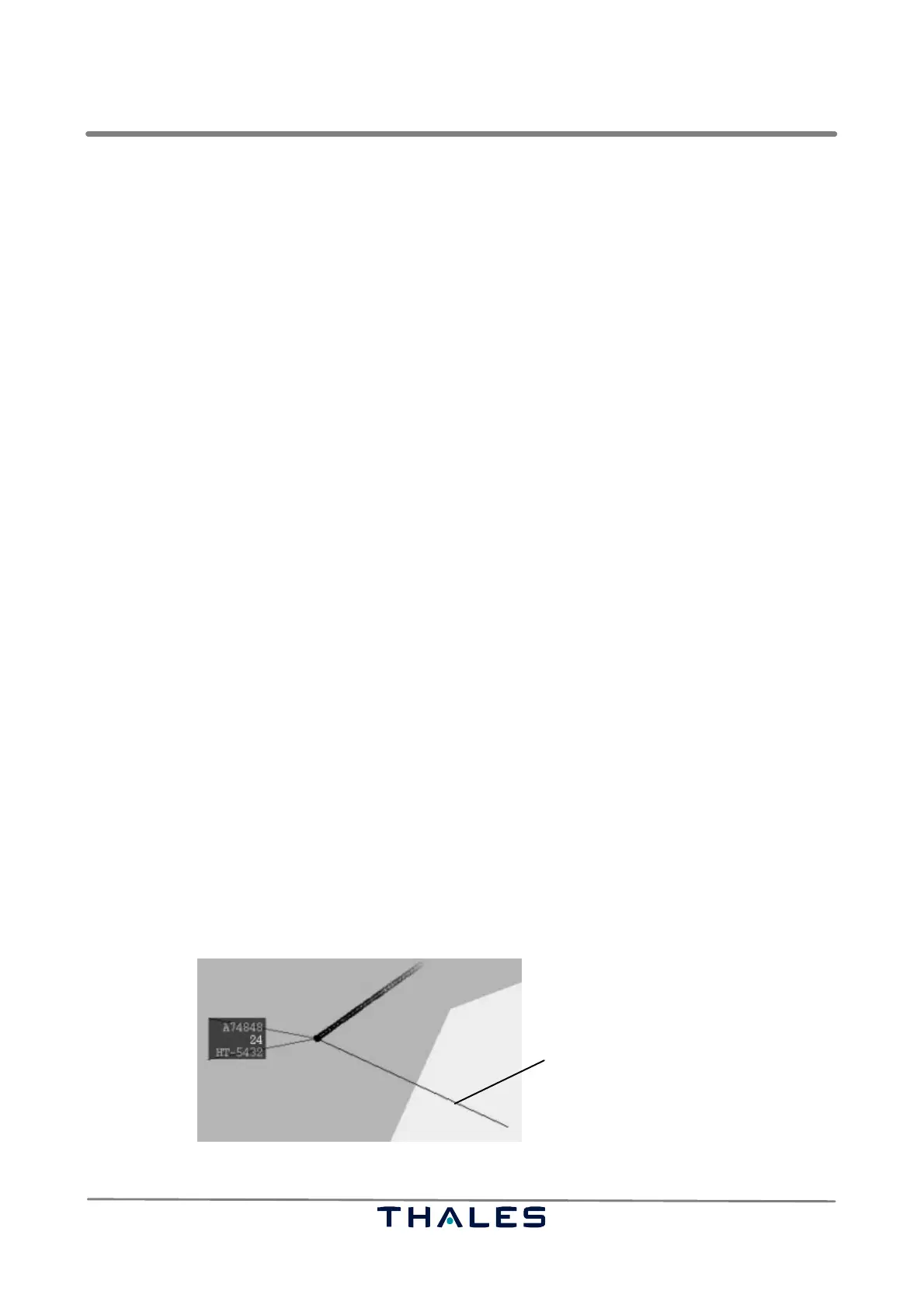
The measurement is represented in the map view by a black line as shown in Fig. 4−47.
Distance line
Fig. 4−47 TSD, distance line (example)


 To Next Page
 Loading...