Using recording features
23
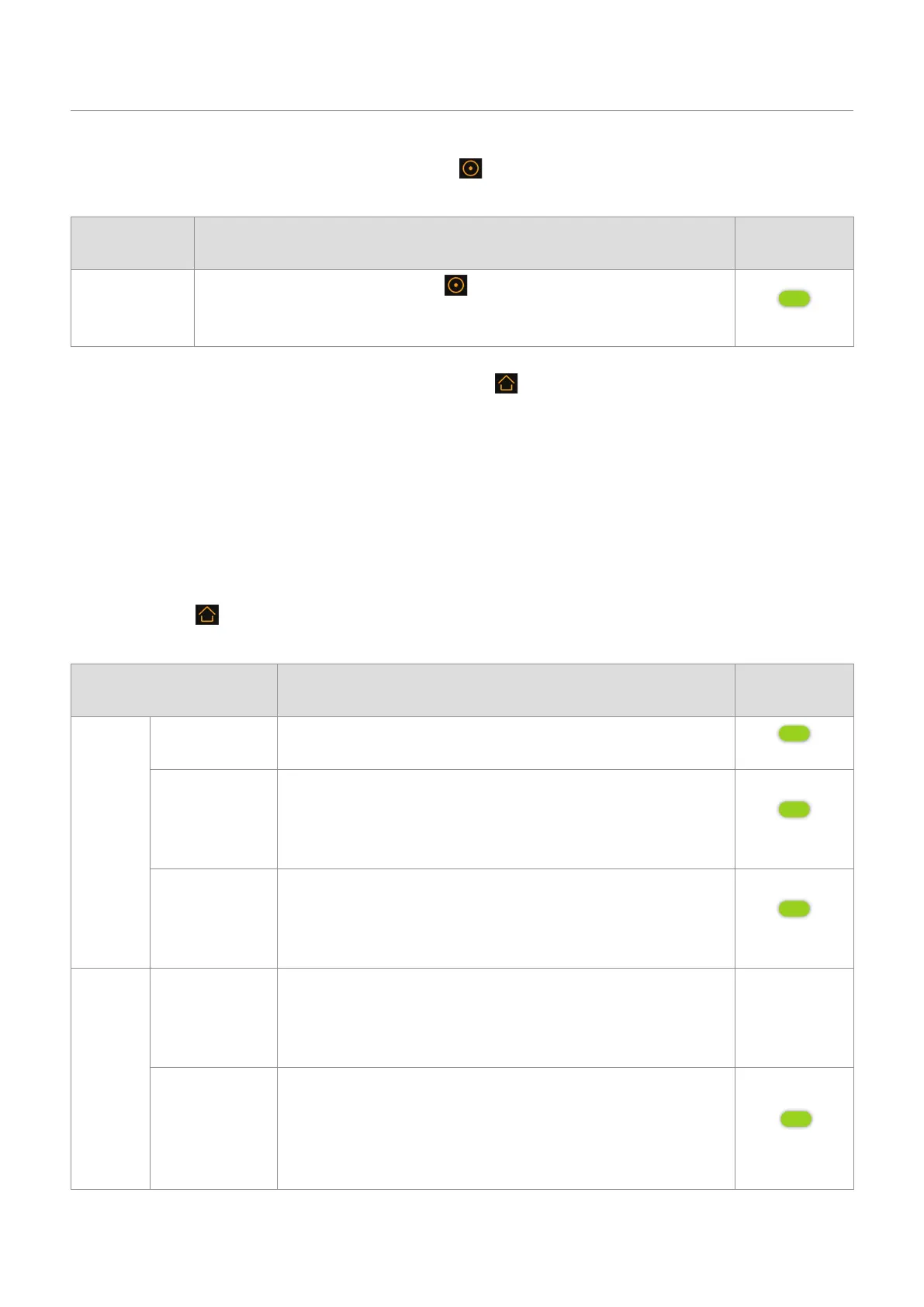
To start manual recording, tap the manual recording ( ) button on the live view screen. Then, manual
recording will start with the voice guide.
Mode Operation description
Status LED
(STATUS)
Manual
recording
When you tap the manual recording ( ) button, a video will be recorded for
20 seconds, from 10 seconds before to 10 seconds after pressing the button, and
stored in the Manual Recording folder.
(flickers)
To watch a manually recorded video, tap the Home menu ( ) button on the Live view screen
>
File List
>
Manual recording, and select a video to play.
3.6 Using parking mode
When the product is connected to the vehicle via the continuous power cable, the operating mode is
switched to parking mode with the voice guide after the engine or electrical accessories are turned off.
(Default)
If you do not want to use parking mode or you want to change the mode settings, on the Live view screen,
tap Home menu ( ) button
>
Settings
>
Rec. Settings. Refer to the following table to set the Parking Mode
options.
Option Operation description
Status LED
(STATUS)
Motion
Detection
No motion or
impact detected
Monitors movement in the area or impacts to the vehicle. Video
will be recorded only when motion or an impact is detected.
(flickers slowly)
Motion detected
When a moving object is detected while parking, a video is
recorded for 20 seconds, from 10 seconds before detection to
10 seconds after detection, And stored in the Parking recording
folder.
(flickers quickly)
Impact detected
When an impact is detected while parking, a video is recorded for
20 seconds, from 10 seconds before detection to 10 seconds after
detection, and stored in the Parking Impact folder. (The buzzer will
sound.)
(flickers quickly)
Time
Lapse
No impact
detected
A video is recorded at a rate of 2 fps for 10 minutes, compressed
into a 2-minute long file, and stored in the Parking recording folder.
Since the video file recorded with this option is small, you can
record a long video.
Off
Impact detected
When an impact is detected while parking, a video is recorded for
100 seconds at a rate of 2 fps, from the moment 50 seconds before
detection to 50 seconds after detection, and stored in the Parking
Impact folder after being compressed into a 20-second long file.
(The buzzer will sound.)
(flickers quickly)


 To Next Page