DMS-CTC-20101208-0018 v1.0
103
Support
11.4 Wireless Connection Troubleshooting
No Wireless Connectivity
Try the following:
Make sure that the wireless client adapter is enabled (message like “radio on”).
Make sure that the wireless client is configured for the correct wireless settings (Network Name, security
settings).
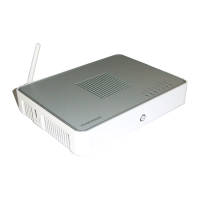
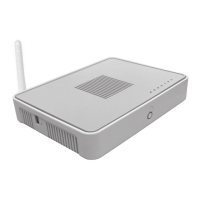
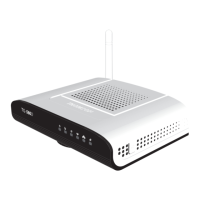
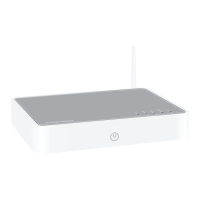
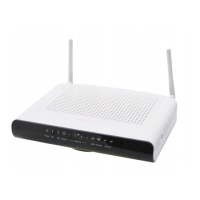
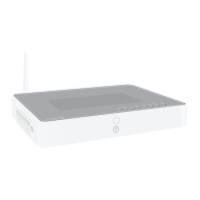
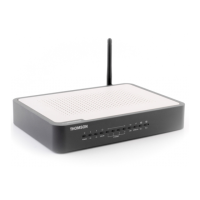
If the signal is low or not available, try to reposition the Thomson Gateway or (if available) redirect the
antenna(s) of the Thomson Gateway for optimal performance.
Change the wireless channel.
Poor Wireless Connectivity or Range
Try the following:
Check the signal strength, indicated by the wireless client manager. If the signal is low, try to reposition
the Thomson Gateway or (if available) redirect the antenna(s) of the Thomson Gateway for optimal
performance.
Change the wireless channel.
Use WPA(2)-PSK as encryption.
For more information, see “5.3 Securing Your Wireless Connection” on page 43.
Change the wireless channel
Proceed as follows:
1 Browse to the Thomson Gateway GUI.
2 Under Home Network, click Wireless
3 The Wireless Access Point page appears.
4 In the Navigation bar, click Configure.
5 Under Configuration, select the channel of your choice in the Channel Selection list.
6 Click Apply.
Can not connect via WPS
If you are having trouble connecting your wireless client via WPS, try to configure it manually. For more
information, see “5.2 Connecting Your Wireless Client without WPS” on page 42.


 To Next Page