DMS-CTC-20101208-0018 v1.0
37
Configuration Tools
4.2 Backing Up/Restoring your Configuration
Introduction
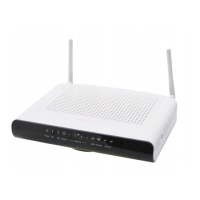
Once you have configured your Thomson Gateway to your needs, it is recommended to backup your
configuration for later use. This way you can always return to your working configuration in case of
problems.
Backing up your configuration
Proceed as follows:
1 Browse to the Technicolor Gateway GUI.
For more information, see “4.1 Thomson Gateway GUI” on page 32.
2 On the Thomson Gateway menu, click Configuration.
3 In the Pick a task list, click Save or Restore Configuration.
4 Under Backup current configuration, click Backup Configuration Now.
5 The Thomson Gateway prompts you to save your backup file.
6 Save your file to a location of your choice.
Restoring your configuration
Proceed as follows:
1 Browse to the Technicolor Gateway GUI.
For more information, see “4.1 Thomson Gateway GUI” on page 32.
2 On the Thomson Gateway menu, click Configuration.
3 In the Pick a task list, click Save or Restore Configuration.
4 Under Restore saved configuration, click Browse and open your backup file.
5 The Thomson Gateway restores your configuration.
Do not edit the backup files, this may result in corrupt files making them worthless as configuration
backup.
Backup files usually have.ini as extension.


 To Next Page