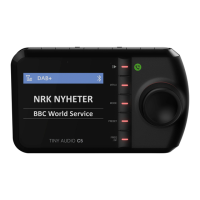
TINY AUDIO C10 User Guide
31
5. Finally, press Rotary Knob for confirmation.
Note:
The default DAB List Order setting is by alphabetical order.
To Enable Bluetooth
When you enable Bluetooth, you will be able to pair and connect TINY AUDIO C10 to
your mobile device (Smartphone or Tablet) for audio streaming.
1. In the menu function, rotate Rotary Knob [◄] [►] until the screen shows
《 BT POWER 》.
2. Press Rotary Knob to enter Bluetooth selection operation.
3. Then you can rotate Rotary Knob [◄] [►] until the screen shows《 BT ON 》to
enable Bluetooth function.
4. Or you can rotate Rotary Knob [◄] [►] until the screen shows《 BT OFF 》to
disable Bluetooth function.
5. Finally, press Rotary Knob to set the Bluetooth option
Note:
The default Bluetooth setting is ON.
TINY AUDIO C10 will attempt to connect to the mobile device that is already
paired automatically, after you have enabled the Bluetooth function in TINY
AUDIO C10 and your mobile device.
To Setup Bluetooth Pairing
Once you have enabled the Bluetooth function, if your mobile device has not already
been paired to TINY AUDIO C10, you must do the paring first before TINY AUDIO C10
can connect to your mobile device. Once the paring is done, it is saved and you do not
have to the paring again for the same mobile device. To do the paring, do the following:
1. In the menu function, rotate Rotary Knob [◄] [►] until the screen shows
《 BT PAIR 》.
2. Press Rotary Knob to enter the pairing mode, TINY AUDIO C10 is now waiting
for you to pair your mobile device to TINY AUDIO C10.
3. Operate your mobile device to enable the Bluetooth function, enter the search
mode for Bluetooth devices, and then select TINY AUDIO C10 device name to
complete the paring.


 To Next Page