3 PRINT FUNCTIONS (Windows)
92 Setting up Print Options
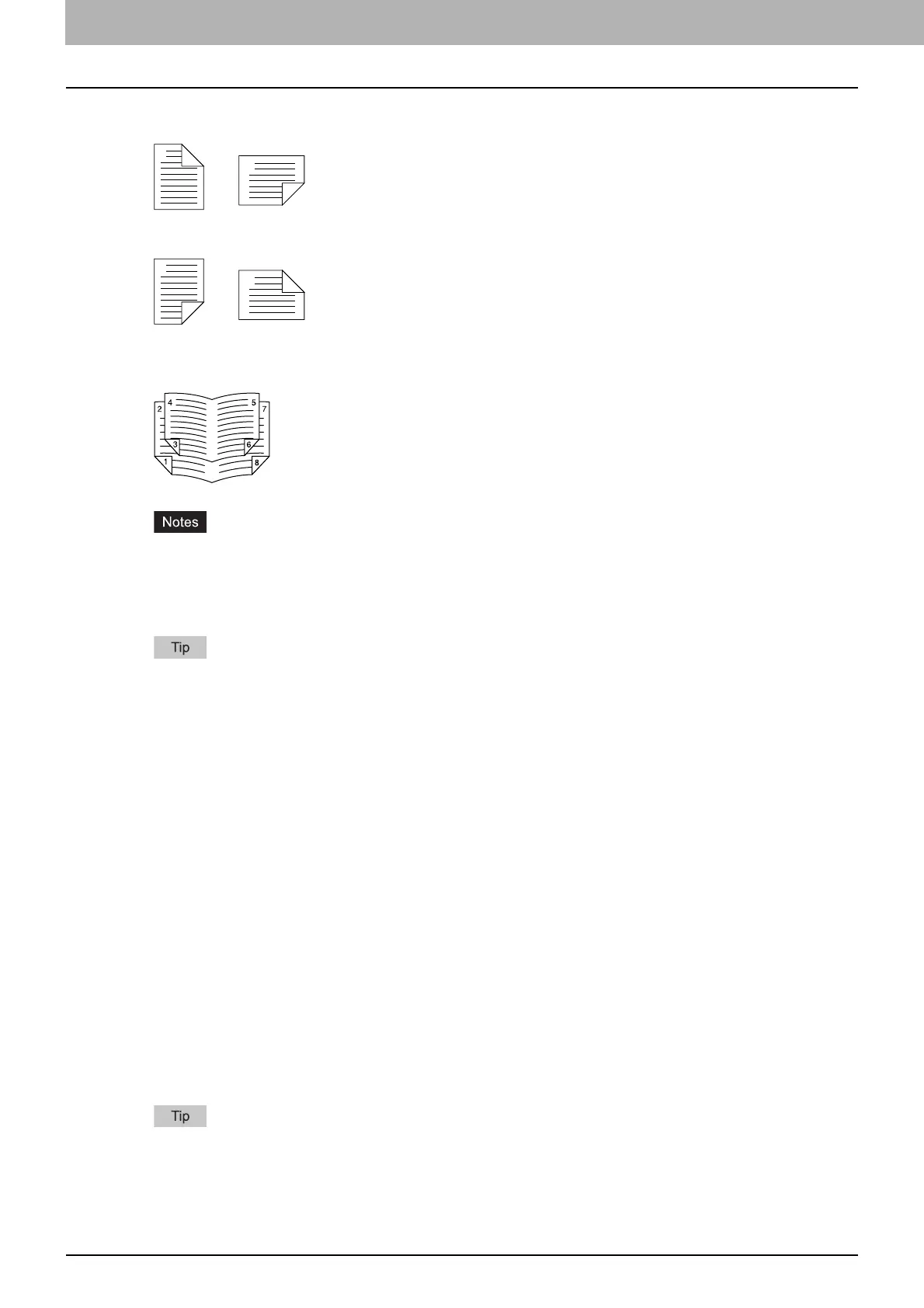
- Long Edge — Select this to print on both sides of the paper with a margin on the long edge.
- Short Edge — Select this to print on both sides of the paper with a margin on the short edge.
- Booklet — Select this to print a properly paginated booklet or magazine-style publication. When this is
selected, click [Details] to specify the details of the Booklet printing.
P.94 “Booklet Details”
The default setting is [Long Edge], which varies from destination to destination.
Be sure to select the following settings on the [Basic] tab to use this print option:
- Any paper size other than envelopes from the [Print Paper Size] list. You cannot use envelopes.
- [Plain] from the [Paper Type] list. You cannot use other paper types.
For the detailed instructions on how to print with the [2-Sided Printing] setting, see the following page:
P.107 “Printing on both sides of a paper”
3) Number of pages per Sheet
Sets the printing of multiple pages on one sheet. The pages are reduced to fit the selected paper size
automatically and printed.
- 2 pages — Prints images from 2 pages arranged on one sheet.
- 4 pages — Prints images from 4 pages arranged on one sheet.
- 6 pages — Prints images from 6 pages arranged on one sheet.
- 8 pages — Prints images from 8 pages arranged on one sheet.
- 9 pages — Prints images from 9 pages arranged on one sheet.
- 16 pages — Prints images from 16 pages arranged on one sheet.
Direction of Print
Sets how the pages are arranged on one sheet.
- Left to Right — Arranges pages horizontally from the left and printed top to bottom on one sheet.
- Right to Left — Arranges pages horizontally from the right and printed top to bottom on one sheet.
- Left to Right by column — Arranges pages vertically from the top and printed left to right on one
sheet.
- Right to Left by column — Arranges pages vertically from the top and printed right to left on one
sheet.
Draw Borders Around Pages
Prints borders around each page.
For the detailed instructions on how to print with the [Number of pages per Sheet] setting, see the
following page:
P.109 “Printing several pages on one sheet”



 To Next Page
 Loading...





