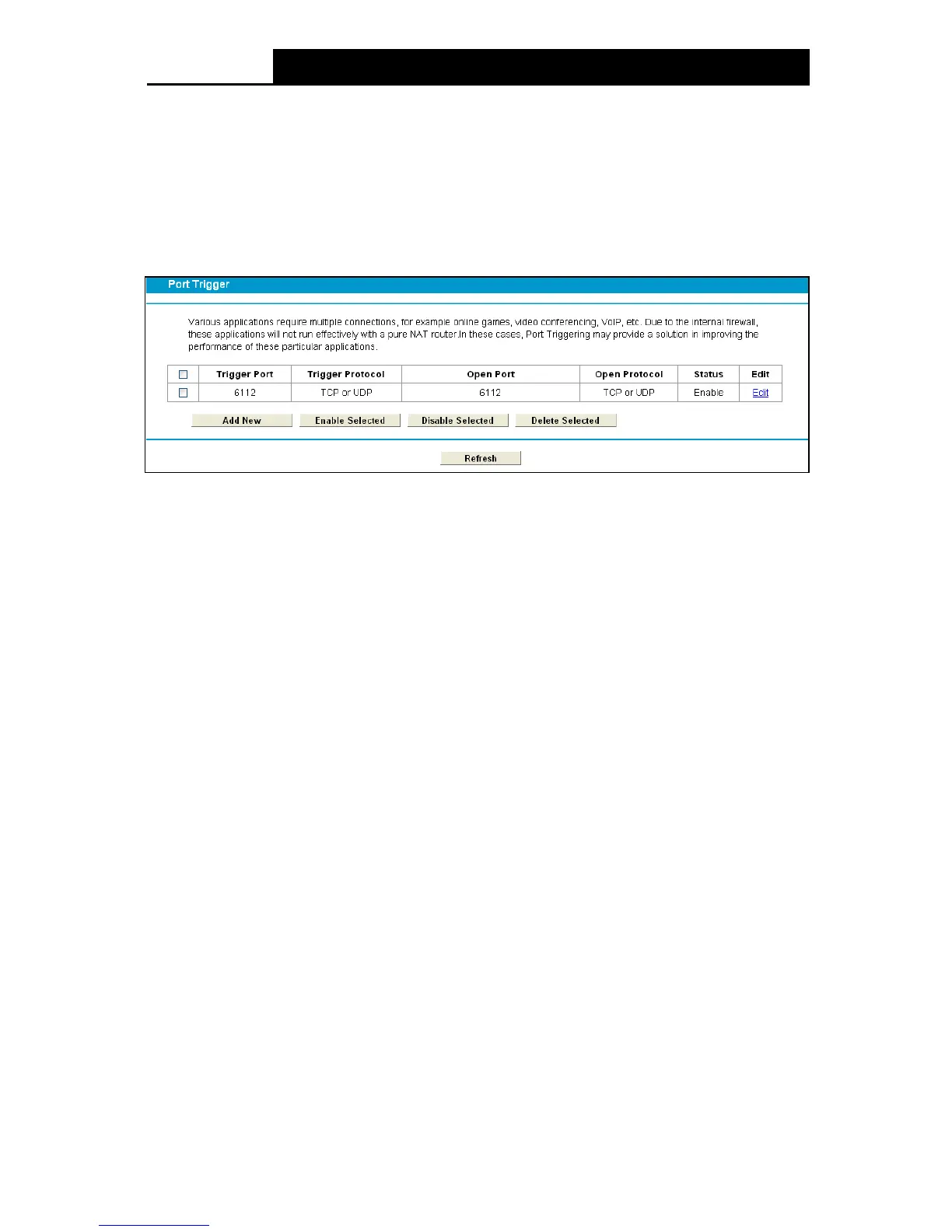
“Port Triggering”, you can view and add port triggering in the
next screen (shown in Figure 4-75). Some applications require multiple connections, such as
Internet games, video conferencing, Internet telephoning and so on. Port Triggering is used for
those applications that cannot work with a pure NAT modem router.
Figure 4-75
To add a new rule, follow the steps below.
1. Click the Add New button, the next screen will pop-up as shown in Figure 4-76.
2. Select a common application from the Common Service Port drop-down list, then both the
Trigger Port field and the Open Ports field will be automatically filled. If the Common
Service Port does not have the application you need, enter the Trigge r Port and the Open
Ports manually.
3. Select the protocol used for Trigger Port from the Trigger Protocol drop-down list. The
options are TCP, UDP, or All.
4. Select the protocol used for Incoming Ports from the Ope n Protocol drop-down list. The
options are TCP, UDP, or All. .
5. Select Enable in Status field.
6. Click the Save button to save the new rule.
79




 To Next Page