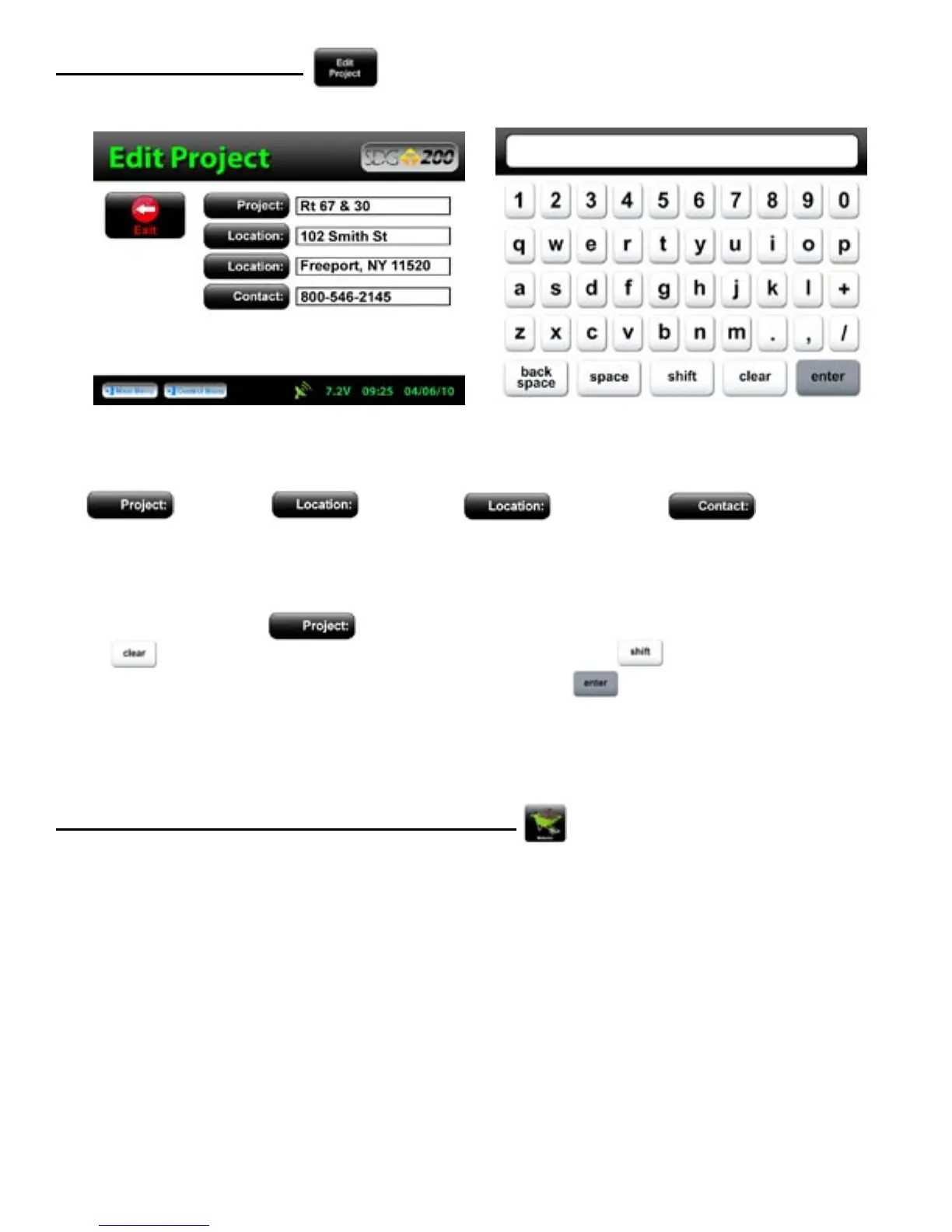
There are four black buttons labeled
Project Location Location Contact.
By pressing one of these labeled buttons, you will enter the screen that allows you to store information
for that Project.
For example Press Project, a keyboard allowing you to change the default name will appear. Press
Clear if you would like to start over with a new name. Press Shift to toggle from lower
to upper case letters. Once editing has been completed, Press Enter.
Define, Edit or Upload Material Properties
The density determined by the SDG 200 is highly material dependent so it is extremely important that the
material properties from the Proctor Test and Gradation Report for the soil being tested are input accurately into
the gauge.
The SDG 200 is configured to store 20 unique materials that are identified by user entered descriptions. If 20
materials have been defined in the SDG 200 and a 21
st
material is required, one of the original 20 will need to
be modified to reflect the material properties of the new material. The properties of the new material will need
to be input by editing the properties of a previously defined material. Once the old material properties are
overwritten with new information, the old information is overwritten and the new information is saved in the
gauge.
The SDG 200 will have default defined materials stored in each of the 20 unique locations. The following
sequence explains how to input new material properties through the keypad or by USB upload and how to edit
previously input material definitions.
Editing Project Details
17


 To Next Page