© Copyright 2013 TRENDnet. All Rights Reserved.
TRENDnet User’s Guide
TEW-810DR
19
Steps to improve wireless connectivity
There are a number of factors that can impact the range of wireless devices. Follow
these tips to help improve your wireless connectivity:
1. Keep the number of obstructions to a minimum. Each obstruction can reduce the
range of a wireless device. Position the wireless devices in a manner that will
minimize the amount of obstructions between them.
a. For the widest coverage area, install your router near the center of your home,
and near the ceiling, if possible.
b. Avoid placing the router on or near metal objects (such as file cabinets and
metal furniture), reflective surfaces (such as glass or mirrors), and masonry
walls.
c. Any obstruction can weaken the wireless signal (even non-metallic objects), so
the fewer obstructions between the router and the wireless device, the better.
d. Place the router in a location away from other electronics, motors, and
fluorescent lighting.
e. Many environmental variables can affect the router’s performance, so if your
wireless signal is weak, place the router in several locations and test the signal
strength to determine the ideal position.
2. Building materials can have a large impact on your wireless signal. In an indoor
environment, try to position the wireless devices so that the signal passes through
less dense material such as dry wall. Dense materials like metal, solid wood, glass
or even furniture may block or degrade the signal.
3. Antenna orientation can also have a large impact on your wireless signal. Use the
wireless adapter’s site survey tool to determine the best antenna orientation for
your wireless devices.
4. Interference from devices that produce RF (radio frequency) noise can also impact
your signal. Position your wireless devices away from anything that generates RF
noise, such as microwaves, radios and baby monitors.
If possible, upgrade wireless network interfaces (such as wireless cards in computers)
from older wireless standards to 802.11n or 802.11ac. If a wirelessly networked device
uses an older standard, the performance of the entire wireless network may be slower.
If you are still experiencing low or no signal consider repositioning the wireless devices,
installing additional access points or wireless extenders.
Parental Control
This section allows you to setup and block specific network clients from access certain
webpage, similar to URL filter.
1. Log into your router management page (see “Access your router management page
”
on page 15).
2. Click on the Basic tab.
3. Click on the Parental Control section.
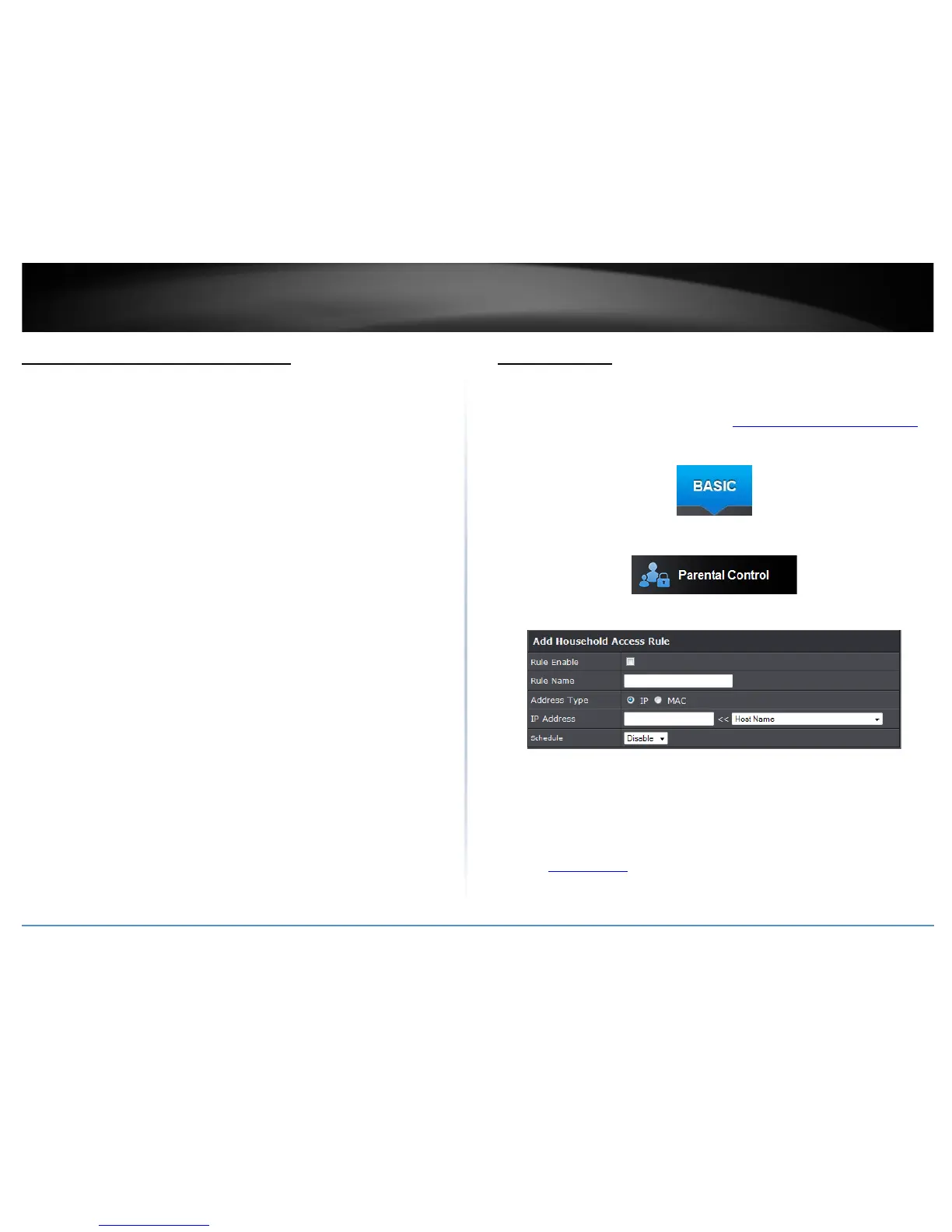
4. Review the household access rule section and click Add to continue.
• Rule Enable: Check this option to enable the rule.
• Rule Name: Enter the name of that you would like to apply to the rule.
• Address Type: Select the type of address you would like to use, IP address or MAC
address.
• IP Address: Enter your client’s address.
• Schedule: Select the schedule rule you would like to apply to your wireless network.
(See “Create Schedule
” section on page 34).



 To Next Page