© Copyright 2013 TRENDnet. All Rights Reserved.
TRENDnet User’s Guide
TEW-810DR
23
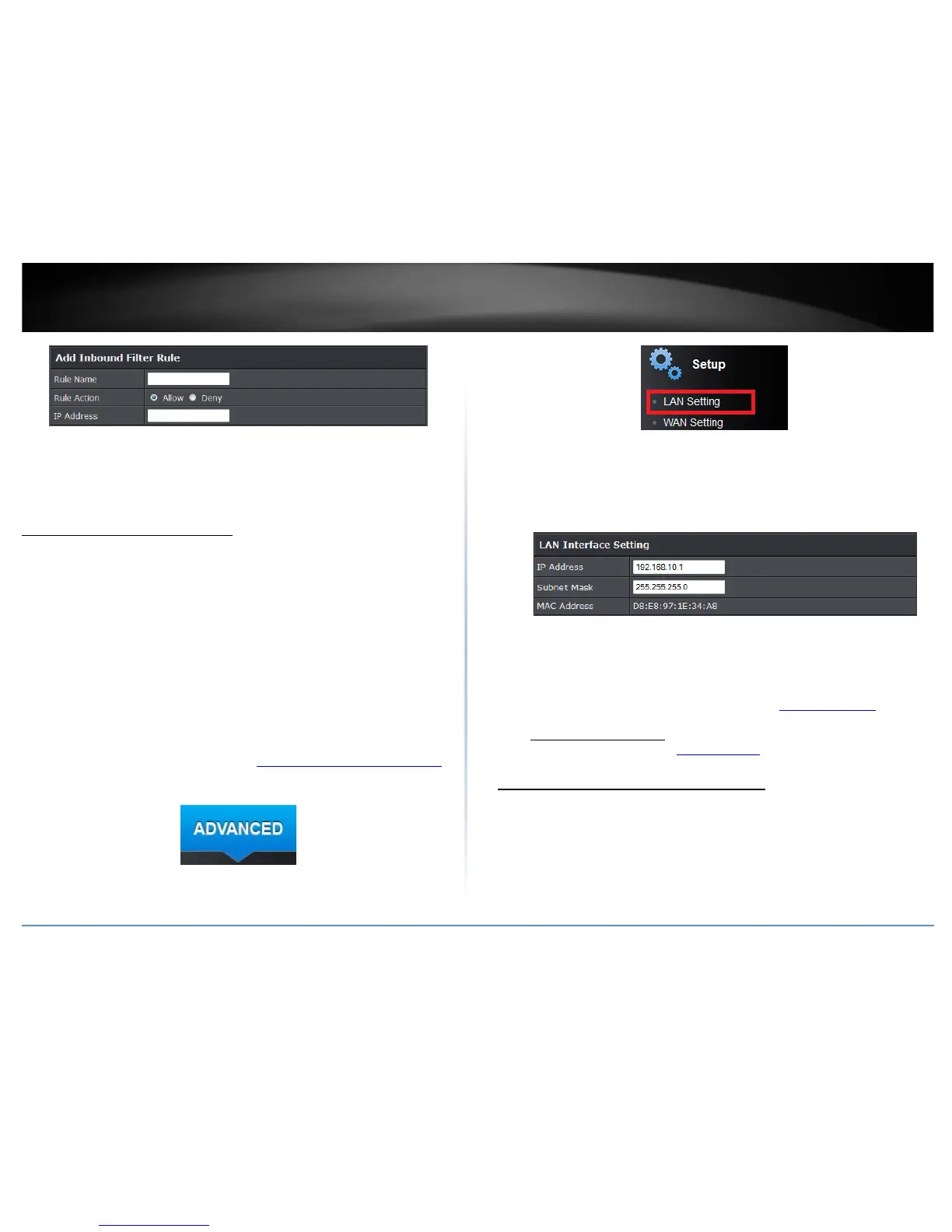
• Rule Name: Enter the name of the URL rule
• Rule Action: Select the action you would like to apply to the rule.
• IP Address: Enter the IP address you would like to apply the rule.
ADVANCED
Change your router IP address
Advanced > Setup > LAN Setting
In most cases, you do not need to change your router IP address settings. Typically, the
router IP address settings only needs to be changed, if you plan to use another router in
your network with the same IP address settings, if you are connecting your router to an
existing network that is already using the IP address settings your router is using, or if
you are experiencing problems establishing VPN connections to your office network
through your router.
Note: If you are not encountering any issues or are not faced with one of the cases
described above or similar, it is recommended to keep your router IP address
settings as default.
Default Router IP Address: 192.168.10.1
Default Router Network: 192.168.10.0 / 255.255.255.0
1. Log into your router management page (see “Access your router management page
”
on page 15).
2. Click on the Advanced tab.
3. Click on the Setup section and click on LAN Setting.
4. In LAN Interface Setting section, Enter the router IP address settings. Click Apply to
save settings.
Note: The DHCP address range will change automatically to your new router IP
address settings so you do not have to change the DHCP address range manually to
match your new router IP address settings.
• IP Address: Enter the new router IP address. (e.g. 192.168.200.1)
• Subnet Mask: Enter the new router subnet mask. (e.g. 255.255.255.0)
• MAC Address: Displays your router’s MAC address
Note: You will need to access your router management page using your new
router IP address. (e.g. Instead of using the default http://192.168.10.1
your new
router IP address will use the following format using your new IP address
http://(new.ipaddress.here) to access your router management page. You can
also use the default login URL http://tew-810dr
Set up the DHCP server on your router
N Advanced > Setup > LAN Setting
Your router can be used as a DHCP (Dynamic Host Configuration Protocol) server to
automatically assign an IP address to each computer or device on your network. The
DHCP server is enabled by default on your router. If you already have a DHCP server on
your network, or if you do not want to use your router as a DHCP server, you can disable
this setting. It is recommended to leave this setting enabled.



 To Next Page