© Copyright 2013 TRENDnet. All Rights Reserved.
TRENDnet User’s Guide
TEW-810DR
30
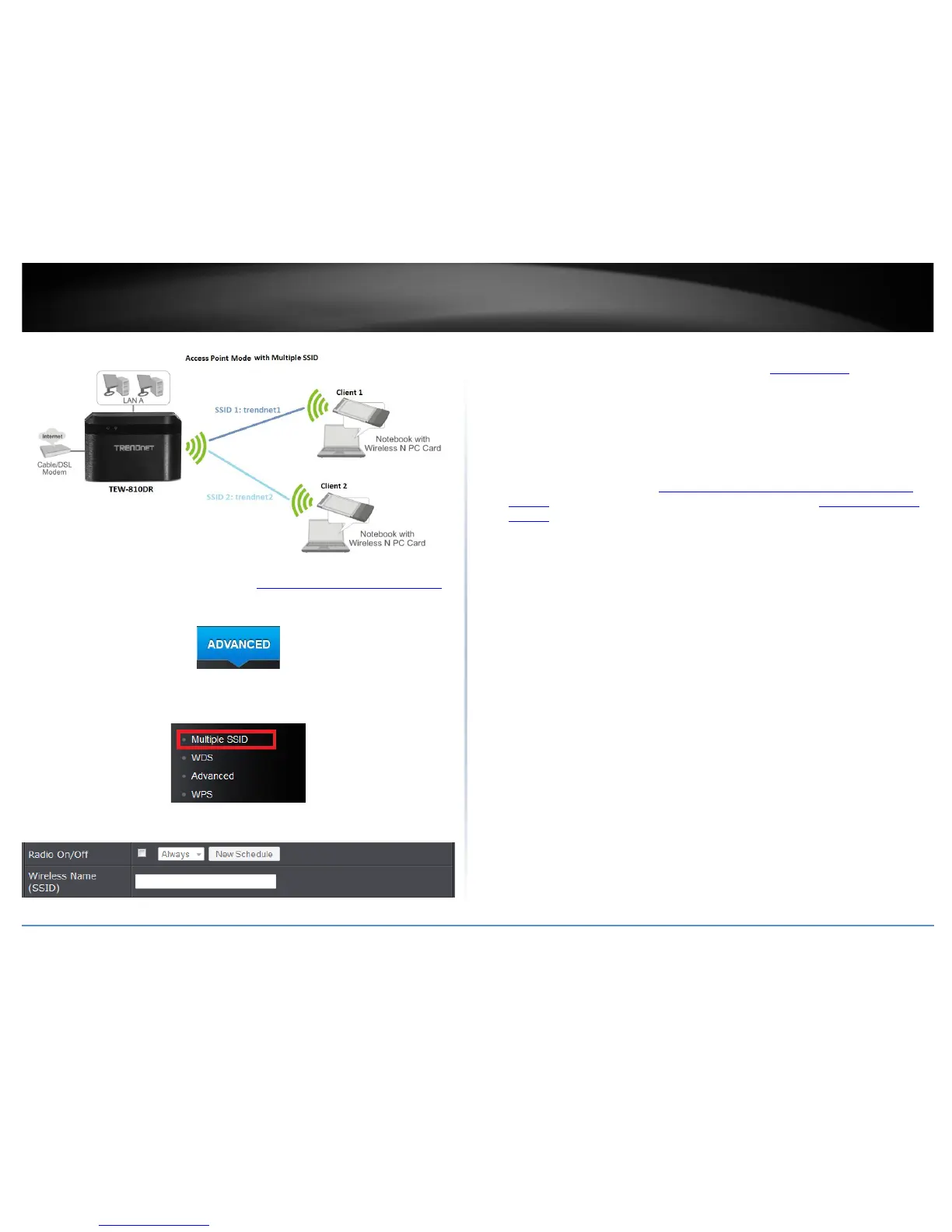
To configure multiple SSID on your router:
1. Log into your router management page (see “Access your router management page
”
on page 16).
2. Click on the Advanced tab.
3. Select the wireless band you would like to configure Wireless 2.4GHz or Wireless
5GHz and click on Multiple SSID.
4. Review the Multiple SSID settings, click Apply when finished.
• Enabled: Check the option to enable the Guest Network. Select a schedule rule you
would like to apply to your wireless network. (See “Create Schedule
” section on
page 34) or select Always to have radio always on.
• Wireless Name (SSID): This acronym stands for Service Set Identifier and is the
name of your wireless network. It differentiates your wireless network from others
around you. It is recommended to use a different name from your primary wireless
network to a name that you can easily identify and differentiate from the primary.
You can reference your guests to access this network instead of the primary.
5. Under Security Policy, you can apply a different wireless security type and key to the
guest network. Please refer to
How to choose the type of security for your wireless
network page 11 to find out about different security types and Secure your wireless
network page 12 for wireless security configuration.
Note: You can repeat the steps to enable and configure additional SSIDs. You can
configure your wireless security settings for the additional SSIDs under Wireless
(2.4GHz or 5GHz)>Security. Under the Security Policy section, click the Wireless
Name (SSID) drop-down list to select the additional SSIDs to configure. Please refer
to page 15 to find out about different security types and page 16 for wireless
security configuration.
Wireless bridging using WDS (Wireless Distribution System)
Advanced > Wireless (2.4GHz or 5GHz) > WDS
Wireless bridging using WDS allows the device to create a wireless bridge with other
WDS supported wireless routers and access points configured in WDS mode to bridge
groups of network devices together wirelessly. Simultaneously, the router will also
function in access point mode allowing wireless client devices such as computers, game
consoles, mobile phones, etc. to connect in order to access network resources from
multiple groups of network devices as well as the Internet.
Note: You can create up to four WDS bridge connections on each wireless band
(2.4GHz and 5GHz). WDS (Wireless Distribution System) is not currently
standardized and may not connect to different model wireless routers or access
points, therefore, when using WDS, it is recommended to use the same model and
version for wireless bridging.
By default, your router functions in Access Point mode to allow wireless client devices to
connect and access your network resources and access the Internet.



 To Next Page