© Copyright 2013 TRENDnet. All Rights Reserved.
TRENDnet User’s Guide
TEW-810DR
26
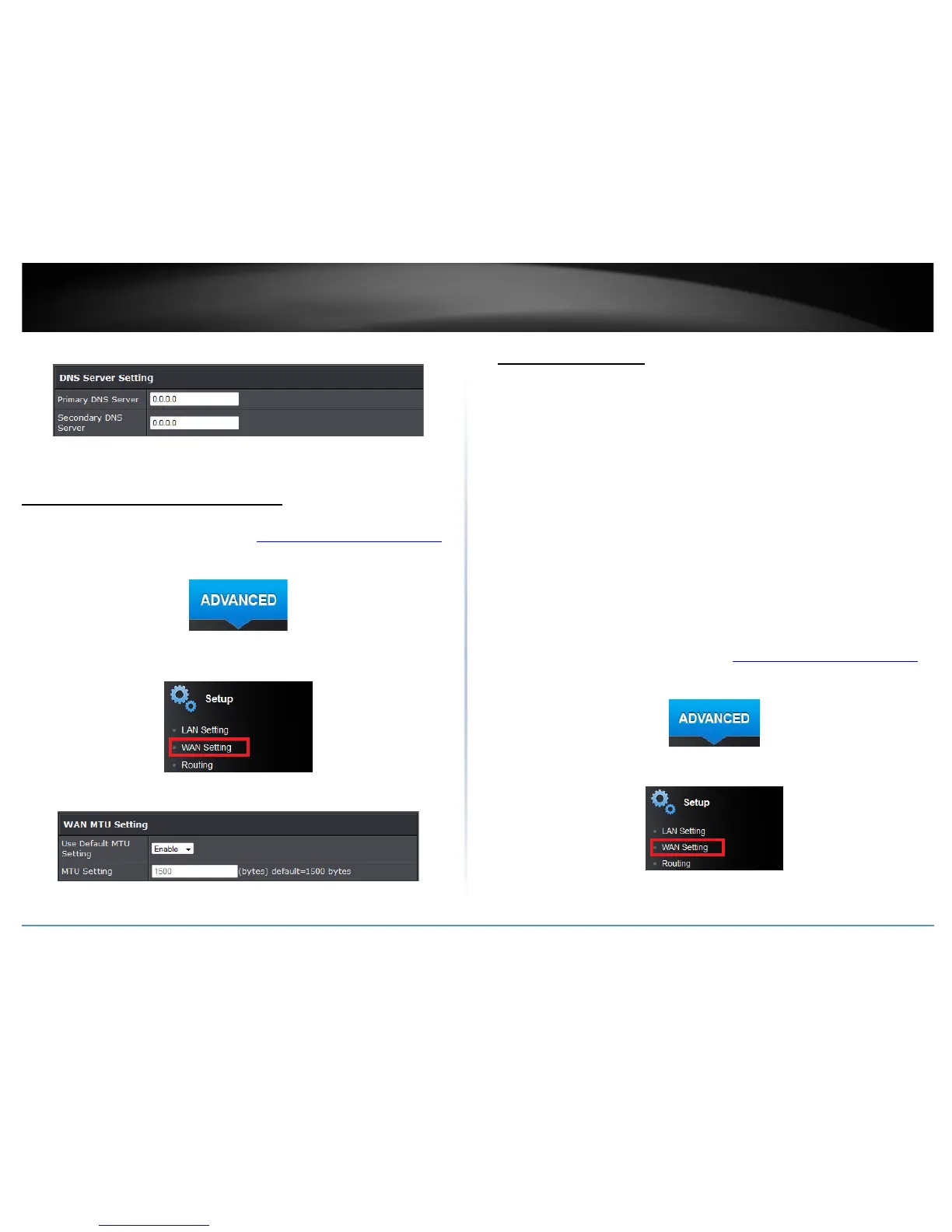
4. Enter both Primary and Secondary DNS servers to use. Click Apply to save settings.
Note: If you are unsure which DNS to use, please contact your ISP.
Manually configure your MTU setting
Advanced > Setup > WAN Setting
1. Log into your router management page (see “Access your router management page
”
on page 15).
2. Click on the Advanced tab.
3. Click on the Setup section and click on WAN Setting.
4. Under “Use Default MTU Setting select Disable to manually enter your MTU setting.
Note: If you are unsure which DNS to use, please contact your ISP.
Clone a MAC address
Advanced > Setup > WAN Setting
On any home network, each network device has a unique MAC (Media Access Control)
address. Some ISPs register the MAC address of the device (usually a router or a
computer) connected directly to the modem. If your computer MAC address is already
registered with your ISP and to prevent the re-provisioning and registration process of a
new MAC address with your ISP, then you can clone the address (assign the registered
MAC address of your previous device to your new router). If you want to use the MAC
address from the previous device (computer or old router that directly connected to the
modem, you should first determine the MAC address of the device or computer and
manually enter it into your router using the clone MAC address feature.
Note: For many ISPs that provide dynamic IP addresses automatically, typically, the
stored MAC address in the modem is reset each time you restart the modem. If you
are installing this router for the first time, turn your modem before connecting the
router to your modem. To clear your modem stored MAC address, typically the
procedure is to disconnect power from the modem for approximately one minute,
then reconnect the power. For more details on this procedure, refer to your
modem’s User Guide/Manual or contact your ISP.
1. Log into your router management page (see “Access your router management page
”
on page 15).
2. Click on the Advanced tab.
3. Click on the Setup section and click on WAN Setting.



 To Next Page