© Copyright 2013 TRENDnet. All Rights Reserved.
TRENDnet User’s Guide
TEW-810DR
38
1. Log into your router management page (see “Access your router management page”
on page 15).
2. Click on the Advanced tab.
3. Click on the Firewall section and click on Special Applications.
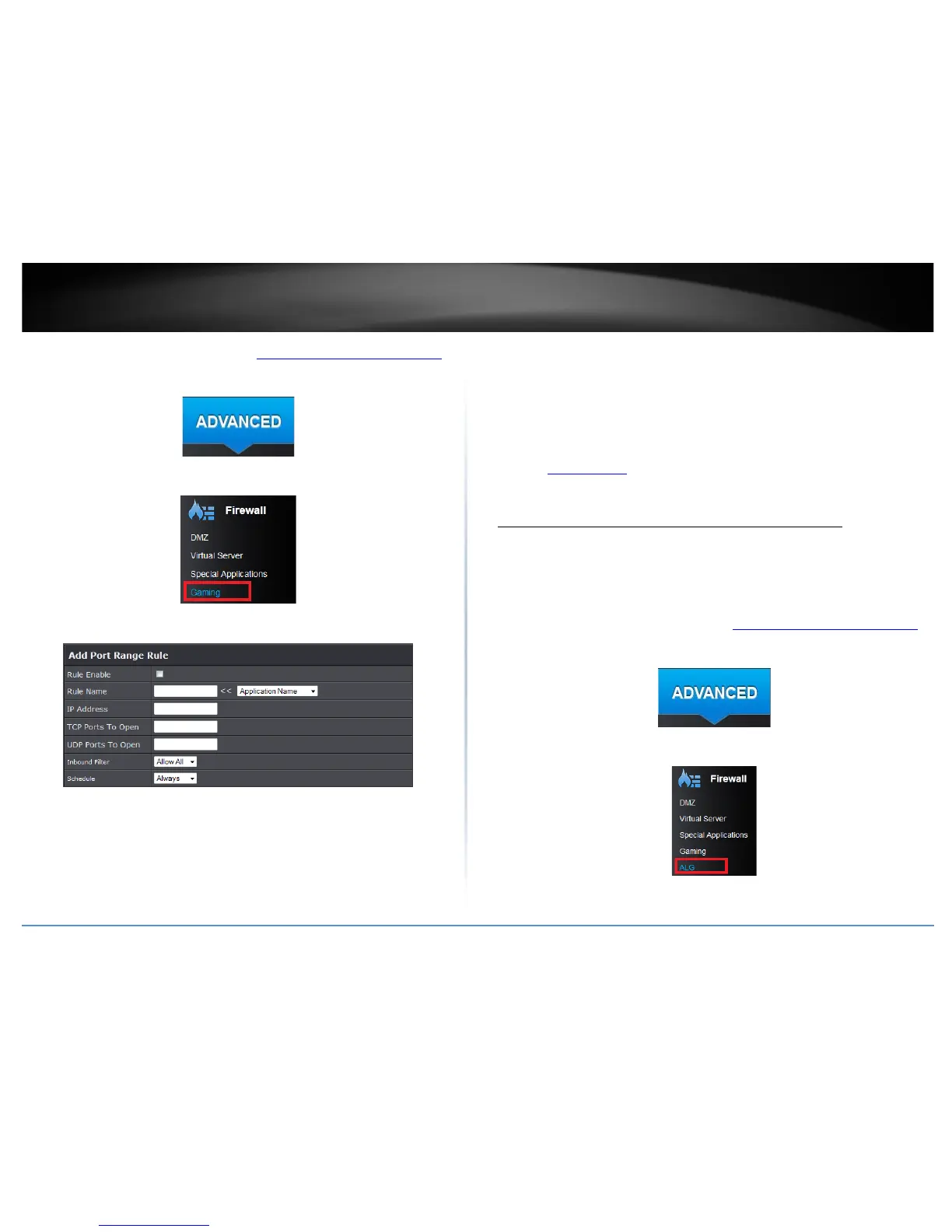
4. Review the port range settings. Click Add to save settings.
• Rule Enable: Check to enable port triggering rule
• Rule Name: Enter the name you would like to assign to the port triggering rule or
select from a predefine list on the pull down menu.
• IP Address: Enter the IP address of the device to forward the port (e.g.
192.168.10.101).
• TCP Ports to Open: Enter the TCP port you would like to set.
• UDP Ports to Open: Enter the UDP port you would like to set.
Note: Please refer to the device documentation to determine which ports and
protocols are required. You should assign a static IP address to the device or use
DHCP reservation to ensure the IP address of the device does not change.
• Inbound Filter: Select the defined inbound filter you would like to apply or select
Allow All.
• Schedule: Select the defined schedule you would like to have the rule to be applied
(see “Create Schedule
” section on page 34).
Enable/disable Application Layer Gateways (ALG)
Advanced > Firewall > ALG
You may want to configure your router to allow computers the use of specific high layer
applications or service sessions to pass through. Application Layer Gateways (ALG)
allows you to easily enable or disable these applications to pass through your router.
Note: It is recommended to leave these settings enabled.
1. Log into your router management page (see “Access your router management page
”
on page 15).
2. Click on the Advanced tab.
3. Click on the Firewall section and click on Special Applications.
4. Review the applications to enable or disable. Click Apply to save the changes.



 To Next Page