© Copyright 2013 TRENDnet. All Rights Reserved.
TRENDnet User’s Guide
TEW-810DR
37
your network. This feature is not typically used as most devices and routers currently
use UPnP (Universal Plug and Play) to automatically configure your router to allow
access for applications. See “Enable/disable UPnP on your router
” on page 39.
Note: Please refer to the device documentation to determine if your device supports
UPnP first, before configuring this feature.
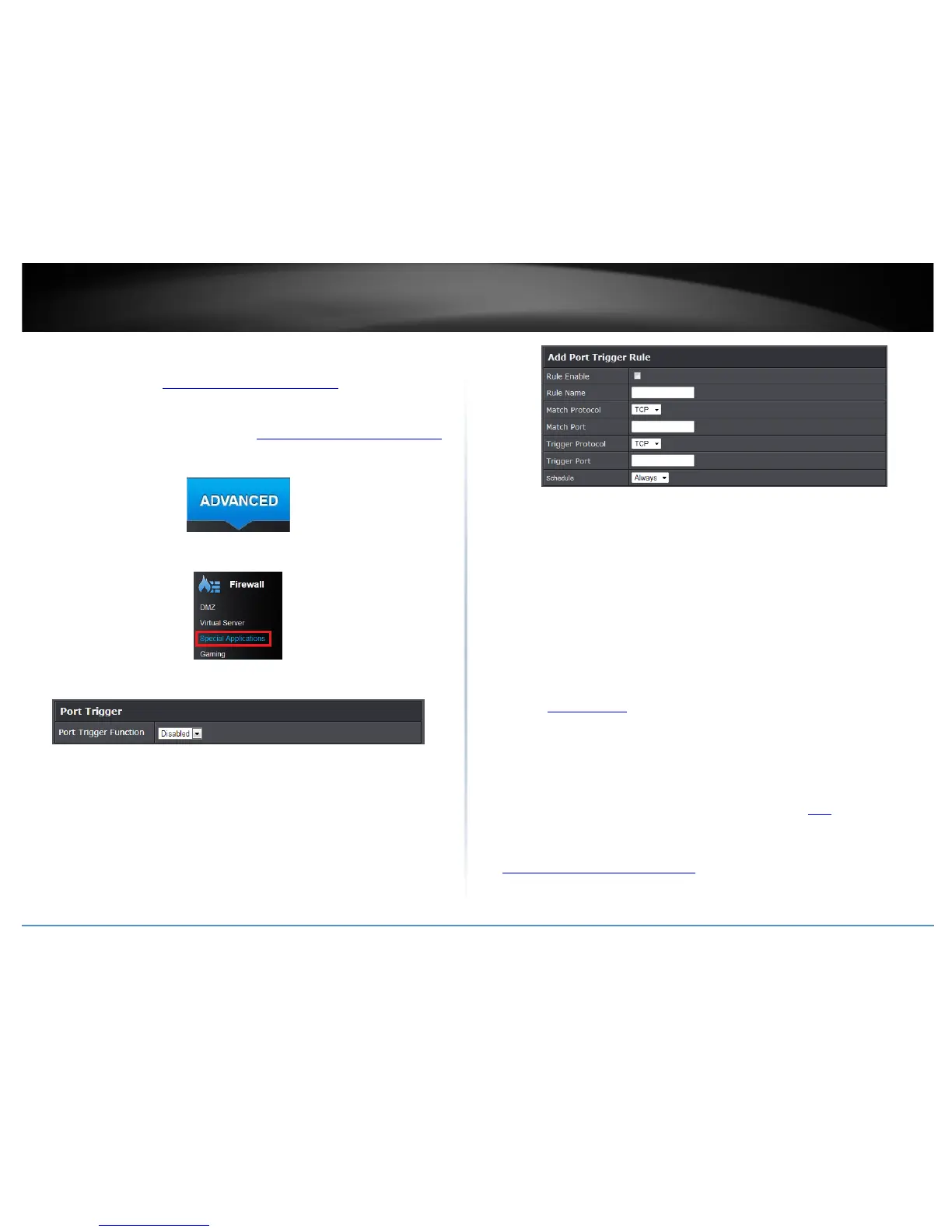
1. Log into your router management page (see “Access your router management page
”
on page 15).
2. Click on the Advanced tab.
3. Click on the Firewall section and click on Special Applications.
4. Select Enable under Port Triggering Function.
5. Review the special application settings. Click Apply to save settings.
• Rule Enable: Check to enable port triggering rule
• Rule Name: Enter the name you would like to assign to the port triggering rule.
• Match Protocol: Select the protocol to be forwarded to the device. TCP or UDP.
• Match Port: Enter the ports or port range to be forwarded to the device. (e.g. 2000-
2038 ,2200-2210).
• Trigger Protocol: Select the protocol requested by the device. TCP or UDP.
• Trigger Port: Enter the ports or port range requested by the device. (e.g. 554-554 or
6112-6112).
Note: Please refer to the device documentation to determine which ports and
protocols are required.
• Schedule: Select the defined schedule you would like to have the rule to be applied
(see “Create Schedule
” section on page 34).
Gaming
Advanced > Firewall > Gaming
Gaming allows you to define multiple ports (used or required by a specific application or
game) and forward them to a single IP address (a computer or device) on your network.
Using this feature is more secure compared to using DMZ (see “DMZ
” on page 35) in
which DMZ forwards all ports instead of only specific ports used by an application. Since
most ISPs constantly change your home IP address, to be able to access the Virtual
Server port(s) from the Internet it is recommended to setup Dynamic DNS service (see
“
Identify your network over the Internet” section on page 41).



 To Next Page