© Copyright 2013 TRENDnet. All Rights Reserved.
TRENDnet User’s Guide
TEW-810DR
34
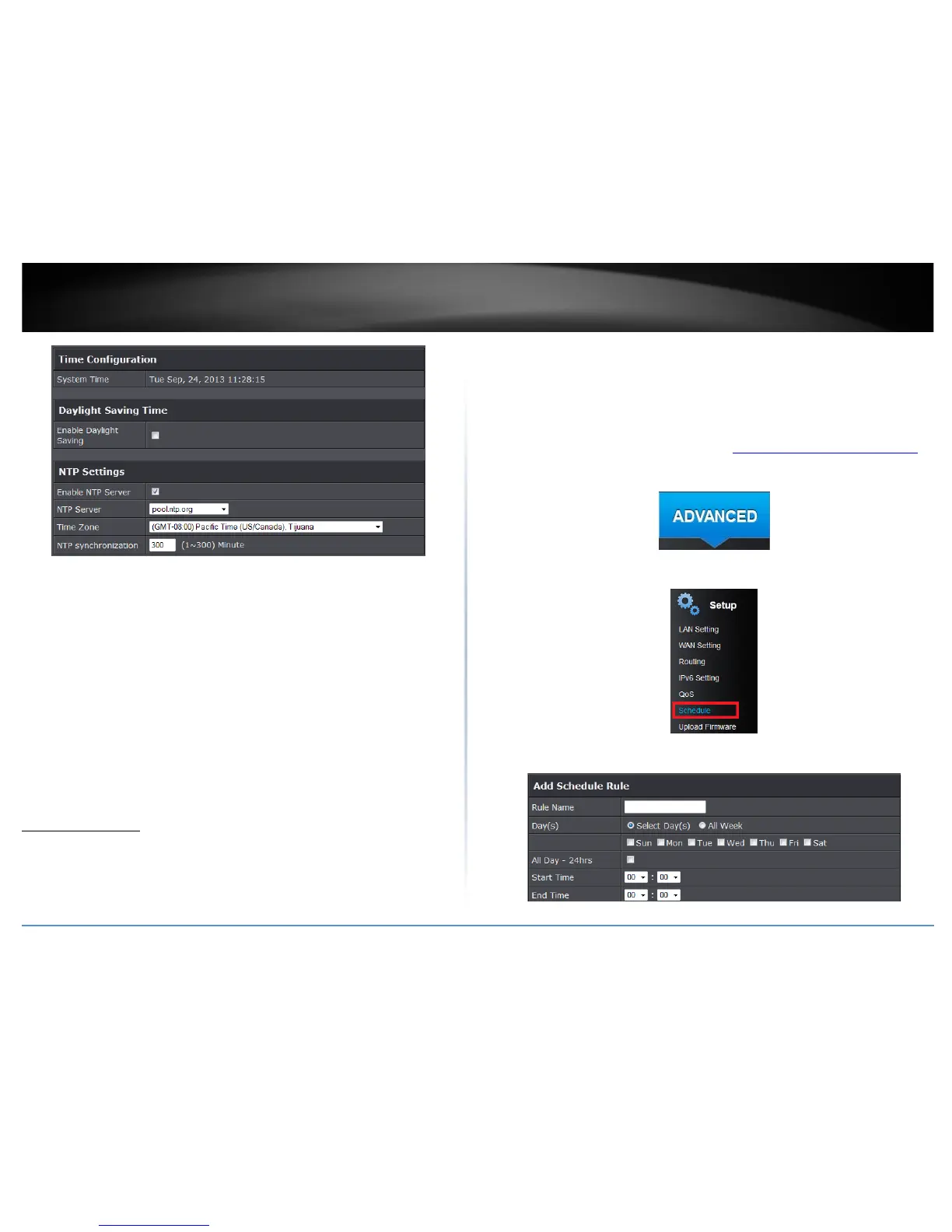
• Sytem Time: Displays the current device time and date information.
• Enable Daylight Saving: Check the option to configure the DST settings. Set the
annual range when daylight saving is activated.
• Enable NTP Server: Check to enable NTP server. If option is not selected you will
need to manually set your time.
• NTP Server: Select the NTP server to use on the pull down menu.
• Time Zone: Select from the pull down menu your time zone.
Note: NTP servers are used for computers and other network devices to synchronize
time across an entire network.
• NTP synchronization: Enter the time duration in minutes of when the router will
synchronize with the NTP server.
• Manually set time: This option is available when Enable NTP Server option is not
enabled.
Note: Time is specified in 24-hour format.
Create schedules
Advance > Setup> Schedule
For additional security control, your router allows you to create schedules to specify a
time period when a feature on your router should be activated and deactivated. Before
you use the scheduling feature on your router, ensure that your router system time is
configured correctly.
Note: You can apply a predefined schedule to the following features:
• Virtual Server
• Access Control (Domain/URL Filters & IP/Protocol LAN Client Filters)
• Special Applications
• Gaming
1. Log into your router management page (see “Access your router management page
”
on page 15).
2. Click on the Advanced tab.
3. Click on Setup section and click Schedule.
3. Review the Schedule settings. Click Apply to save settings.








 To Next Page