© Copyright 2013 TRENDnet. All Rights Reserved.
TRENDnet User’s Guide
TEW-810DR
20
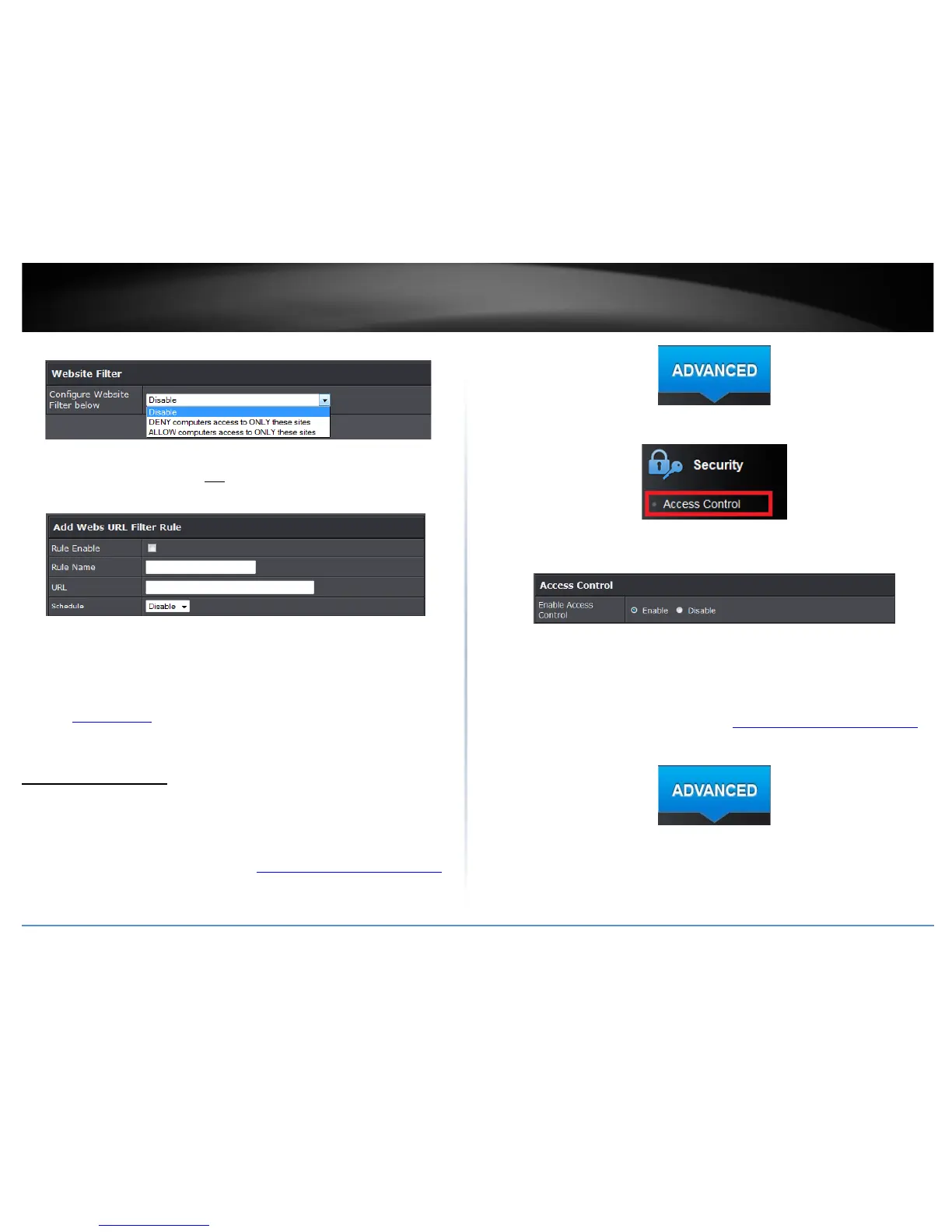
5. Select the website filter you would like to use.
• Disable: Select this option if you would like to disable website filter.
• DENY: Select this option to deny only website listed.
• ALLOW: Select this option to allow only website listed.
6. Select the website filter you would like to use.
\
• Rule Enable: Check this potion to enable URL rule
• Rule Name: Enter the name of the URL rule
• URL: Enter the URL to apply to the rule
• Schedule: Click the drop-down list to select the pre-defined schedule to apply. The
filter will only be active during the time period defined in the pre-defined schedule.
(See “Create Schedule
” section on page 34).
Access Control Filters
Access control basics
Advanced > Security > Access Control
You may want to block computers or devices on your network access to specific ports
(used or required by a specific application) to the Internet.
1. Log into your router management page (see “Access your router management page
”
on page 15).
2. Click on the Advanced tab.
3. Click on the Security section and click on Access Control.
4. Select enable next Enable Access Control to open the access control features. Click
Apply to save changes.
Service and Port blocking
Advanced > Security > Access Control
You may want to block computers or devices on your network access to specific ports
(used or required by a specific application) to the Internet.
1. Log into your router management page (see “Access your router management page
”
on page 15).
2. Click on the Advanced tab.
3. Click on the Security section and click on Access Control.



 To Next Page