© Copyright 2013 TRENDnet. All Rights Reserved.
TRENDnet User’s Guide
TEW-810DR
25
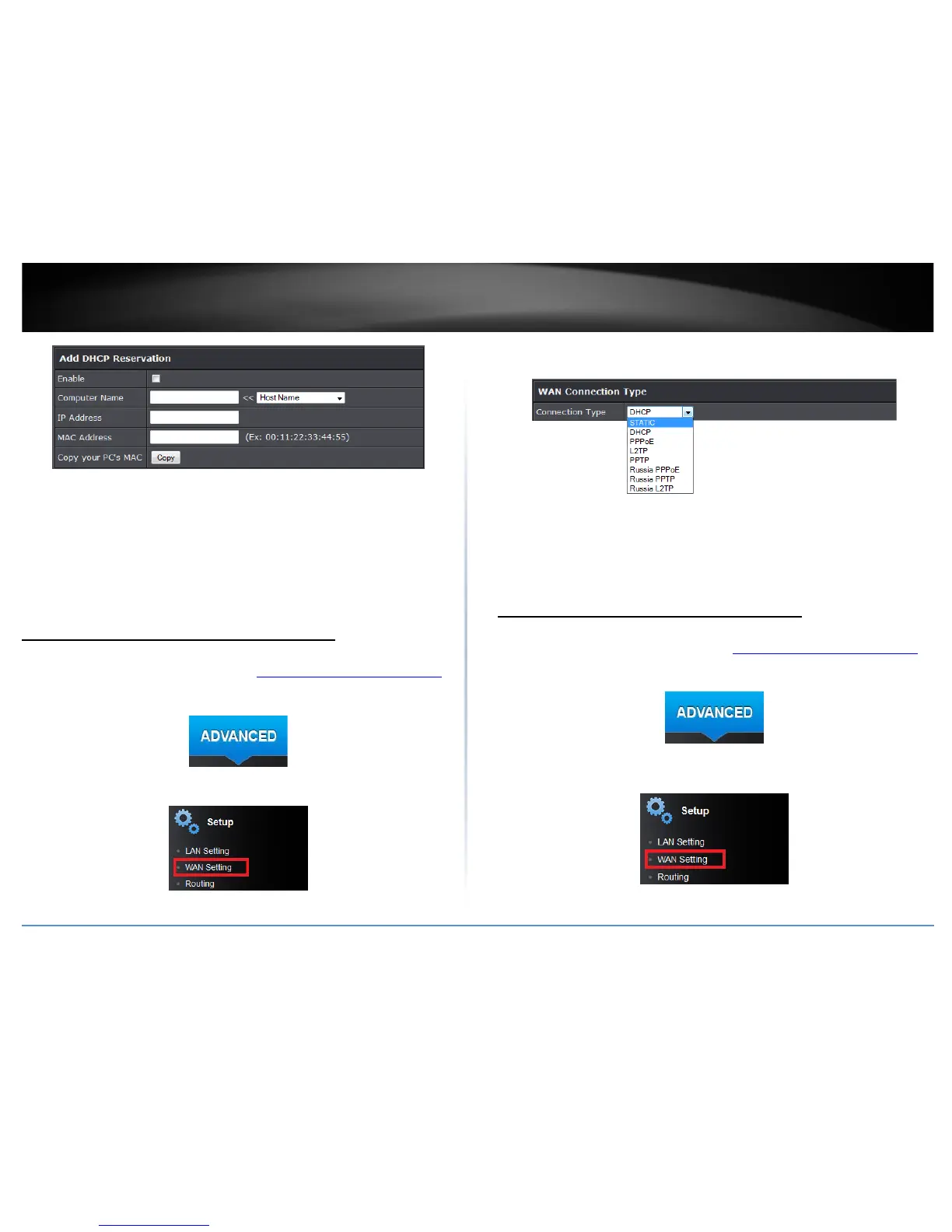
• Enable: Check the box to enable DHCP reservation rule.
• Computer Name: Enter a name of the device you will assign the DHCP reservation
rule or select your device from the pull down menu.
• IP Address: Enter the IP address to assign to the reservation. (e.g. 192.168.10.101)
• MAC Address: Enter the MAC (Media Access Control) address of the computer or
network device to assign to the reservation. (e.g. 00:11:22:AA:BB:CC)
• Copy your PC’s MAC: Click this option to copy’s your computer’s MAC address to
the MAC address field.
Manually configure your Internet connection
Advanced > Setup > WAN Setting
1. Log into your router management page (see “Access your router management page
”
on page 15).
2. Click on the Advanced tab.
3. Click on the Setup section and click on WAN Setting.
4. In the WAN Connection Type drop-down list, click the type of Internet connection
provided by your Internet Service Provider (ISP).
5. Complete the fields required by your ISP.
6. Complete the optional settings only if required by your ISP.
7. To save changes, click Apply.
Note: If you are unsure which Internet connection type you are using, please contact
your ISP.
Manually configure your DNS server setting
Advanced > Setup > WAN Setting
1. Log into your router management page (see “Access your router management page
”
on page 15).
2. Click on the Advanced tab.
3. Click on the Setup section and click on WAN Setting.



 To Next Page