© Copyright 2013 TRENDnet. All Rights Reserved.
TRENDnet User’s Guide
TEW-810DR
33
• Multicast-to-Unicast: Allows the wireless router to convert multicast traffic to
unicast.
Note: It is recommended to keep the default setting – Auto.
Wireless security (Wireless MAC filter)
Advanced > Wireless (2.4GHz or 5GHz) > Security
You may want to block wireless computers or devices on your network. This feature
allows you to protect your wireless network using MAC address.
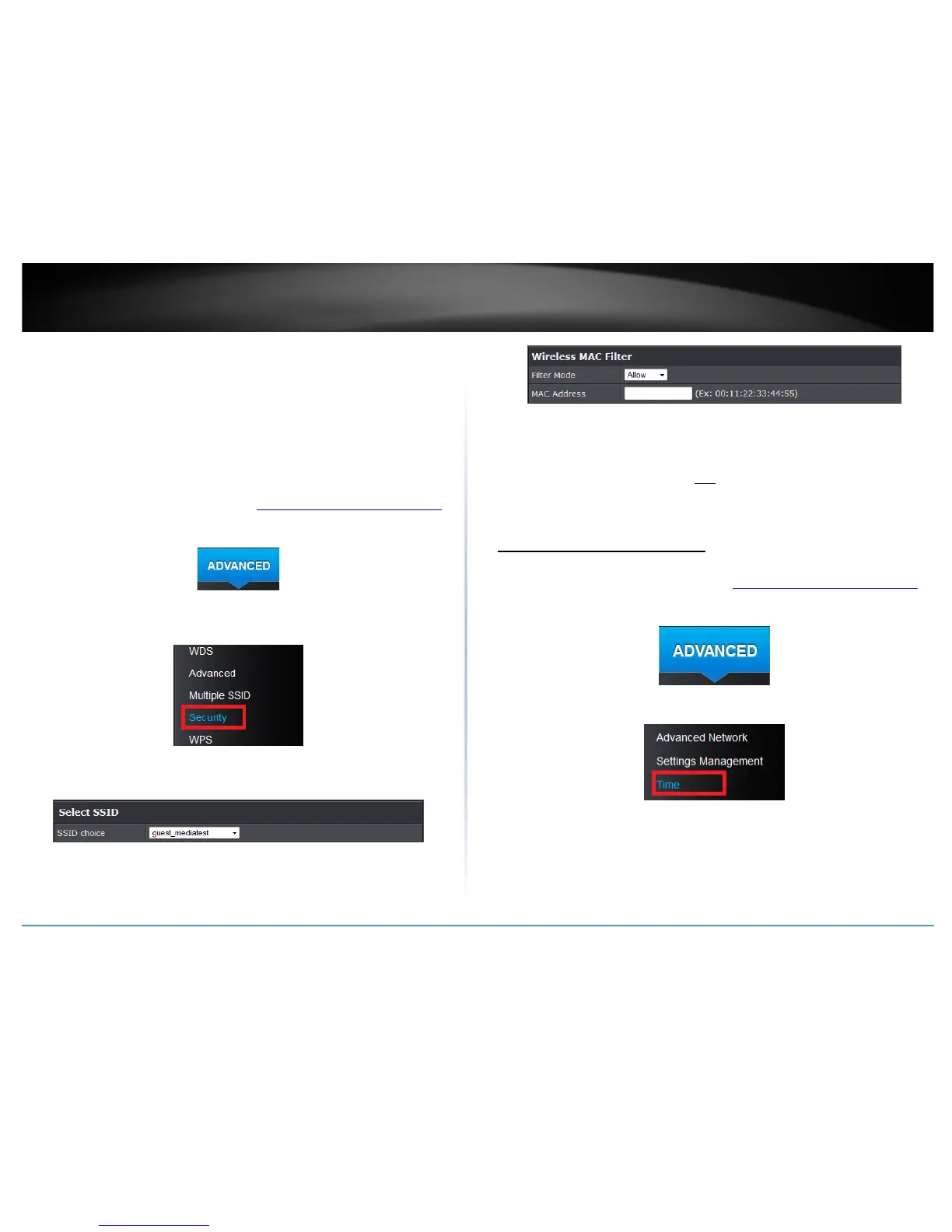
1. Log into your router management page (see “Access your router management page
”
on page 15).
2. Click on the Advanced tab.
3. Select the wireless band you would like to configure Wireless 2.4GHz or Wireless
5GHz and click on Security.
4. Select the wireless SSID from the pull down menu you would like to apply the MAC
filter to.
5. Review the Wireless MAC filter settings and click Apply to save changes.
• Filter Mode: Select the wireless filter mode you would like to apply.
o Disable: Select this option if you would like to disable filter.
o Allow: Select this option to allow only listed MAC addresses.
o Reject: Select this option to deny only listed MAC addresses.
• MAC address: Enter the MAC address of the wireless client you would like to apply
to the MAC filter.
Set your router date and time
Advance > Administrator > Time
1. Log into your router management page (see “Access your router management page
”
on page 15).
2. Click on the Advanced tab.
3. Click on Administrator section and click Time.
4. Review the Time settings. Click Apply to save settings.




 To Next Page