© Copyright 2015 TRENDnet. All Rights Reserved.
TRENDnet User’s Guide
TEW-814DAP
38
4. Depending on your web browser settings, you may be prompted to save a file (specify
the location) or the file may be downloaded automatically to the web browser
settings default download folder. (Default Filename: config.bin)
To restore your access point configuration:
1. Log into your access point management page (see “
Access your access point
management page” on page 8).
2. Click on Tools and click on Settings Management.
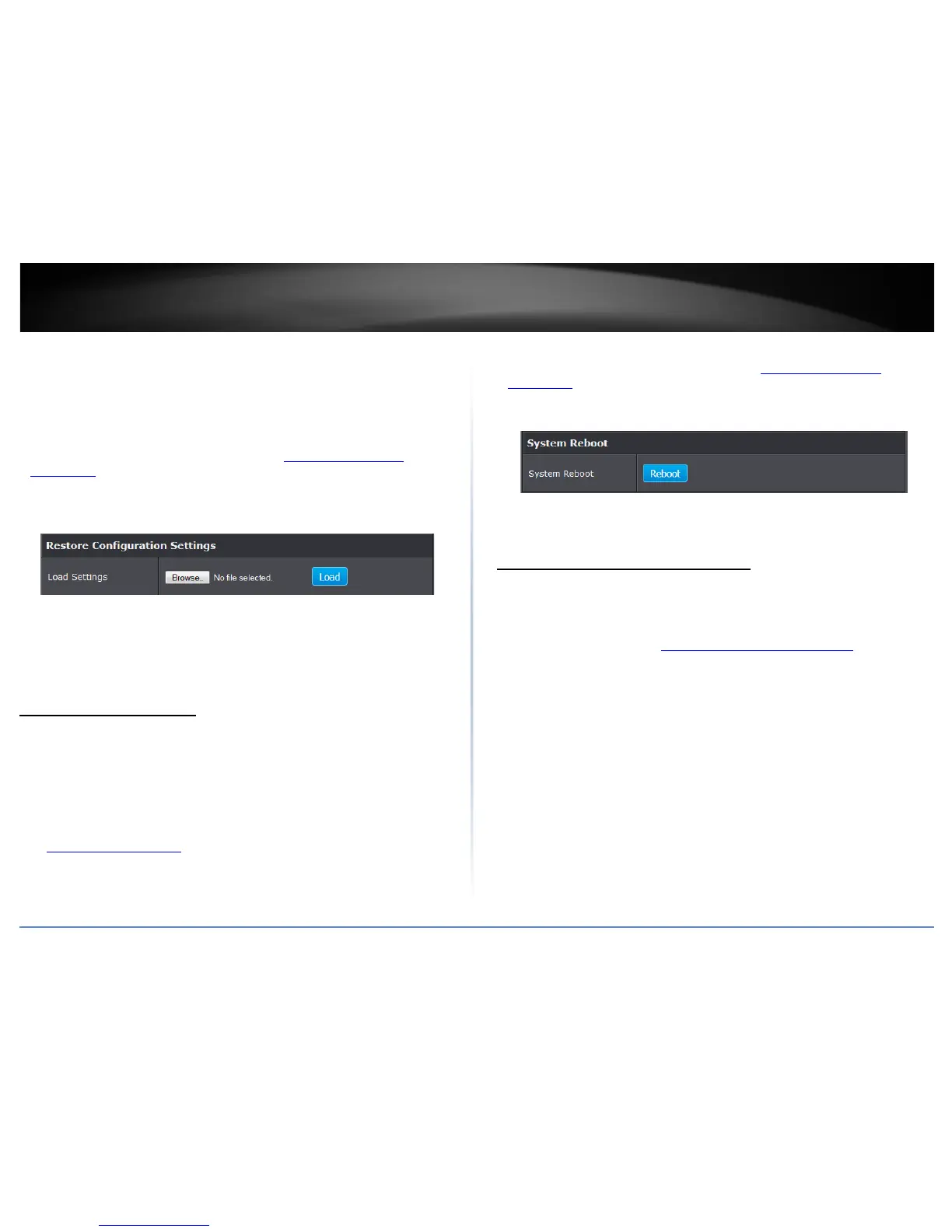
3. Next to Restore Configuration Settings, depending on your web browser, click on
Browse or Choose File.
4. A separate file navigation window should open.
5. Select the access point configuration file to restore and click Load. (Default Filename:
config.bin). If prompted, click Yes or OK.
6. Wait for the access point to restore settings.
Reboot your access point
Administrator > Settings Management
You may want to restart your access point if you are encountering difficulties with your
access point and have attempted all other troubleshooting.
There are two methods that can be used to restart your access point.
• Turn the access point off for 10 seconds using the access point On/Off switch
located on the rear panel of your access point or disconnecting the power port, see
“
Product Hardware Features” on page 2. Use this method if you are encountering
difficulties with accessing your access point management page. This is also known
as a hard reboot or power cycle.
OR
• Access Point Management Page – This is also known as a soft reboot or restart.
1. Log into your access point management page (see “
Access your access point
management page” on page 8).
2. Click on Tools and click on Settings Management.
3. Next to System Reboot, click Reboot.
4. Wait for the device to reboot.
Upgrade your access point firmware
Tools > Upload Firmware
TRENDnet may periodically release firmware upgrades that may add features or fix
problems associated with your TRENDnet access point model and version. To check if
there is a firmware upgrade available for your device, please check your TRENDnet
model and version using the link.
http://www.trendnet.com/downloads/
In addition, it is also important to verify if the latest firmware version is newer than the
one your access point is currently running. To identify the firmware that is currently
loaded on your access point, log in to the access point, click on the Administrator
section and then on the Status. The firmware used by the access point is listed at the
top of this page. If there is a newer version available, also review the release notes to
check if there were any new features you may want or if any problems were fixed that
you may have been experiencing.
1. If a firmware upgrade is available, download the firmware to your computer.
2. Unzip the file to a folder on your computer.
Please note the following:
• Do not interrupt the firmware upgrade process. Do not turn off the device or press
the Reset button during the upgrade.
• If you are upgrade the firmware using a laptop computer, ensure that the laptop is
connected to a power source or ensure that the battery is fully charged.




 To Next Page