31
Q3. While using the USB Speakerphone to make/answer a call in Skype, can I still
play music by my PC’s sound card or USB speaker?
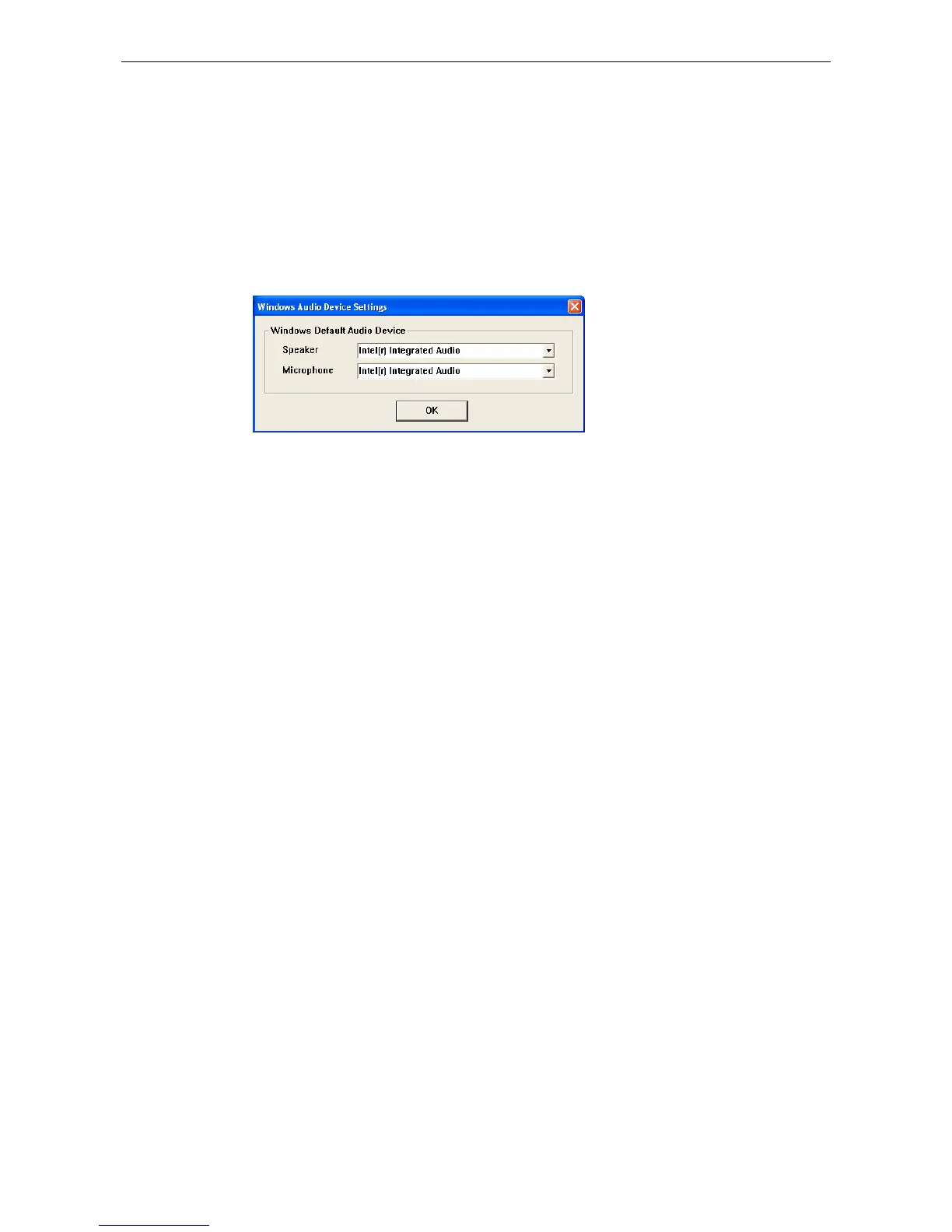
A3. Yes. Just set your preferred device as the Windows playback device.
1. Right-click the utility systray icon and select Windows Audio Device
Settings.
2. Select the sound card or USB speaker as the speaker. This ensures
Windows to use the specified device for PC music playback.
Utility Problems and Error Messages
Q4. Skype is launched. After I connect the USB Speakerphone:
• The LCD keeps displaying Connecting… and Skype has no response.
• When I press a key, the LCD turns to show S/W Disabled and Skype has
no response.
• When I press the keypads, the USB Speakerphone responses but Skype
doesn’t.
A4. Verify the following:
1. Make sure you have installed the provided utility software and allow the
utility to use Skype. Refer to the section “Managing Utility Access to
Skype” on page 10 for instructions.
2. Make sure the utility is launched. If not, click Start > USB Phone for
Skype and re-plug the USB Speakerphone. When the utility is launched,
its icon should appear in the system tray.
3. The phone’s LCD should display USB Phone now, indicating it’s ready for
use.
Q5. I got a Wrong Number message on the LCD.
A5. It could be that you’ve dialed an invalid number.



 To Next Page