EasyManua.ls Logo

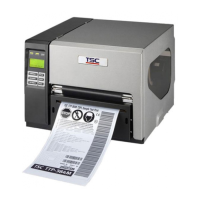
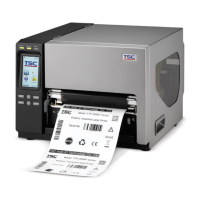
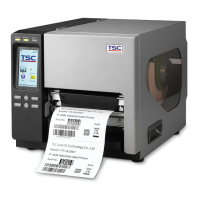
TSC TTP-368MT Series - User Manual

TSC TTP-368MT Series
63 pages
Print Icon
To Next Page IconTo Next Page
Loading...
USERS
MANUAL
TTP-2610MT/ TTP-368MT Series
THERMAL TRANSFER / DIRECT THERMAL
BAR CODE PRINTER

Other manuals for TSC TTP-368MT Series

Questions and Answers

  • M
    Mark FrazierAug 31, 2025
    How do I stop my TSC TTP-368MT Printer from skewing labels?
    • M
      Mrs. Heather MurphySep 1, 2025
      To stabilize label feeding and prevent skewing on your TSC Printer: * If the label is moving to the right, move the label guide to the left. * If the label is moving to the left, move the label guide to the right.
  • A
    Anthony StricklandAug 30, 2025
    Why is the printing position incorrect on small labels with my TSC TTP-368MT Printer?
    • J
      Jamie BrownAug 30, 2025
      If the printing position is incorrect for small labels on your TSC Printer: * Recalibrate the sensor sensitivity. * Set the correct label size and gap size. * Fine-tune the Shift Y parameter by pressing [MENU] [SELECT] x3 [DOWN]x6 [SELECT]. * If using BarTender software, set the vertical offset in the driver.
  • J
    Jack CampbellAug 29, 2025
    Why is my TSC TTP-368MT cutting off print on the sides of the label?
    • A
      alexandra97Aug 29, 2025
      If your TSC Printer is missing printing on the left or right side of the label, ensure the correct label size is set.
  • R
    robertcohenAug 28, 2025
    What to do if my TSC TTP-368MT Printer shows 'No Ribbon'?
    • C
      Colleen KingAug 28, 2025
      If your TSC Printer displays a 'No Ribbon' message: * Supply a new ribbon roll. * Reinstall the ribbon according to the user's manual.
  • E
    emoralesAug 27, 2025
    Why does my TSC Printer skip labels when printing?
    • H
      Hunter ParkAug 27, 2025
      If your TSC Printer is skipping labels, try these solutions: * Check if the label size is set up correctly. * Calibrate the sensor using Auto Gap or Manual Gap options. * Clear any dust from the GAP/Black mark sensor using a blower.
  • A
    Amanda MeadowsAug 26, 2025
    What to do if my TSC TTP-368MT says 'No Paper'?
    • R
      Robert WebbAug 27, 2025
      If your TSC Printer indicates 'No Paper', consider these solutions: * Supply a new label roll. * Reinstall the label roll, referring to the user manual for guidance. * Calibrate the gap/black mark sensor.
  • M
    Martha GrayAug 25, 2025
    How to fix poor print quality on my TSC Printer?
    • C
      Connor RiosAug 26, 2025
      To resolve poor print quality on your TSC Printer: * Reload the ribbon and media. * Clean the print head and platen roller. * Adjust the print density and print speed. * Run a printer self-test to check the print head test pattern for missing dots. * Change to a proper ribbon or label media. * Adjust the printhead pressure adjustment knob.
  • B
    blairmichelleAug 25, 2025
    Why is my TSC TTP-368MT not printing anything on the label?
    • L
      lauramccarthyAug 25, 2025
      If your TSC Printer is not printing on the label, consider the following: * Ensure the label and ribbon are loaded correctly, following the loading instructions. * Verify that the ribbon and media are compatible. * Reload the ribbon, ensuring the inked side is correct. * Clean the printhead. * Check that the print density setting is correct.

Summary

Product Introduction and Specifications

1.1 Product Introduction

Provides a general introduction to the TSC bar code printer and its key capabilities.

1.2 Product Features Overview

Details the standard and optional features offered by the printer models.

1.3 General and Print Specifications

Presents the printer's physical, power, environmental, and print-related specifications.

1.6 Media Specifications

Outlines the specifications for media types, widths, and lengths supported by the printer.

Operations Overview

2.1 Unpacking and Inspection

Guides users through the initial unpacking and inspection process of the printer.

2.2 Printer Component Overview

Provides a visual overview of the printer's front, interior, and rear component locations.

2.3 Operator Control Interface

Explains the printer's control panel, including LEDs, touch screen, and physical keys.

Printer Setup and Loading Procedures

3.1 Setting up the Printer

Step-by-step instructions for physically setting up and connecting the printer.

3.2 Loading the Ribbon

Detailed guide on how to properly load the ribbon into the printer for printing.

3.3 Loading the Media

Instructions for loading various media types, including roll labels and fan-fold media.

Adjustments for Print Quality

4.1 Print Head Pressure Adjustment

Guidance on adjusting print head pressure for optimal print quality and wrinkle prevention.

4.2 Ribbon Wrinkle Prevention

Methods for fine-tuning printer mechanisms to prevent ribbon wrinkles during operation.

Printer Menu and Settings Configuration

5.1 Accessing the Main Menu

How to access the printer's main menu via control panel keys or the touch screen interface.

5.2 Main Menu Structure Overview

A guide to the main menu categories and their respective configuration settings.

5.5 Sensor Calibration and Setup

Procedures for calibrating and configuring the printer's media sensors for accurate media detection.

5.6 Interface Configuration

Instructions for setting up printer communication interfaces like Serial and Ethernet for connectivity.

Diagnostic Tool Usage

6.1 Starting the Diagnostic Tool

Instructions on how to launch and begin using the TSC Diagnostic Utility software.

6.2 Printer Functionality

Details the various functions available within the diagnostic tool for printer management and testing.

6.3 Ethernet Setup via Tool

Guides on configuring Ethernet settings using the diagnostic utility via USB, RS-232, and Ethernet interfaces.

Troubleshooting Common Issues

Power, Carriage, and Printing Issues

Resolving problems related to power, carriage open, and general printing failures.

Print Quality and Media Handling

Solutions for poor print quality, wrinkles, incorrect positioning, and media feed problems.

Sensor, Interface, and Display Issues

Troubleshooting problems with sensors, LCD panel, ribbon sensors, and communication interfaces.

Printer Maintenance

Cleaning Procedures

Detailed methods for cleaning the print head, platen roller, and other printer parts for longevity.

Recommended Maintenance Intervals

Recommended intervals for cleaning and maintaining various printer components for optimal performance.

TSC TTP-368MT Series Specifications

General IconGeneral
Print TechnologyThermal Transfer
Print Resolution203 dpi
Media Thickness0.06 mm (0.00236") ~ 0.28 mm (0.011")
Media Core Diameter25.4 mm (1") ~ 76.2 mm (3")
InterfaceUSB, Ethernet
Operating Temperature5 ~ 40°C (41 ~ 104°F)
Operating Humidity25 ~ 85% non-condensing
CertificationsCE, FCC
Label Thickness0.06 - 0.25 mm
Operating System CompatibilityWindows

Related product manuals