EasyManua.ls Logo

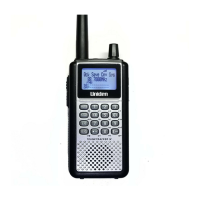
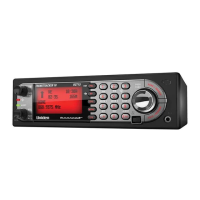
Uniden BCD996T - User Manual

Uniden BCD996T
152 pages
Print Icon
To Next Page IconTo Next Page
Loading...

Table of Contents

Questions and Answers

  • G
    gibsonmatthewAug 19, 2025
    How to fix a Uniden Radio scanner that won't turn on?
    • S
      Sharon YoungAug 19, 2025
      If your Uniden Radio scanner isn't working, it might not be getting power. Check that the AC adapter is properly connected to both the AC outlet and the scanner. When connected, the display should light up and cycle if you repeatedly press the [VOL] button. Also, if the AC outlet is controlled by a wall switch, ensure that the switch is turned on.
  • L
    Laura HunterAug 21, 2025
    Why won't my Uniden BCD996T stop scanning?
    • K
      kennethbarronAug 22, 2025
      If your Uniden Scanner scan won’t stop, try the following: * Adjust the squelch threshold. * Check the antenna connection. * Ensure the channels you want to scan are not locked out. * Verify the channel’s frequency is stored in the scanner’s memory. * Wait for a transmission on the channel to ensure the channel is active.
  • L
    Linda JensenAug 23, 2025
    What to do if Uniden BCD996T won't start scanning?
    • D
      danielle44Aug 25, 2025
      If your Uniden Scanner won’t start scanning, try the following: * Press the [SCAN/SEARCH] button. * Adjust the squelch threshold. * Ensure that the channels you want to scan are not locked out. * Check the antenna connection.
  • G
    Gail MartinezAug 26, 2025
    What to do if my Uniden Radio has poor reception?
    • C
      Colin CohenAug 26, 2025
      If your Uniden Radio is experiencing poor reception, there are a few things you can try: * Check the antenna connection and make sure it is secure. * Try moving or repositioning the antenna. * Move the scanner to a different location. If you are in a remote area, you might need to get an optional multi-band antenna from your dealer or local electronics store.
  • C
    cynthia00Aug 28, 2025
    How to troubleshoot a Uniden Radio when weather scan doesn't work?
    • M
      Michelle HawkinsAug 28, 2025
      If the weather scan on your Uniden Radio isn't working, try these steps: adjust the squelch threshold and check the antenna connection. Also, make sure you are in an area with a NOAA weather broadcast. If not, move to such an area.
  • K
    kelliterryAug 30, 2025
    What causes missing replies to conversations on Uniden Radio?
    • J
      Joshua SchmidtAug 30, 2025
      If you're missing replies to conversations on your Uniden Radio, make sure all the system’s frequencies have been entered.
  • J
    Joseph EdwardsSep 1, 2025
    How to improve Uniden BCD996T reception?
    • R
      Rhonda BakerSep 1, 2025
      To troubleshoot improper reception on your Uniden Scanner: * Check the antenna connection and adjust or reposition the antenna. * Try moving the scanner to a different location. * If you are in a remote area, consider using an optional multi-band antenna.
  • S
    Scott RobertsonSep 3, 2025
    Why won't my Uniden Scanner track a trunked system?
    • J
      James GilbertSep 3, 2025
      If your Uniden Scanner won’t track a trunked system: * Try changing to another system. * Enter the data frequency. * Program one or more ID’s or use the ID Search mode. * Wait for the ID’s to become active or scan another system.
  • C
    Carolyn DeckerSep 5, 2025
    Why is the weather scan not working on my Uniden BCD996T?
    • J
      Jennifer GreenSep 5, 2025
      If your Uniden Scanner weather scan isn't working, try these steps: * Adjust the squelch threshold. * Check the antenna connection. * Note that there might not be a NOAA weather broadcast available in your area.
  • K
    Katie ValenzuelaSep 7, 2025
    Why won't my Uniden Radio scan stop?
    • M
      Meghan StevensSep 8, 2025
      If your Uniden Radio scan won’t stop, here are some things to check: * Adjust the squelch threshold. * Check the antenna connection. * Ensure the channels you want to scan are not locked out. * Confirm the channel’s frequency is stored in the scanner’s memory. * Wait for a transmission on the channel, as it might not be active.

Summary

Precautions

Important Safety and Usage Warnings

Key warnings on product usage, modification, legal compliance, and safe operation.

Power and Related Issues

Guidance on preventing memory corruption and handling scanner power behavior.

A Short User’s Guide to Assist the First-Time Scanner Enthusiast

Operation

System Scanning Management

How to initiate, manage, and select systems and groups for scanning.

Optimizing P25 Performance

Programming General Settings

Programming Your Scanner

System, Site, and Channel Configuration

Settings for systems, sites, channels, groups, and their basic parameters.

Trunked System Programming Details

Specific programming steps for Motorola, EDACS, and LTR trunked systems.

Channel Editing and Frequency Setup

Steps for editing channel names, frequencies, talk group IDs, and audio types.

Searching and Storing

Search Modes and Management

Performing searches, editing ranges, and integrating searches with scanning.

Auto Search and Store Functionality

Automatically searching and storing found frequencies or IDs.

Using the Close Call Feature

Close Call Options and Hit Management

Configuring Close Call modes, alerts, pause settings, and managing hits.

Search and Close Call Options

Fire Tone-Out

Using the BCD996 T with a GPS

GPS Device Connection and Location-Based Scanning

Connecting a GPS device and enabling location-based system locking/unlocking.

Troubleshooting and Specifications

Troubleshooting Common Issues

Common operational problems and their suggested solutions.

Uniden BCD996T Specifications

General IconGeneral
DisplayBacklit LCD
Power Supply13.8 VDC
Priority ScanYes
Weather ScanYes
Alpha TaggingYes
ModesAM, FM, WFM
GPSYes
TypeBase/Mobile Scanner

Related product manuals