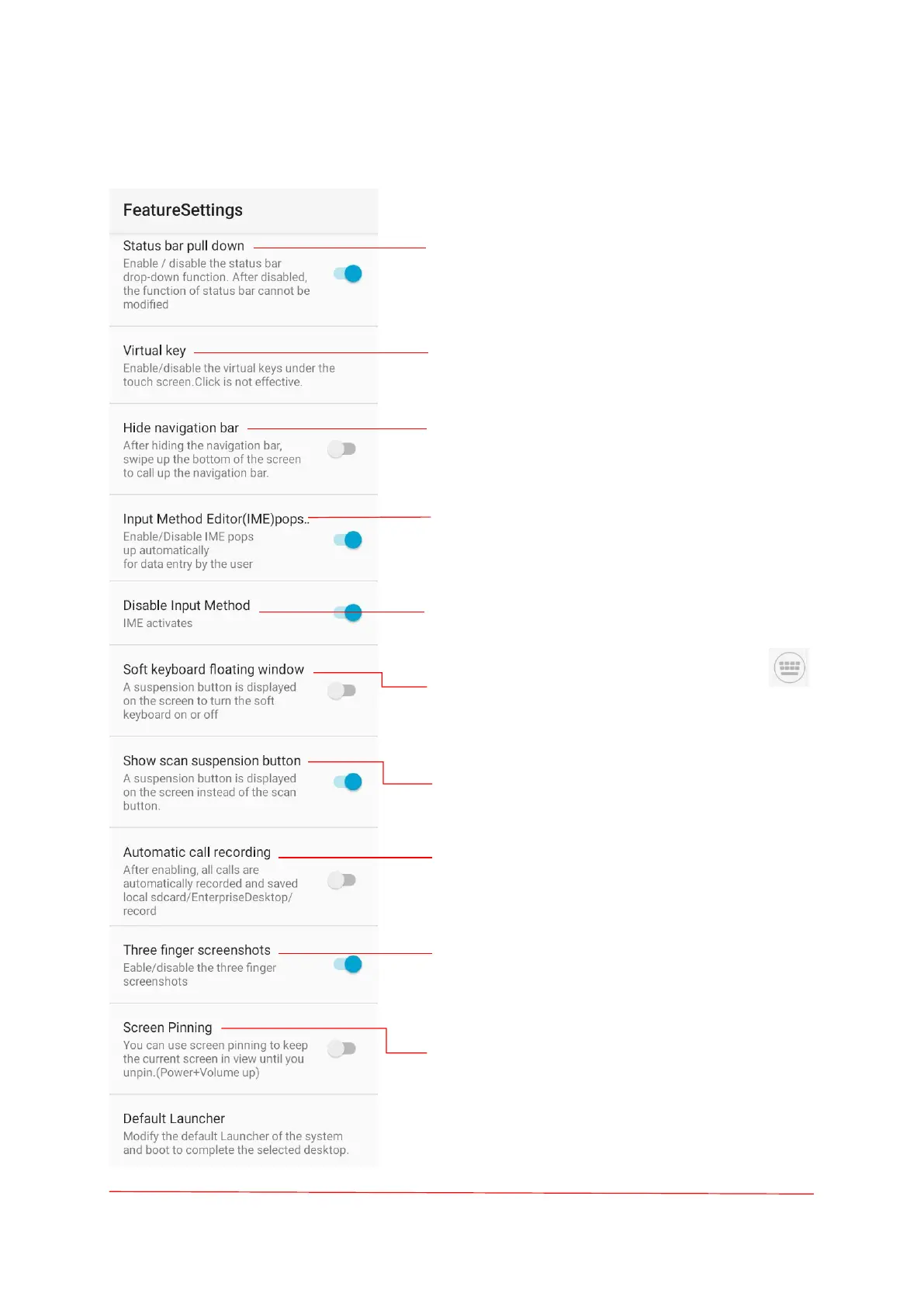
The default is "on", if disabled, the status bar
function cannot be modified.
The default is "on", click on the virtual key at the
bottom of the screen does not take effect after
disabling the corresponding virtual switch.
The default is "off", select "on" if you want to hide
the navigation bar at the bottom of the screen.
The default is "on", select "Disable this function" if
you want to disable automatic pop-up of the input
method during code scanning.
The default is "on", select "off " if you want to
enable the input method editor.
The default is "off", a suspension button is
displayed on the screen to turn the soft keyboard
on or off.
The default is "on", a suspension button is displayed
on the screen instead of the scan button.
The default is "off", all call recordings of the device
will be automatically saved to local after turning on,
which is convenient for information traceability.
The default is "off", take a screenshot by swiping up
or down on the screen with three fingers
simultaneously after turning on.
The default is "off", the shortcut key ("power" key
and "volume +" key pressed simultaneously) can fix
the current screen after turning on, and at this time,
you can only view the screen content, not to
operate; if you want to cancel the fixed, press the
shortcut key again.



 To Next Page