4.2 Connecting to Insight PC software
1.35
% | Carbon dioxide
Indigo201
igo201
USB-C
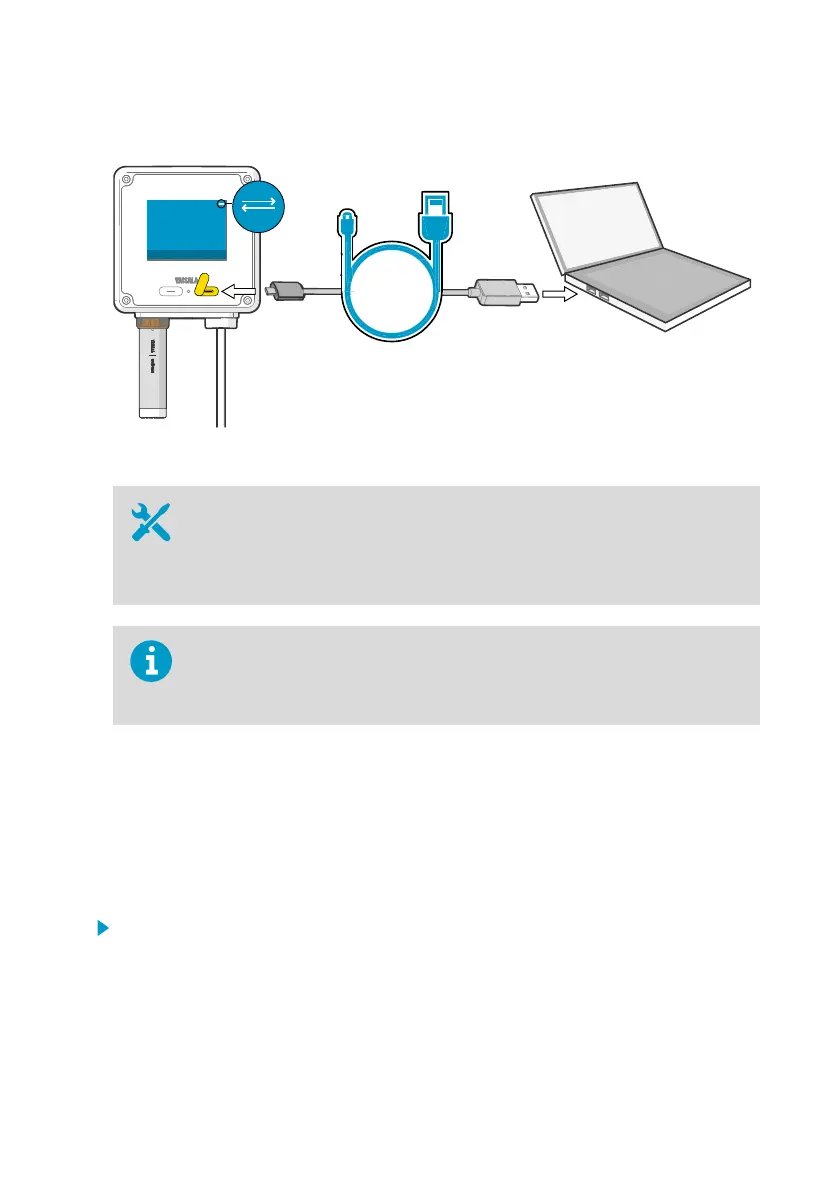
Figure 10 Connecting Indigo200 transmitter to Insight PC software with USB-C cable
Required tools:
• Computer with a Microsoft Windowsâ operating system (64-bit version),
Vaisala Insight PC software, and Vaisala USB Device driver installed
• USB cable with a USB-C (type C to A or type C to C) connector (available as an
accessory, a generic cable can also be used)
Note that the USB cable connection to Insight is only intended for temporary use
during configuration, and must not be used for permanent installations. The IP
rating and EMC properties of the transmitter can be aected when the USB port
is open.
You can connect the Indigo200 transmitter to Vaisala Insight PC software with any generic
USB cable that has a USB-C connector. The Insight software can be downloaded at
www.vaisala.com/insight. Using Indigo200 transmitters with Insight software requires the
Vaisala USB Device driver.
For an overview of the Insight PC software configuration and monitoring options for
Indigo200, see Insight PC software overview (page 25).
To connect the transmitter to Insight PC software:
1. Verify that you have the Vaisala USB Device driver installed on your computer. For
instructions, see Installing Vaisala USB Device driver (page 21).
2. Open the Insight software on your PC.
3. Connect the USB cable to a free USB port on the PC.
4. Open the protective cover of the right-hand port on the front of the transmitter, and
connect the USB cable to the USB-C connector.
Chapter 4 – Using Indigo201 with Insight PC software
23




 To Next Page