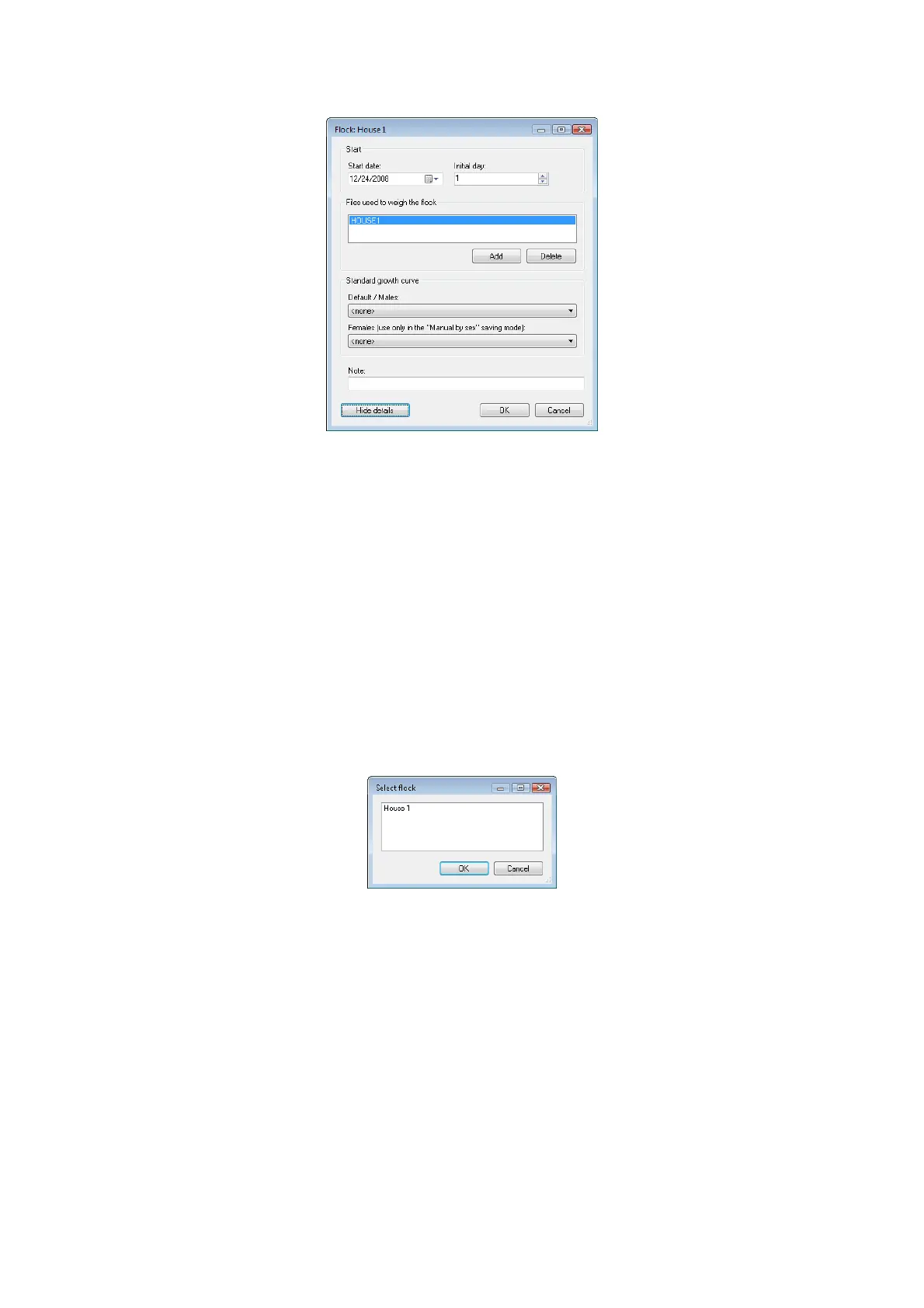
To add growth curve to the flock: select the Flocks tab and choose the required flock in the table Current flocks
and click the Edit button. Click Show details button in the dialog with the flock’s parameters. The section for
entering the growth curves will be displayed.
Use the Default/Males field to select a saved growth standard curve and close the dialog by clicking OK.
Select the Current flocks tab and then the Statistics tab. The weight calculated from the entered growth curve
will be displayed in the Target column. Select the Graphs tab. Select the required growth curve in the field with
text Standard growth curve.... The weight standard curve will be displayed in the graph along with the actual
weight curve.
8.7.2. Flock ending
Click the Flocks tab. In the Current flocks table, select the flock you want to close and click the Close button.
Enter the flock ending data in the following dialog. The flock will no longer be monitored and it will be moved
to the Closed flocks table.
8.7.3. Existing flock template
To start a new flock to replace a finished flock simply use the old flock as a template. Select the Flocks tab and
click the New button. At Do you want to use some existing flock as template?, click Yes. The list of flocks
already existing in the database will be displayed.
Select a flock, which will be used as a template for the new flock and click OK. Next dialog will ask for the
flock name. Enter new name of the flock and click OK. The dialog for entering the flock parameters will be
displayed. Change the date when the flock was started in the Start date field. Enter the flock age on the start
date in the Initial day field. Close the dialog by clicking OK.


 To Next Page