LabQuest
®
3 User Manual
www.vernier.com/labq3 5
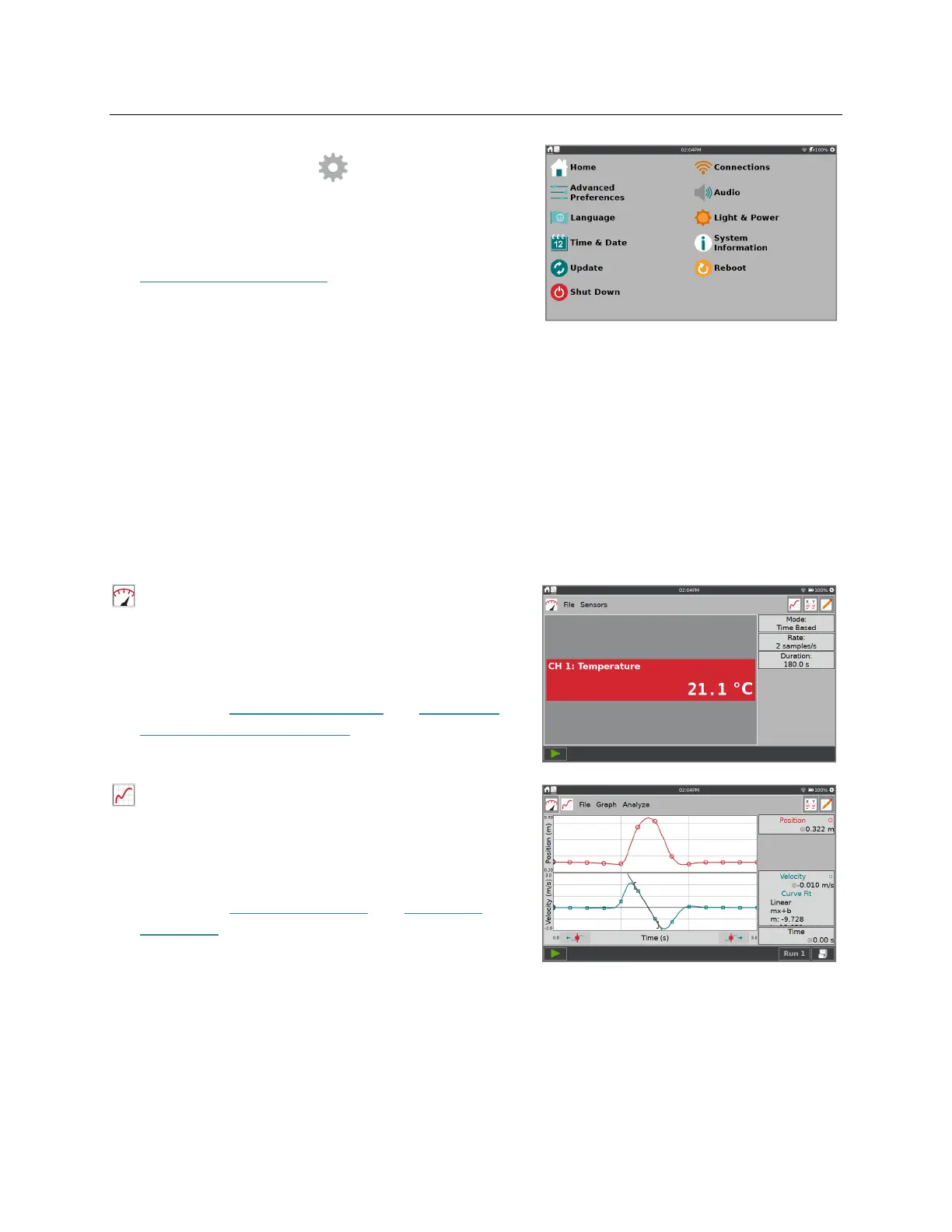
Accessing Settings
Tap or swipe down from the left side of the
Notification bar to view the Settings screen.
Tap to select the setting you want to modify. See
Customizing the Settings for more details.
Switching Between Running Apps
Swipe left or right from the edge of the screen to switch between running apps. The app order is
represented by the icons on the left side of the notification bar. The order that the icons appear
relates to the order in which the apps are launched.
Navigating the LabQuest App Screens
The LabQuest App Meter, Graph, Table, and Notes screens are accessed by tapping the
associated tab icons.
Meter screen
—Use the Meter screen to view live
sensor readouts, configure sensors, and set data-
collection parameters.
For a detailed description of how the Meter screen
is used, see Configuring Sensors and Modifying
the Data Collection Settings.
Graph screen
—From the Graph screen you can
view a graph of your data and perform analyses,
including curve fits.
For a detailed description of how the Graph screen
is used, see Setting Up Graphs and Analyzing
Your Data.


 To Next Page