Projecting and Monitoring LabQuest
®
3 Devices
50 Vernier Software & Technology
X. PROJECTING AND MONITORING LABQUEST 3 DEVICES
Use our LabQuest Viewer software (order code, LQ-VIEW) for Windows and macOS
computers or LabQuest Viewer for iPad to view and control LabQuest wirelessly from your
computer or iPad. LabQuest Viewer can be used in conjunction with a projector to share the
LabQuest 3 screen with the entire class.
Instructors can use LabQuest Viewer to demonstrate LabQuest 3 to the class and have students
present their work to fellow classmates.
With LabQuest Viewer, you can
View and control one or more LabQuest units from a computer or iPad.
Connect to a projector or interactive white board for class demos or student sharing.
Monitor student progress on any LabQuest connected to your network.
Create screenshots of the LabQuest screen to copy and paste into lab instructions.
Set customizable permissions that permit viewing without control, or password-protect a
connection.
LabQuest Viewer System Requirements
Windows
—Windows 7 (SP1), Windows 8, Windows 8.1, and Windows 10
macOS
—macOS 10.8 or newer
iPad
—iOS 8 or newer or iPadOS (any version)
LabQuest Setup
To set up your LabQuest to communicate with LabQuest Viewer, follow these instructions:
1. Connect LabQuest to a network. For detailed instructions, see Connecting to a Wi-Fi
Network.
TIP! The Network used for the LabQuest Viewer does not require internet connectivity.
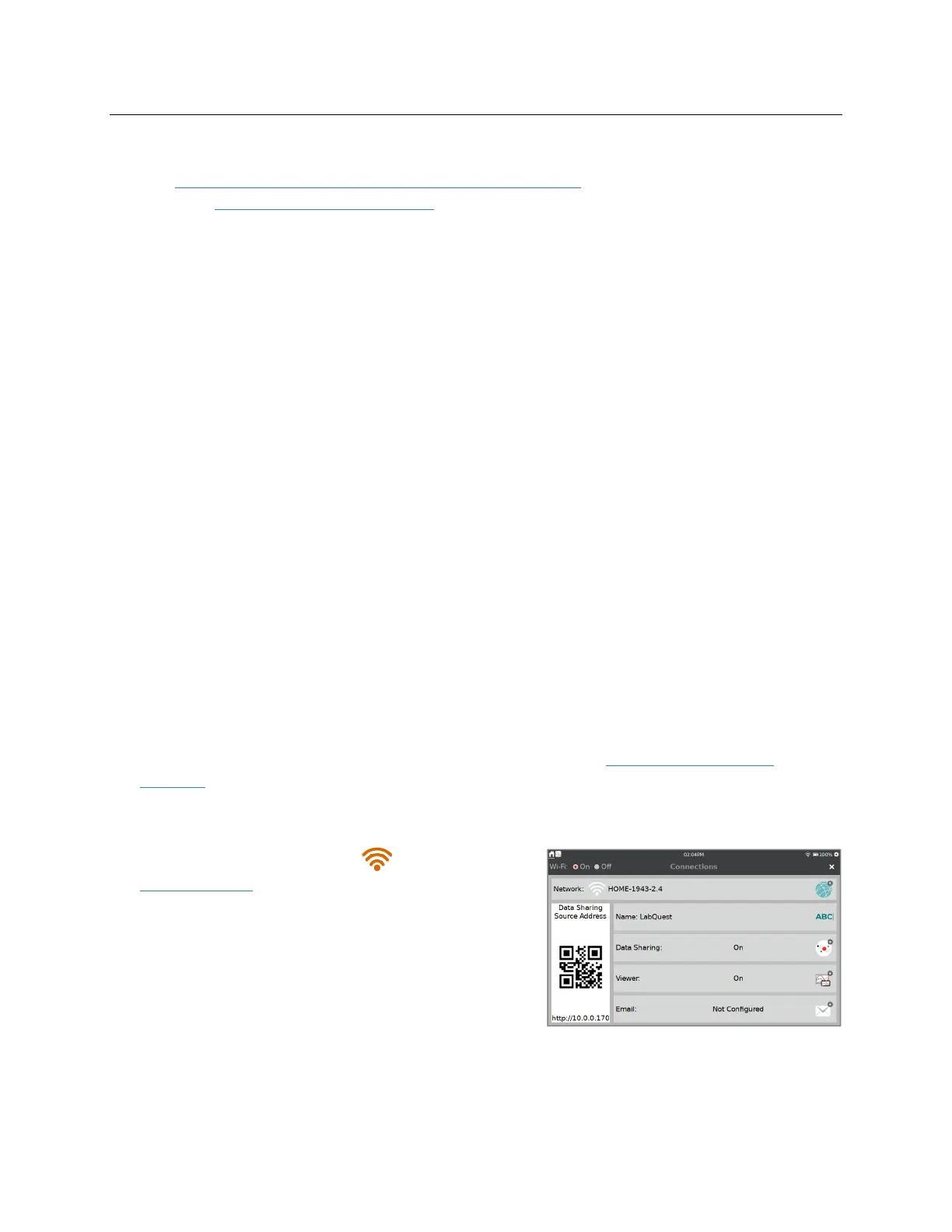
2. Launch the Connections app, , from the
Settings screen.


 To Next Page