Using the LabQuest
®
App
26 Vernier Software & Technology
Motion Matching
The Motion Match feature adds a target position or velocity plot on your graph that you can
match as you collect data. The Motion Match menu is only available if a Motion Detector (any
version), Motion Encoder, or Go Direct Sensor Cart is connected.
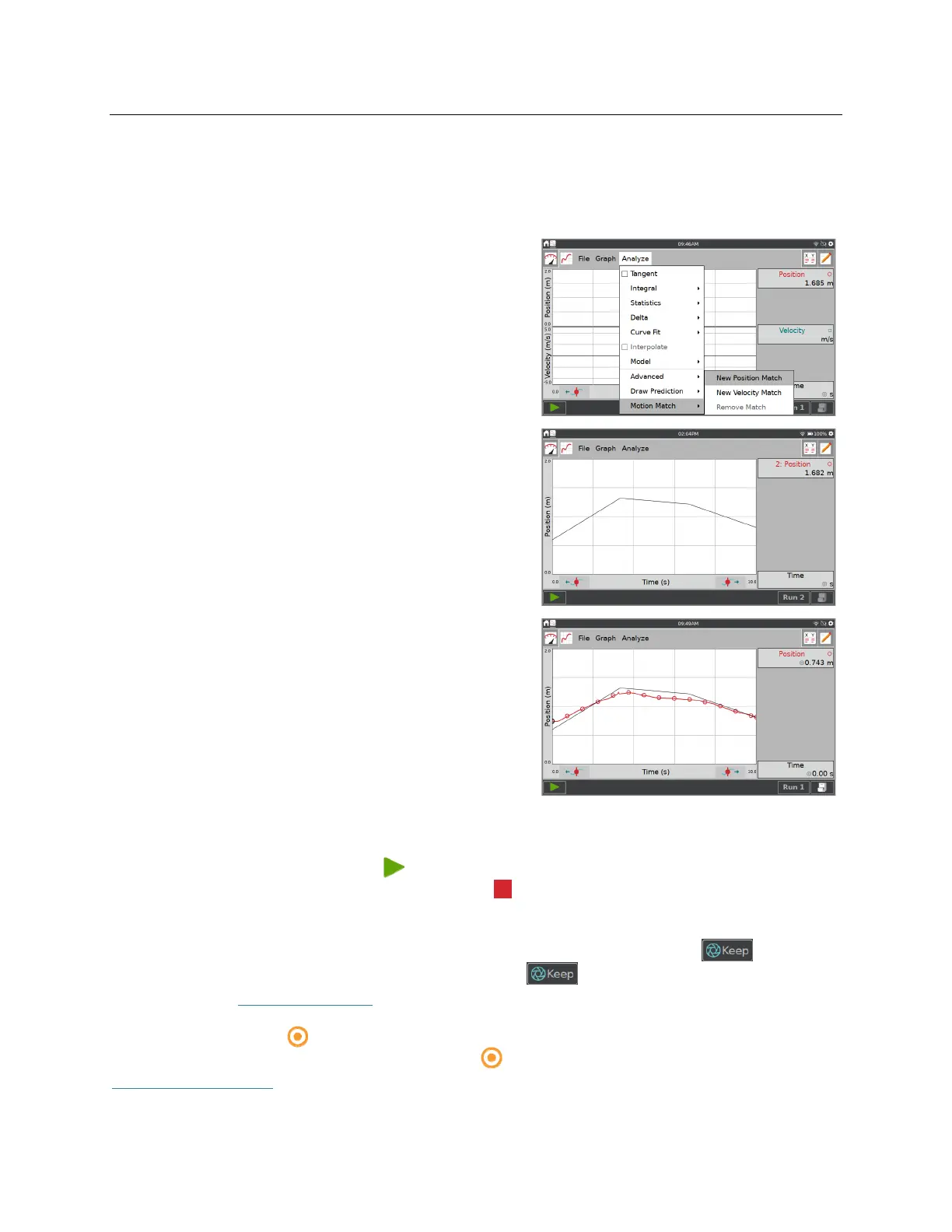
Choose Motion Match from the Analyze menu and
select either a New Position Match or New Velocity
Match to activate the tool.
When Motion Match is activated, a random target
graph is generated for the matching exercise. Only the
selected graph (Position or Velocity) is shown.
You can change or remove the target graph by again
choosing Motion Match from the Analyze menu and
selecting the applicable option.
When you start data collection, the collected data plot
over the target data. You can collect data over the
target graph an unlimited amount of times.
TIP! When using Motion Match, automatic graph
scaling is disabled. The graph does not automatically
scale to fit the data during or after data collection.
Collecting Data
To start data collection, tap Collect, , from any LabQuest App screen. As data are collected,
the graph and table are updated. You can tap Stop, , to end data collection early or wait until
the collection completes.
In event-based data-collection modes (e.g., Events with Entry), a Keep button,
, appears to
the right of the Stop button. In this mode, you must tap to record the data point. For more
information, see Events with Entry
.
The Data Mark button, , appears to the right of the Stop button when that option is enabled for
time-based collections. As data are collected, tap to mark a particular point of interest. See
Enable Data Marking
for more information.


 To Next Page